This guide describes the steps for manually installing Foswiki, with specific steps for installations on Linux with the Apache web server.
If you would prefer to use a different web server, please refer to supplemental documentation when you reach the Apache-specific steps:
Rather not install manually? Visit Foswiki:Download.OtherFoswikiInstallers for automated installers, and virtual machine images. These automate much of the installation process and may help some users get started more easily. For instructions using those packages, refer to the documentation provided there. Note that the installers are optimized for the target system, and do not necessarily follow the normal Foswiki directory structure documented below.
Upgrading? Please see the upgrade guide.
Need further information? Visit Foswiki:Support.SupplementalDocuments for additional notes on installing on different operating systems or shared web-hosting environments, performance tuning, security hardening and more.
Need help? Visit Foswiki:Support web or Foswiki:Community.InternetRelayChat (irc.freenode.net, channel #foswiki).
This guide assumes a basic knowledge of server administration on the system being used. For more information, see Foswiki:System.AdminSkillsAssumptions.
Before you start
This guide assumes the a basic knowledge of server administration on the system being used. For more information, see Foswiki:System.AdminSkillsAssumptions.
Review the System Requirements (below) to make sure you have server prerequisites installed.
Here's the quick version of the instructions, for those that are already comfortable with performing such installations. More detailed instructions follow.
Download and unpack the latest version of Foswiki.
Bootstrap your the install by browsing to the default view URL for your site in your web browser. Depending upon your Apache configuration, your view URL might look something like:
http://yoursite.com
http://yoursite.com/bin/view
http://yoursite.com/foswiki/bin/view
Follow the link in the Bootstrap banner of the returned page to the bin/configure tool, address any warnings and save your configuration.
That's it! You Foswiki should now be installed. Browse to /bin/view and start editing!
At some point, you will want to re-visit Configuring Foswiki to enable out-going emails, create administrators and properly secure your installation.
Detailed Instructions
Step 1: Download and unpack Foswiki
Go to your site's root directory as set by Apache (typically within the /var/www or /srv/www directory) or as set by your hosting company.
go to your web directory (usually /var/www) or in any directory you what to install Foswiki (designed after by /path/to/foswiki/)
Untar and gunzip the distribution using this command: (modify to match version number) tar -xzvf foswiki-VERSION.tgz A new subdirectory called Foswiki-VERSION will be created.
You can rename this subdirectory to a shorter name. For the rest of this document, this subdirectory is assumed to be at /path/to/foswiki.
Note: Foswiki does not support directory paths that contain spaces, so ensure that all of its directory paths do not contain any spaces (particularly on Windows).
Step 2: Confirm file and directory ownership and permissions
Note: Installers on shared hosting sites and Windows can skip to next step.
The general command in Linux distributions to set file ownership to the Apache system user is:
sudo chown -R {user}:{group} /path/to/foswik
The appropriate user/group ownership varies, depending upon the operating system and distribution:
RedHat, Fedora, CentOS, Gentoo, Mandriva
apache:apache
debian, Ubuntu, Kubuntu
www-data:www-data
Suse
wwwrun:www
FreeBSD
www:wwwadmin
The default file and directory access permissions as set by the distribution define a reasonable security level that will work for many types of installations, including shared hosting. Nonetheless, you should verify that the web server user has read access to all files and directories beneath the foswiki directory, and execute access for all directories. Also verify that the data and pub directories and all the subdirectories and files beneath them allow write access for the web server user.
For more information on the appropriate permissions to ensure security for your Foswiki data, see Foswiki:Support.SecuringYourSite.
Step 3: Configure location of the Perl executable
If you are running a Linux system with Perl found on the default path or are on a shared hosting site, then you can jump to this step. This step is required on Windows installations.
The easiest way to fix up the bin scripts is to run the tools/rewriteshebang.pl script:
cd /path/to/foswiki/tools
perl -I ../lib rewriteshebang.pl
or for Windows users:
cd C:\path\to\foswiki\tools
perl -I ..\lib  rewriteshebang.pl
The script will determine the location of the Perl interpreter and will prompt to update both the bin and tools scripts in a single step. The changed files will be reported, and it is safe to rerun the script.
If you get an error about perl command not found, the you need to find where your perl command is installed and include that in your command. For example:
C:\path\to\perl -I ..\lib rewriteshebang.pl
Step 4: Configure the web server
Foswiki provides several methods to configure Apache depending of your access to root and sudo and your preference to set all in one file or several files.
Method 1 and 2 provide better performance and requires editing only one file. However, they require root or sudo access. Method 3 is for cases where you do not have root access (such as on hosted sites).
In details:
Method 1: Use Foswiki's configuration generator(Needs root access)
This is the easiest and best way to generate a smooth-running and secure configuration file.
After installing the config file as per your distribution's guidelines, remember to restart or reload Apache each time you edit the file to apply your changes.
Method 2: Customize the Apache config template file included in distribution(Needs root access)
A sample config file called foswiki_httpd_conf.txt can be found in the root of the foswiki installation.
This is provided in case you can not access the online configuration generator.
Instructions are provided in the file for tailoring the configuration to you server.
Be carefull! The configuration shipped with Foswiki is for Apache 2.2 or earlier. Apache 2.4 has changed the syntax of the configuration file. Ensure that mod_access_compat is enabled for backwards compatibility when using Apache 2.4
As with Method 1, remember to restart or reload Apache each time you edit the file to apply your changes.
Method 3: Customize the .htaccess template files included in distribution(Useful on shared hosting sites)
Sample .htaccess files for the Foswiki root and each subdirectory are included in the root of your installation. Each file contains instructions on modifying it for your installation. For more information, see Foswiki:Support.SupplementalDocuments.
location and name of sample .htaccess file
copy sample file to the following location
tailoring required (Detailed instuctions in each file)
foswiki/root-htaccess.txt
foswiki/.htaccess
Optional: redirect to a default page for empty URL.
foswiki/bin-htaccess.txt
foswiki/bin/.htaccess
Yes - Must find/replace all instances of {DataDir}, {DefaultUrlHost} and {ScriptUrlPath} with valid information. The setting SetHandler cgi-script is critical to make sure that scripts in the bin directory will be executed by Apache.
foswiki/pub-htaccess.txt
foswiki/pub/.htaccess
Yes - Must set correct url path on ErrorDocument
foswiki/subdir-htaccess.txt
foswiki/<subdir>/.htaccess Copy to all other subdirectories below foswiki, including data, lib, locale, templates, tools, working. Copy to any other directories except for bin and pub addressed above.
No
General points to keep in mind with any of the above Apache configuration approaches:
For security purposes, it's important to check that web access is denied to all Foswiki subdirectories other than bin and pub. All three of the approaches described above (Foswiki:Support.ApacheConfigGenerator, the sample foswiki_httpd_conf.txt file included in the distribution, or .htaccess files) should provide for this but it should be confirmed by using web browser to confirm that direct access to the other directories is blocked.
Also for security purposes, be sure to turn off any kind of PHP, Perl, Python, Server Side Includes, or other software execution mechanisms supported by your web server in the pub directory. Again, the three approaches described above all provide for this. However, different script execution mechanisms are disabled in different ways so refer see your web server configuration and documentation for more details.
The configuration shipped with Foswiki is for Apache 2.2 or earlier. Apache 2.4 has changed the syntax of the configuration file. Ensure that mod_access_compat is enabled for backwards compatibility when using Apache 2.4, or use the updated Foswiki:Support.ApacheConfigGenerator24 config generator.
New with Foswiki 2.0 The configure script no longer needs any special protection within the Apache configuration.
Step 5: Bootstrap your configuration
Using your web browser, enter the default "view" url for your site. Depending upon your Apache configuration, this might look something like:
http://yoursite.com/foswiki/bin/view
http://yoursite.com/bin/view
http://yoursite.com This will Bootstrap your configuration and help Foswiki determine whether or not you are using Short URLs. It also logs you in as a the admin user. Don't close your browser until you've completed the configuration process and registered your first user.
Follow the link to configure rendered in the Bootstrap banner. (Do not manually enter the bin/configure URL or Foswiki will not correctly detect the URL configuration).
Make any required changes, and save the settings.
This will create the initial configuration and end the bootstrap process.
Configuration items which may require further attention will be highlighted.
Save as soon as possible, especially if your site is exposed. Anyone accessing Foswiki before the configuration has been saved will be granted admin rights.
If the Foswiki installation can be accessed by more than one protocol://domain, ensure the additional alternative URLs are set in {PermittedRedirectHostUrls}. Example: if {DefaultUrlHost} is set to https://wiki.company.com, an example {PermittedRedirectHostUrls} might contain:
https://company.com, http://111.222.123.234
If your server requires a Proxy in order to access external resources like your mail server, this is configured on the "Security and Authentication" tab, "Proxies" sub-tab. Complete that before proceeding with the E-mail configuration.
If you do not want to or are unable to configure from the web interface, there is an alternate command line configuration documented in InstallationGuide#ConfiguringFoswikiManually.
Step 6: Configure email
Outgoing e-mail is required for Foswiki to send registration confirmations, notifications of changes, password reset requests, etc.
Select the Mail tab in left bar of confgiure and fill out the following parameters:
The {WebMasterEmail} should be set to a valid e-mail address. This will be the From: ID used to send Foswiki Emails and will also appear on webmaster mailto: links.
If you are running on a *nix server with a configured local mail transport agent, you can try pressing the "auto-configure email" button. If auto-configure succeeds, proceed to the next step, to send a test email. If your server is a Windows server, if auto-configure failed, or you know a local transport agent is not available, continue with the SMTP e-mail configuration:
The {SMTP}{MAILHOST} should be set to your e-mail server hostame: ex: smtp.gmail.com
On most systems, you will also have to configure {SMTP}{Username} and {SMTP}{Password}. These are used so that Foswiki can sign into the e-mail server for purposes of sending e-mail.
Click the "auto-configure email" button. (This can run a long time as Foswiki probes all possible e-mail configurations) This will probe the mail server to discover it's configuration, and will finish the configuration. If all goes well, the settings will have been fine tuned for your e-mail server and e-mail is automatically enabled.
Once auto-configure completes, Click the "Send test email" button. located on the {WebMasterEmail} field This will verify if the configuration is correct and able to send mail. If e-mail is enabled, but not functional, you will be unable to register users.
Click the Save button in the upper right corner of the configuration page.
If auto-configure fails to complete, you can use the "Advanced settings" tab to manually configure the e-mail server. You will also need to configure the basic information tab.
Although outgoing email is necessary for user registration, it is not required for Foswiki to run otherwise, so if you are setting up a test installation or don't plan on enabling user registration, you can skip this step.
Step 7: Check Authentication and Register Yourself
Authentication of users means their activity can be tracked, and access to your site can be controlled. This is particularly important for sites that are publicly accessible on the web. Foswiki is pre-configured with a flexible and user-friendly authentication set-up that fits most common use-cases. To learn more about this set-up and available alternatives, see User Authentication Options. You can also revisit this later and switch to an alternative authentication set-up.
Test if authentication is working by going to System.UserRegistration and registering yourself.
If there are problems, see authentication trouble-shooting tips.
The last step in your configuration is to create and user with administration rights.
The steps outlined below are recommended for initial configuration. You should complete this before closing the browser after the bootstrap process. Once you close the browser you will lose your temporary admin status. Later on, you can review the further notes below regarding about administrators and options to protect configure and consider one of the more restrictive options.
Once the Foswiki bootstrap process is completed and you've logged out, configure will be restricted to Foswiki's "AdminGroup". Therefor you must add the user you just registered to the administrators group.
If you have not yet registered your first user, return to InstallationGuide#FirstUser and follow the steps to register a user. Once that is completed, return to Main.AdminGroup
Scroll down to the "Administration" section and click on "Add Members" link.
If you do not see the Admistration section, then you don't have authorization to change this group. See InstallationGuide#InternalAdmin for instructions on establishing an internal admin user.
Enter your WikiName as defined when you registered yourself.
Click the Add Member button
Return to the AdminGroup by clicking the group name on the confirmation page and look under "Members" to confirm you have been added.
Foswiki provides multiple ways to protect configure. See #AboutAdminUsers for more details on how to protect your configuration.
Step 9. Save your configuration!
Click the Save button in the upper right corner of the configuration page.
Refer back to any page in your installation (such as the "AdminGroup" page you were at in the previous step). The login section at the top of the left-hand menu should show that you are still be logged in as a temporary Admin user. Click on the "Log Out" link to exit that user.
Congratulations! Your Foswiki Installation is Ready to Use!
You now have set up your Foswiki installation! At this point you can start creating and editing pages. See InstallationGuidePart2 to proceed with further tailoring your site.
In order to keep your user, group, and site configuration information separate from the actual content of your site, it is recommended that you create a new web in which your site's pages will reside. See System.ManagingWebs for more information on Wiki webs and how to create one.
Troubleshooting
If you are having problems with your installation, try the following:
Foswiki is written in Perl 5, which is supported on Microsoft Windows as well as Unix and Unix-like systems (including Linux and OSX). On Unix-like systems, it uses a number of shell commands. It should be able to run out-of-the-box on any server platform that meets the following requirements.
Resource
Required Server Environment
Perl
5.8.8 or higher. A minimum of perl 5.12 is recommended.
External programs
GNU diff 2.7 or higher, fgrep, and egrep (not required on Windows)
Foswiki is designed to automatically detect the platform and generate a basic configuration the first time the configure script is run, but start from your expected default "view" URL, so that Foswiki can figure out your URL scheme.
Use either the bin/configure web interface, or the tools/configure perl script, to configure Foswiki. This will explore and test critical dependencies and alert you when any are missing. For a detailed report, See PerlDependencyReport.
Prior versions of Foswiki shipped with the important CPAN modules, for use as a "last resort". Since they are needed only in rare situations,
they were put into an optional extension. See Foswiki:Extensions.CpanContrib. Install this extension into your Foswiki installation directory if you cannot install Perl modules otherwise.
You can check the dependencies before Foswiki is fully operational with the following command. It will list all potentially missing dependencies. Not all listed dependences are required on all installations, Refer to the usage message that accompanies each missing dependency in the report.
cd /path/to/foswiki
perl tools/dependencies
Specific distribution details
*Find the closest match to your installed system. and click on the "Show ..."
link to reveal the details.
Install apache and rcs: apt-get install apache2 rcs
Perl Module
Package to install
Notes
Algorithm::Diff
libalgorithm-diff-perl
Archive::Tar
libarchive-tar-perl
Authen::SASL
libauthen-sasl-perl
CGI
libcgi-pm-perl
CGI::Session
libcgi-session-perl
Crypt::PasswdMD5
libcrypt-passwdmd5-perl
Digest::SHA
libdigest-sha-perl
*First shipped in perl 5.9.3
Encode
libencode-perl
Error
liberror-perl
File::Copy::Recursive
libfile-copy-recursive-perl
HTML::Parser
libhtml-parser-perl
HTML::Tree
libhtml-tree-perl
IO::Socket::IP
libio-socket-ip-perl
First shipped perl 5.19.8
IO::Socket::SSL
libio-socket-ssl-perl
JSON
libjson-perl
Locale::Maketext
liblocale-maketext-perl
Locale::Maketext::Lexicon
liblocale-maketext-lexicon-perl
Optional, needed for internationalization
Locale::Msgfmt
liblocale-msgfmt-perl
Optional, needed for internationalization
LWP
libwww-perl
URI
liburi-perl
version
libversion-perl
Must be version 0.77 or newer, included with perl 5.10.1 and newer.
Note: to install all the above: apt-get installlibalgorithm-diff-perllibarchive-tar-perllibauthen-sasl-perllibcgi-pm-perllibcgi-session-perllibcrypt-passwdmd5-perllibdigest-sha-perllibencode-perlliberror-perllibfile-copy-recursive-perllibhtml-parser-perllibhtml-tree-perllibio-socket-ip-perllibio-socket-ssl-perllibjson-perlliblocale-maketext-perlliblocale-maketext-lexicon-perlliblocale-msgfmt-perllibwww-perlliburi-perllibversion-perl
Optional dependencies
Install as needed.
Perl Module
Package to install
Notes
Apache2::Request
libapache2-request-perl
Required if using Apache 2 and mod_perl
DBI
libdbi-perl
Used for the Foswiki Page cache
DBD::mysql
libdbd-mysql-perl
Used for MySQL based Page Cache
DBD::Pg
libdbd-pg-perl
Used for PostgreSQL based Page Cache
DBD::SQLite
libdbd-sqlite3-perl
Used for SQLite based Page Cache
FCGI
libfcgi-perl
Optional, needed for fastcgi / fcgi apache modules
After expanding the Foswiki archive, change the ownership of the files:
Perl dependencies can also be installed on most systems using cpanm, aka App::cpanminus. On most unix* systems, cpanminus can bootstrap itself using curl or wget.
If run as root, the modules will be installed in the System perl. Otherwise they are installed into the users local environment.
curl -L http://cpanmin.us | perl - App::cpanminus    (optional - install cpanminus if not available )
cpanm Algorithm::Diff Archive::Tar Authen::SASL CGI CGI::Session Crypt::PasswdMD5 DBI DBD::mysql DBD::Pg DBD::SQLite Digest::SHA Error Encode File::Copy::Recursive HTML::Parser HTML::Tree IO::Socket::IP IO::Socket::SSL JSON Locale::Maketext  Locale::Maketext::Lexicon Locale::Msgfmt LWP version URI
If you want to install the dependendencies into a specified location, add the "-l" option to cpanm, and add the lib path to bin/LocalLib.cfg. The dependencies will be installed under the specified location, in the lib/perl5 subdirectory.
Example: User "foswiki" logs in and installs the libraries locally under the foswikideps directory:
cpanm -l foswikideps Algorithm::Diff Archive::Tar ... (install libraries into =/home/foswiki/foswikideps=)
/path/to/foswiki/bin/LocalLib.txt is then edited, and the commented line is modified:
Javascript, is required for configure, edit save and upload functionality. Foswiki is viewable without javascript.
CSS and Javascript are used in most skins. Some skins will require more recent releases of browsers. The default (Pattern) skin is tested on IE 6+, Safari, Chrome and Firefox.
You can easily select a balance of browser capability versus look and feel. Try the installed skins at System.SkinBrowser and more at Foswiki:Extensions.SkinPackage.
Uploading the Foswiki distribution to your web server host
If you cannot unpack the Foswiki distribution directly in your installation directory, you can unpack the distribution on your local computer, manually create the directory structure on your host server and upload the files as follows:
Using the table below, create a directory structure on your host server
Upload the Foswiki files by FTP (transfer as text except for the image files in pub directory.)
Note: Don't worry if you are not able to put the lib directory at the same level as the bin directory. You can create this directory elsewhere and configure the bin/setlib.cfg file.
Administrators have read and write access to any topic, regardless of any access controls that have been applied to the topic or its web. Administrators also have access to configure unless further restricted.
The default setup in Foswiki is that members of Main.AdminGroup have administrator privileges. Any member of the Main.AdminGroup can add subsequent members to that group.
To more easily debug access control issues, you may want to have a regular Foswiki user account for daily use, and a special one that belongs to the AdminGroup that you use only for administering your Foswiki site. See System.AccessControls for more information on access controls and user groups.
Options to Protect the Configure Script
Foswiki 2.0 has changed how configure is protected. You no longer need to establish special protections within the web server configuration.
There are now several choices for how to protect configure:
Option 1 Restrict configure to members of the AdminGroup:
This is the default configuration. You don't need to set anything special from within configure.
After you save your configuration, be sure to register a user and add them to the AdminGroup before you log out from the initial super admin login. Once you log out, you'll be blocked from any further configure access unless you can log in as a user in the AdminGroup. The default behaviour is that members of the AdminGroup have access to bin/configure
Option 2 Restrict configure to a defined list of users:
Visit the "Security and Authentication" tab, "Access control" sub-tab.
Set {FeatureAccess}{Configure} to a list of WikiNames that will be allowed access to configure.
This setting overrides use of the AdminGroup, and these users do not have to be members of the AdminGroup.
If you want the admin super-user to also have access to configure, you need to include "BaseUserMapping_333" in that list.
Option 3 Define a "super user" ID and allow it access to configure (This is not recommended)
Visit the "Security and Authentication" tab, "Passwords" tab. Enable "Expert" options. Set the {Password} field to a hashed ApacheMD5 encoded password.
See #InternalAdmin for more information.
You must at least do one of the above before closing your browser or logging out from the temporary admin authority established during bootstrap. Once you
close your browser, you have to have a usable id to run configure or you'll need to add a super-user admin login using the command line.
Establishing an internal admin login (optional)
Don't log in with the wikinameAdminUser, and never register or set a password for AdminUser.
There is an optional internal admin (Main.AdminUser) which is accessed by logging in with user admin and a password set in the configuration. Foswiki 2.0 no longer enables the internal admin by default.
Setting password from bin/configure interface: The password can be set in configure, in the "Security and Authentication" -> "Passwords" tab. Enter the password in plain text. It will be automatically hashed when saved, and cannot be recovered.
Setting the password from the command line: The password can also be set via command line configuration tool, using the following command:
tools/configure -save -set {Password}='adminpass'
Manually setting admin user in LocalSite.cfg: Follow these steps: ( Caution: This procedure only works for plain ascii passwords, it does not handle international characters.)
Generate the hashed password using the Apache htpasswd tool: (replacing {password} with your password)
htpasswd -bn admin {password}
Copy the password hash that's generated. (The part after admin: ex: $apr1$Oc.PLq8V$wslABA3mWXfYT/wH0Hsom0)
Search LocalSite.cfg for $Foswiki::cfg{Password}, Replace the existing line, or if not found, insert a new line in the file, as shown:
$Foswiki::cfg{Password} = '{password hash}';
User Authentication Options
The most common authentication methods used for public Foswiki installations are Template Login and Apache Login. They have the following relative advantages:
Template Login can be set up without any web server configuration, and users can log off without restarting the browser. As the login page is just a Wiki page, you can customize it to suit your needs.
Apache Login allows you to use any Apache-module based authentication scheme, such as mod_auth_ldap or mod_auth_mysql. However, as your browser is caching your login, you must restart the browser to log out.
Note that the password databases for both of these authentication mechanisms are compatible, so you can switch between them at a later date.
Template Login authentication
Template Login asks for a username (or optionally e-mail address) and password in a web page, and processes them using whatever Password Manager you choose. Users can log in and log out. Client Sessions are used to remember users. Users can choose to have their session remembered so they will automatically be logged in the next time they start their browser.
Enabling Template Login
By default, your Foswiki installation is probably already using TemplateLogin, HtPasswdUser and TopicUserMappingContrib as the default Login, Password and user mapping options.
Using configure, Security And Authentication tab
Navigate to the Login tab on the Security and Authentication panel. Select the Foswiki::LoginManager::TemplateLogin login manager.
Navigate to the Passwords tab. Select the appropriate PasswordManager for your system - the default is Foswiki::Users::HtPasswdUser.
There is an EXPERT configure setting {TemplateLogin}{PreventBrowserRememberingPassword} that you can set to prevent Browsers from remembering username and passwords if you are concerned about public terminal usage.
There is an EXPERT configure setting {TemplateLogin}{AllowLoginUsingEmailAddress} that you can set to allow users to login using their password system registered e-mail addresses.
Apache Login authentication
With Apache Login enabled, when Foswiki needs to authenticate the user, the standard HTTP authentication mechanism is used: the browser itself will prompt for a user name and password.
The rest of this section describes Webserver Login using the Apache web server, but the same process is applicable to other webserver implementations as well (though you may require a customised version of the ApacheLogin module to do it).
The advantage of this scheme is that if you have an existing website authentication scheme using Apache modules such as mod_auth_ldap or mod_auth_mysql you can just plug in to them directly.
The disadvantage is that because the user identity is cached in the browser, you can log in, but you can't log out again unless you restart the browser.
Foswiki maps the REMOTE_USER that was used to log in to the webserver to a WikiName using the table in Main.WikiUsers. This table is updated whenever a user registers, so users can choose not to register (in which case their webserver username is used for their signature) or register (in which case that username is mapped to their WikiName).
The same private .htpasswd file used in Foswiki Template Login can be used to authenticate Apache users, using the Apache Basic Authentication support.
Do not use the Apache htpasswd program to modify .htpasswd files generated by Foswiki! htpasswd wipes out e-mail addresses that Foswiki saves in the info fields of this file.
Apache Login is required for Apache-based login methods such as mod_ldap You can use any Apache authentication module that sets the REMOTE_USER environment variable.
To set up Apache Login, perform the following steps:
Configure Apache Login. Under the Security and Authentication pane on the Login tab in configure:
Select Foswiki::LoginManager::ApacheLogin for {LoginManager}.
Select Foswiki::Users::HtPasswdUser for {PasswordManager}.
Select Foswiki::Users::TopicUserMapping for {UserMappingManager}.
Save your settings.
Configure your Apache settings for HTTP authentication. Use the Foswiki:Support.ApacheConfigGenerator tool or the foswiki/bin-htaccess.txt file to set the following Apache directives on the bin scripts:(This example is for Apache 2.2, there are changes required if using Apache 2.4)
You can also refer to the sample foswiki_httpd_conf.txt and bin-htaccess.txt files to see how the appropriate Apache directives are specified.
Testing your authentication configuration:
Verify that registration works by registering yourself with the System.UserRegistration topic. If there are problems, try these troubleshooting tips:
Note: If e-mail is enabled in configure, Foswiki will not allow any new registrations unless e-mail is functional. In order to avoid issues, return to the Mail and Proxies, Email Test tab in configure and verify that Foswiki can successfully send e-mail.
If your PasswordManager is HtPasswdUser (the default), check the .htpasswd file is being updated correctly with a new entry. If not, check {Htpasswd}{FileName} is correct (under Security and Authentication on the Password tab in configure), and that the webserver user has write permission.
Create a new topic (in Sandbox web for example) to confirm that authentication works.
Add users to the Main.AdminGroup. Edit the Main.AdminGroup topic in the Main web to include users that should have administrator status. Read defining adminstrator user(s) for more information.
This is a very important step, as users in this group can access all topics, independent of Foswiki access controls.
Configuring Foswiki manually (without using the configure page)
Foswiki 2.0 includes a shell based configuration tool that can be run from a
server command-line login. It will bootstrap the configuration, and prompt
for settings as required. Here is an example of using it for an interactive
command line bootstrap:
$ tools/configure -save

LocalSite.cfg load failed
AUTOCONFIG: Found Bin dir: /var/www/foswiki/distro/core/tools, Script name:
configure using FindBin
AUTOCONFIG: PubDir = /var/www/foswiki/distro/core/pub
AUTOCONFIG: DataDir = /var/www/foswiki/distro/core/data
AUTOCONFIG: WorkingDir = /var/www/foswiki/distro/core/working
AUTOCONFIG: ToolsDir = /var/www/foswiki/distro/core/tools
AUTOCONFIG: TemplateDir = /var/www/foswiki/distro/core/templates
AUTOCONFIG: LocalesDir = /var/www/foswiki/distro/core/locale
AUTOCONFIG: ScriptDir = /var/www/foswiki/distro/core/bin
AUTOCONFIG: Unable to use PlainFileStore: ,v files were found in data or pub,
which indicates this installation is already configured for RCS e.g.
/var/www/foswiki/distro/core/data/WFWeb/WebChanges.txt,v
AUTOCONFIG: Store configured for RcsLite
AUTOCONFIG: {Store}{SearchAlgorithm} set to Forking
AUTOCONFIG: Detected OS UNIX:  DetailedOS: linux
** Enter values for critical configuration items.
** type a new value or hit return to accept the value in brackets.

This is the root of all Foswiki URLs.
For example, =http://myhost.com:123=
(do not include the trailing slash.)

{DefaultUrlHost} (http://localhost): http://myhost.com

This is the 'cgi-bin' part of URLs used to access the Foswiki bin
directory. For example =/foswiki/bin=.
See [[http://foswiki.org/Support/ShorterUrlCookbook][ShorterUrlCookbook]]
for more information on setting up Foswiki to use shorter script URLs.

{ScriptUrlPath} (/foswiki/bin):

...
It can also be run in a non-interactive mode, for use in automated deployment
systems.
Foswiki is 100% backwards compatible with TWiki™ markup up to and including TWiki 4.2.4. Existing TWiki webs, topics and attachments can be used with Foswiki without requiring any changes.
To support a seamless upgrade from TWiki, Foswiki ships with a plugin called TWikiCompatibilityPlugin. This plugin enables most TWiki extensions to work with Foswiki, without modifications. It also maps requests for legacy TWiki web topics to their Foswiki equivalents, as defined in Foswiki:Development.TopicNameMappingTable. The TWIKIWEB and MAINWEB TWiki variables are also mapped to the new Foswiki macros SYSTEMWEB and USERSWEB.
If you are not upgrading an existing TWiki installation and do not plan to install plugins from the TWiki web site, it is recommended that you disable the TWikiCompatibilityPlugin in the Plugins Section on the configure page.
If a plugin exists both in a TWiki version and a Foswiki version, it is strongly recommended that you use the Foswiki version, as this is coded to work optimally with Foswiki. As part of the Foswiki project, the Foswiki community is evaluating all of the extensions that are available for TWiki, and porting them over to the Foswiki name space. Many of them are being enhanced through the removal of bugs and security vulnerabilities, resulting in better, more functional extensions for Foswiki.
TWiki is a registered trademark of Peter Thoeny.
Related Topics:InstallationGuidePart2, AdminDocumentationCategory, Foswiki:Support.SupplementalDocuments
Foswiki Upgrade Guide
This guide covers upgrading from a previous version of Foswiki to Foswiki 2.0
Overview
Foswiki is a fork from TWiki 4.2.3. (TWiki® is a trademark of Peter Thoeny.)
Note that newer versions of Foswiki have not directly tracked newer versions of TWiki, and some divergence has occurred. Foswiki 2.0 diverges significantly in some areas.
If you are upgrading from TWiki to Foswiki, please refer to Foswiki:Support.UpgradingFromOlderTWikiReleases.
Carefully review Foswiki:System.SystemRequirements. Foswiki no longer ships with CPAN libraries. CPAN dependencies must be installed prior to upgrade.
Before upgrading, a backup of your topics is strongly recommended.
Once the upgrade has been applied, an existing earlier installation will still be able to read all the topics, but should not be used to write.
Upgrading to a new patch release
To upgrade to a new patch release — for example, from Foswiki 1.1.0 to 1.1.2 — an upgrade package can be used that will not overwrite any of your customizations. We do not recommend upgrading between major or minor versions using the patch (For ex. 1.1.9 to 2.0). A re-installation is recommended.
For patch releases you will find a brief upgrade procedure on the download page for the release. Follow this procedure to upgrade to the patch release. It may contain important steps that are unique to each patch release (for example, some configure settings may need to be changed).
If you use the Foswiki PageCaching feature, be sure to refresh the cache after upgrading to a new Foswiki version. Visit your site with the Query parameter ?refresh=all
Upgrade procedure: upgrading to a new major or minor version
The following is a high level view of the upgrade procedure:
Before the upgrade
Prepare for all upgrade steps.
Install the new Foswiki version and configure it with the same settings as the old version.
Windows server users: Don't forget to rerun tools/rewriteshebang.pl to fix up the Perl locations
Install any additional extensions (Plugins) used by your old installation. Make sure to use the latest Foswiki versions.
Convert all the non-default webs from the old installation to the new one. (Encoding and Store changes)
Convert the users, groups, and site customizations from the old installation to the Main web in the new installation, including all user topics.
Apply preferences from the old installation.
Apply your site customizations: skin, logos, menu bars, forms for personal information, and so forth.
Validate your Wiki applications and other key functionality.
Switch your production site from the old installation to the new installation.
More details for each step appear in the following sections. The steps may need to be modified or otherwise tailored with specifics for your installation. In particular, you must take care to preserve any special configuration or customizations you have made, especially if you have modified any of the default software files or system topics that are contained within the installation package.
For purposes of discussion, the following conventions are used:
<oldwiki> refers to the directory in which the old installation is located
<newwiki> refers to the directory in which the new installation is located; it is assumed to be immediately below the root directory of your web server
<old_users_web> refers to the web in which the user topics are located in the old installation. The default value is the Main web. The web is specified in the Store settings pane of the configure page, in the {UsersWebName} setting (visible when Expert mode is enabled).
<old_system_web> refers to the web used for documentation and default preferences in the old installation. In Foswiki, the default value is the System web. The web is specified in the Store settings pane of the configure page, in the {SystemWebName} setting (visible when Expert mode is enabled).
After the upgrade, in the new installation, the Main web is used for user topics and site preferences, and the System web is used to hold documentation and default preferences.
The configure page mentioned in this document is accessible via your web browser at http://yourdomain/<newwiki>/bin/configure .
Before the upgrade
Managing caches of static .js, .css files:
If you are using Expires tags, (you should be!) it is very important to take the longest expiration time into consideration. Clients will locally cache JavaScript and CSS until the time expires, unless they clear their cache. There are significant changes to the JavaScript and CSS files shipped with Foswiki 2.0. Clients using locally cached data will not operate correctly.
Prior to the upgrade, reduce the Expires tags to a short duration, for example 1 hour.
Examine your Apache configuration for statements like: ExpiresDefault "access plus 11 days", change it to ExpiresDefault "access plus 1 hour"
Defer the upgrade until the longest expiration time has passed. If the longest time was 2 weeks, delay the upgrade for 2 weeks.
Complete the upgrade.
Once confident that further upgrades, or fallback are not required, restore the original far future expiration.
If these steps are not done, users will have to clear their cache, or "shift-reload" the Foswiki pages to refresh cached information.
Prepare for all upgrade steps
Download the Foswiki distribution from the following location: http://foswiki.org/Download — if you are installing your extensions manually, also download them from the repository where they are stored. (Default extensions are included in the Foswiki distribution).
Review Foswiki:SystemRequirements and Install missing Perl modules using your local package manager or CPAN. Foswiki 2.0 no longer ships with CPAN modules. If you have access to the command line on the server, you can test for missing dependencies by running: perl tools/dependenciesReview the Release Notes and learn about the differences between your old installation and the new release to which you are upgrading. Take note of any areas that affect your site and what special steps you may need to take.
Check that all the extensions (plugins, contribs, skins) used by your old installation are available with the new release. Familiarize yourself with any new behaviour that you will have to adapt to or any configuration changes you will have to perform.
The EditTablePlugin has been deprecated and is not shipped with Foswiki 2.0. It is replaced by the EditRowPlugin. If you are upgrading an existing site, and have that plugin installed, only one of EditTablePlugin or EditRowPlugin should be enabled.
Review the deprecated jQuery javascript plugins. The JQueryPlugin has several changes in available jQuery JavaScript plugins. Determine if any of these will impact your JavaScript enabled topics.
Choose the character encoding to be used in your site.
Previous versions of Foswiki defaulted to iso-8859-1 encoding (The "Latin Alphabet 1, intended for US and Western European languages).
Foswiki 2.0 defaults to UTF-8 encoding, which provides better support for international character sets.
WARNING If you do not use the utf-8 {Store}{Encoding} and you intend to use, (or have existing) high-bit characters in attachment filenames
(such as umlauts and accents) then links to these attachments on Foswiki pages will not work. This is because Foswiki works internally using UNICODE, but
the store saves files to disk using your chosen {Store}{Encoding}. The solution is to convert your store to UTF8 at the earliest opportunity.
You must match the prior encoding, or convert old data to the new encoding if you intend to use topics created on an older version of Foswiki. There are two common use cases:
Case 1: Your existing site is already using utf-8 encoding. Character set conversion is not needed. Proceed to chosing your store.
Case 2: Your existing site uses the default iso-8859-1 or any other common encoding. All topics are consistent with this encoding. You have two options:
Recommended, use the bulk_copy.pl script to migrate your existing 1.1.x store over to Foswiki 2.0. Each topic will be converted from the 1.1.x {Site}{CharSet} encoding to the 2.0 {Store}{Encoding}. We recommend you leave 2.0 {Store}{Encoding} as undefined (utf-8). or
Set the 2.0 {Store}{Encoding} to match your 1.1.x {Site}{Encoding} and copy the data into Foswiki 2.0 unmodified.
Case 3: Your site contains a mix of encodings. This can happen if users manually paste in encoded data into topics, or topics are created / modified external to Foswiki.
In this case, any topics with unusual encodings will display corrupted. Use Foswiki:Extensions.CharsetConverterContrib to modify the character encoding of your Foswiki 1.1.x system in place. Changes in character encoding must be done using the RCS based store. When this tool is run with the -r (repair) option, the tool attempts to detect the encoding and can convert individual topics based upon their content. This is rather unpredictable and may require manual intervention.
We *strongly recommend that a backup be taken before attempting to use the CharsetConverterContrib. As it modifies topics and attachments in-place, it can cause damage and data loss. The recommended bulk_copy.pl script does not modify existing topics.
Note that it's possible that some data cannot be cleanly converted, for ex, if the Charset encoding was changed, so that different topic revisions use different encoding. In this case you may need to remove the topic history.
Choose your desired Store. Foswiki ships with two native stores.
RcsStoreContrib is compatible with topics created in prior versions of Foswiki.
PlainFileStoreContrib requires that topic histories be converted to a new history format. This can be done at the same time you convert the character set. perl -I lib tools/bulk_copy.pl --help for more information on conversion.
If you are using authentication, prepare a test plan to verify that your authentication mechanism is working correctly. Make sure you are able to test logins by a sufficient sample of users to cover all categories of users of your site. For example, users of various groups may need to be tested. In particular, ensure you test that non-admin users cannot access topics restricted to admins.
Empty DENYTOPICxxxx rules are deprecated They are disabled by default. We recommend converting any existing rules into * Set ALLOWTOPICxxxx = * wildcard allow rules. Use perl tools/convertTopicSettings.pl -help for further information on the conversion process.
Identify all essential Wiki topics and Wiki applications that must be fully functional upon completion of the upgrade. Prepare a test plan to verify their functionality. If you are using access controls, ensure that the test plan will adequately test all categories and groups of users of your site.
If your testing will require a test environment to be set up, ensure that it is ready, with any required support infrastructure (for example, testbed authentication servers). If you need to be able to login with different users in different categories and groups, ensure that you have the required login information ready, or you have testers from those groups available to perform the required test cases.
Installation
Follow the installation instructions in INSTALL.html, located in the root of the new installation. Install the new release in a new directory. Do not install on top of the old release.
For public or otherwise sensitive installations, ensure that your web server configuration is set to deny access to the new Foswiki installation for anyone except you.
Configure Foswiki using the configure page.
(Not recommended!) If you are upgrading from an older Foswiki release, first copy your <oldwiki>/lib/LocalSite.cfg file to <newwiki>/lib/LocalSite.cfg in order to preserve your existing configuration settings (Not recommended). Alternatively, you can reconfigure the new installation from scratch (you can use your old LocalSite.cfg file as a reference).
Verify all of the configuration settings on the configure page, including any new settings added in the new version. Save the configuration after you have completed your changes.
To wipe out all your settings and start configuring from a fresh installation, just delete the <newwiki>/lib/LocalSite.cfg file and visit your default view URL. From there follow the link to configure.
Test your newly-installed Foswiki site and ensure that its basic functionality works: viewing and editing topics (you can try creating and editing a topic in the Sandbox web).
Caution: If you intend to copy data from an older installation without using bulk_copy.pl to change Stores, you should select the RcsStoreContrib in the configuration.
Once topic history has been created with the wrong store, it has to either be removed, or old data should be migrated with bulk_copy.pl.
If Foswiki encounters mixed RCS and PlainFile topic history, it will "die" to prevent topic history corruption.
If you want to run Foswiki 2.0 in parallel with Foswiki 1.1.9, you can do this safely if the following conditions are met:
The RCS store is used on both installations. (RCSWrap and RCSLite are compatible.
The 2.0 {Store}{Encoding} must match the 1.1.9 {Site}{CharSet}
The 2.0 {AccessControlACL}{EnableDeprecatedEmptyDeny} setting should be enabled.
The 2.0 {Htpasswd}{CharacterEncoding} should match your 1.1.9 {Site}{CharSet}
The 2.0 {RCS}{TabularChangeFormat} should be enabled for compatible .changes file format.
To make it easier to follow the subsequent steps, you can view this upgrade guide using your new Foswiki site by entering System.UpgradeGuide into the "Jump" text box on the top right of any topic. By doing this instead of using the UpgradeGuide.html file from the distribution, you will be able to use the embedded hyperlinks to jump directly to the referenced pages.
Install extensions
Install all of the extensions that were installed in your old site. In particular, start with any extensions required for the authentication and authorization methods you use (if any). You can use the Install, Update or Remove extensions tab in the Extensions section of the configure page to review installed extensions, search for extensions or all available extensions and configure extensions from the Foswiki:Extensions repository. You can also install extensions manually; see the instructions on the extension's web page from where you obtained the extension (for Foswiki extensions, on foswiki.org).
Check the plugin topics from your old Foswiki installation and transfer the plugin settings to the Main.SitePreferences topic in your new Foswiki site, prefixing each setting with the name of the plugin in uppercase followed by an underscore. For example, to copy over the DEFAULT_TYPE setting from the CommentPlugin topic in the old site to the new site, copy the value to a COMMENTPLUGIN_DEFAULT_TYPE setting in the Main.SitePreferences topic in the new site.
Commonly-customized plugin settings include the following:
CommentPlugin - DEFAULT_TYPE
EditTablePluginDeprecated! Replaced with EditRowPlugin - CHANGEROWS, QUIETSAVE, EDITBUTTON
InterwikiPlugin - RULESTOPIC
InterWikis - If you added your own rules, make sure you copy over the rules to the new installation. Use of a local rules topic is the preferred way to customize the links.
SlideShowPlugin - If you changed the embedded 'Default Slide Template', then copy your customized template to the topic in the new installation. You should prefer creating your own slide show template in a separate topic, so you will not have to take special steps over upgrades to preserve your modifications to the default slide template.
SmiliesPlugin - If you added your own smileys, make sure you copy over your customizations to the topic in the new installatin.
TablePlugin - TABLEATTRIBUTES
Activate, and if required, configure the installed extensions in configure.
Copy parts of the working directory
The working directory contains some critical information for some extensions, found below the foswiki/working/work_areas directory.
Extensions use it to store persistent information critical to operation. For example, the MailerContrib directory contains the timestamps of the last notification email run per web.
If not copied, the next mailnotify run will notify all recorded changes.
This is the most common data that should be copied. Review other non-default extensions to determine if anything else should be copied.
Copy the data using tools/bulk_copy.pl
This is the recommended way to migrate your system. Note cautions below about
hidden files! Assume that you have the following setup:
Existing: /var/www/f119
New: /var/www/f120
Use the bulk_copy.pl tool to migrate your data:
cd /var/www/f120/tools
perl bulk_copy.pl --xweb System --xweb _default --xweb _empty --latest '*.WebStatistics' /var/www/f119/bin /var/www/f120/bin
This will copy all webs, topics and attachments except for the contents of the System web. This is the recommended solution.
Note that bulk_copy.pl has limitations! It uses the Foswiki Store API to copy topic and attachments. If the store doesn't recognize a topic or attachment, it won't be copied.
Files in pub that are "hidden" from the store are not copied.
Any filename beginning with an understore. Frequently used by extensions as cache type files. Could also have been directly uploaded.
Any filename beginning with a dot. For ex. .htaccess files.
Any filename beginning with an asterisk. (This appears to be historical, with no common use).
Files in pub that are not associated with a topic attachment META are not copied. (ex. files manually copied into the pub directories).
Auto attachments are not copied if the {RCS}{AutoAttachPubFiles} feature is not enabled.
Auto attached files in the RCS store will be converted to regular attachments in the PlainFile store. The PlainFile store does not support auto attachments..
Files in subdirectories of topic attachments are not copied. (ex. image caches, javascript & css subdirectories, etc.) This is common in the System web.
All topic revisions must have the same encoding. If {Site}{CharSet} was changed after history exists, the history will not convert correctly and the copy may fail.
Before proceeding with conversion, verify that the above limitations are not
applicable to your installation. If they are, you will currently need to:
Stay on the RCS style store
Use CharsetConverterContrib to change encoding if desired.
Manual copy steps (not recommended)
These steps can be used to manually migrate data when not changing the Store
type or encoding. This is currently the only way to deal with hidden files.
Content should be copied using the tools/bulk_copy.pl script. This will allow conversion to utf-8 and the PlainFile Store. Only proceed with this step if you will be remaining on the RCS store with your existing character encoding.
Copy content from non-default webs in old installation to the new installation
Be sure to select an "RCS Store" RcsWrap or RcsLite on the new installation. The PlainFile store is not compatible with topic history written on previous versions of Foswiki. If you have created or updated topics using PlainFileStore, you should either start over, or plan to to remove all ,pfv directories from the system so that there is no history in the PlainFileStore format.
Copy your local webs over to the data and pub directories of the new installation. Do not copy the default webs: <old_system_web> System, Main, Trash, Sandbox, _default, and _empty.
Make sure the data and pub directories, as well as the files within them, are readable and writeable by the web server user.
Note: Foswiki's WebChanges topics depend on the file timestamp. If you touch the .txt files make sure to preserve the timestamp, or change them in the same chronological order as the old file timestamps.
Verify that existing topics are operational and (if you converted to UTF-8) that any international characters have been properly converted and are displayed correctly.
Copy users, user topics, and site customizations to Main web
Copy all topics and attachments from <old_users_web>: copy all files from <oldwiki>/data/<old_users_web>/ to <newwiki>/data/Main/, and copy all files from <oldwiki>/pub/<old_users_web>/ to <newwiki>/pub/Main/ . Do not overwrite any topics already present in the <newwiki>/data/Main/ directory.
In addition to all the user topics, if you have created <old_users_web>.NewUserTemplate in the old installation, this step will copy over your template for user topics to the new installation.
Ensure that the topic defining the admin group in your old installation is copied over. The admin group is defined in the Security setup pane of the configure page, in the {SuperAdminGroup} setting (visible when Expert mode is enabled). You can do either of the following:
Set the {SuperAdminGroup} setting in your new installation to the old admin group.
Move the contents of the old admin group to the new admin group. To avoid having to change all references to the old admin group, you must still keep the old admin group defined: set it so its only member is the new admin group, and the new admin group is the only user who can change or rename the old admin group topic.
If your old installation did not customize {LocalSitePreferences} on the configure page, or if you did customize {LocalSitePreferences} but kept your site preferences within the <old_users_web> web, then this step will also copy over your site preferences to the new installation.
For upgrades from an older Foswiki installation:
Manually merge all users from the <old_users_web>.WikiUsers topic in the old installation to the Main.WikiUsers topic in the new installation. If the new installation does not yet have an initial Main.WikiUsers topic, then copy <oldwiki>/data/<old_users_web>/WikiUsers.txt to <newwiki>/data/Main/WikiUsers.txt.
Verify that the following default users are present in the Main.WikiUsers topic:
ProjectContributor - the Foswiki documentation is attributed to this user
RegistrationAgent - special user used during the new user registration process
UnknownUser - used where the author of a previously stored piece of data can't be determined
WikiGuest - guest user; used as a fallback if the user can't be identified
If any of the default users are missing, then add them in manually to Main.WikiUsers, using the corresponding entries in Foswiki:System.UsersTemplate as an example.
If you use data/.htpasswd for authentication, copy this file from the old installation to the new one.
If you have customized <old_system_web>.UserRegistration, then either copy over <oldwiki>/data/<old_system_web>/UserRegistration.txt and <oldwiki>/data/<old_system_web>/UserRegistration.txt,v to the <newwiki>/data/System/ directory, or modify System.UserRegistration in the new installation to contain your customizations.
Copy over any topics and attachments you want to preserve from the Sandbox web in the old installation: copy the desired files from <oldwiki>/data/Sandbox/ to <newwiki>/data/Sandbox and from <oldwiki>/pub/Sandbox/ to <newwiki>/pub/Sandbox . Some pages you may wish to preserve are the WebHome topic and the WebLeftBar topic (if you had created it in the old wiki installation). The Sandbox web often contains work-in-progress topics that users will want to keep.
Make sure the data and pub directories, as well as the files within them, are readable and writeable by the web server user.
Convert empty DENY ACLs to ALLOW * wildcards
By default, empty DENYTOPIC rules will be ignored by Foswiki 2.0. You must change them to the equivalent ALLOWTOPIC * rules. The tools/convertTopicSettings.pl utility will scan the Webs & Topics, and will perform several optional conversions on the topics.
Get help text for convertTopicSettings
perl tools/convertTopicSettings.pl -help
Scan all webs / topics, report any topics with empty DENY rules
perl tools/convertTopicSettings.pl
Replace all empty DENY rules with ALLOW * wildcards
When convertTopicSettings saves the modified topics, they will be saved by user UnknownUser.
Apply preferences from old installation
If you have not already set your desired site-wide preferences, as described in the section " Set Foswiki Preferences" in the InstallationGuide, then set your preferences. The location of your site preferences is specified in the Miscellaneous settings pane of the configure page, in the {LocalSitePreferences} setting (visible when Expert mode is enabled) — the default location is Main.SitePreferences. Copy any customized preferences from the site preferences topic in your old installation to the site preferences topic in the new installation. (Note you may have already copied over your customized preferences when you transfered the contents of the <old_users_web> web.)
(These should have been copied when your Main was migrated.)
If, in your old installation, you customized the default preferences in <old_system_web>.DefaultPreferences, then transfer your customizations from this topic to the site preferences topic instead (i.e. the topic specified in your {LocalSitePreferences} setting), so that your customizations will not get overwritten on the next upgrade.
Apply additional site customizations
Modify skin with customizations for your site
If you did not already customize the appearance of your new installation, as described in the section " Customize the appearance of your Foswiki site" in the InstallationGuide, then reapply the customizations from your old installation to the new one. Ensure you transfer over any skin templates — .tmpl files, or topics referred to using VIEW_TEMPLATE or EDIT_TEMPLATE preferences — you need. Also ensure you transfer any style sheets or Javascript files required.
Customize pages for managing personal information
In your new installation, default copies of the following topics were installed:
If you customized these topics in your old installation, transfer the changes to these topics in the new installation. Use the corresponding files in the <oldwiki>/<old_system_web>/ directory as a reference.
Validate your Wiki applications and other key functionality
Execute your test plan to validate the Wiki applications and other key functionality that need to be up and running after the upgrade.
Execute your test plans for authentication and authorization. Test that users that you have transferred from the old installation can login with any problems, and that access controls work appropriately: check that users are able to view and edit pages for which they have access, and are denied permission to view or edit pages for which they do not have access. Also check that pages restricted to the admin group are not accessible by non-admin users, and that administrators continue to have access.
Switch your production site from the old installation to the new installation
If you are converting from RCS to PlainFile store, you must not repeat any copy step from the old to the new version once you've run the conversion.
If you had been running your old installation in parallel with the new one during a test phase, then disable your old installation, and repeat the steps:
Change your web server configuration so that the new installation is accessible to all of your users, and so the old installation is no longer accessible.
Change your web server configuration so that the new installation is accessible using the same URL prefix as your old installation. For purposes of discussion, assume that your old installation is accessible from http://yourdomain/wiki/. You can use one of the following approaches to make the new installation accessible using the same URL prefix:
You can rename your <newwiki>/ directory to wiki/ (renaming the directory of your old installation if necessary).
If your operating system supports links to other directories and your web server is configured to follow links, then you can create a link called wiki/ that points to <newwiki>/ (renaming the directory of your old installation if necessary).
You can configure your web server so that requests to /wiki/ are served from your <newwiki>/ directory.
Re-execute your test plan to verify that your newly-upgraded site is accessible to your users, and that all authentication and authorization mechanisms work as expected (including denying access to those who are not authorized).
Re-execute your test plan to verify that your Wiki applications and other key functionality work as intended.
User Authentication
Controlling who can access your site
Overview
Authentication, or "login", is the process by which a user lets Foswiki know who they are.
Knowing who is accessing your site isn't just to do with controlling access, it's a critical part of what makes Foswiki a social medium. Foswiki uses user identities to manage a wide range of personal settings. Most importantly, it means every contribution is automatically attributed to the person who made it.
Foswiki authentication is very flexible, and can either stand alone, or integrate with existing authentication systems. You can set up Foswiki to require authentication for every access, or only for changes.
Quick Authentication Test - Use the %USERINFO% macro to return your current identity:
Foswiki user authentication is split into four sections; password management, user mapping, user registration, and login management. Password management deals with how users personal data is stored. Registration deals with how new users are added to the wiki. Login management deals with how users log in.
Once a user is logged on, they can be remembered using a Session stored (for example) in a cookie in the browser. This avoids them having to log on again and again.
Foswiki user authentication is configured through the Security Settings pane in the configure interface, Security and Authentication tab. Selecting an authentication method is a complex business, and you may want to read the Important Considerations section before you do so.
Password Management
'Password management' is the process by which user identies and passwords are stored and checked. This work of password management is done by a module called the 'Password Manager'.
The Password Manager is selected using the {PasswordManager} setting in the Security and Authentication -> Passwords tab in configure.
Out of the box, Foswiki comes with a default password manager. Alternatively you can install one of several different password managers to interface to third-party authentication databases (such as LDAP).
The default Password Manager, HtPasswdUser
This password manager uses .htpasswd files stored on the server. These files can be unique to Foswiki, or can be shared with other applications (such as an Apache webserver).
A variety of password encodings are supported for flexibility when re-using existing files. See the descriptive comments in configure for more details.
Caution: By default Foswiki uses the .htpasswd file to also store the e-mail addresses of registered users. If the .htpasswd file will be shared with another application, it is critical to preserve the e-mail address stored as the last field in each line of the file.
Changing Passwords (and Email Addresses)
If your {PasswordManager} supports password changing, you can change and reset passwords using forms on regular pages.
If the {PasswordManager} does not support password changing, the ChangePassword and ResetPassword will show a simple message. This message is defined by the setting CHANGEPASSWORDDISABLEDMESSAGE in DefaultPreferences. You can redefine this setting by copying it to SitePreferences and change it to include a link to the password management website of your organisation.
If the active {PasswordManager} supports storage and retrieval of user e-mail addresses, you can change your e-mail using a regular page. As shipped, this is true only for the Apache 'htpasswd' password manager.
If the {PasswordManager} does not support password changing, ChangeEmailAddress will guide the user to define the e-mail address in the user topic.
User Mapping
Usually when you are using an external authentication method, you want to map from an unfriendly 'login name' to a more friendly WikiName. This process is called 'User Mapping' and is performed in Foswiki by a module called the 'User Mapping Manager'.
The user mapping manager is selected using the {UserMappingManager} setting in the Security and Authentication -> User mapping tab in configure.
A secondary function of the User Mapping Manager is to import information such as user groups from an external user authentication module.
Out of the box, Foswiki comes with a default user mapping manager that maps usernames to wikinames, and supports Foswiki groups internal to Foswiki. If you want, you can plug in an alternate user mapping module to support import of groups etc.
The default User Mapping Manager, TopicUserMapping
This module uses the content of certain specific Foswiki topics to map usernames to wikinames, and supports Foswiki groups internal to Foswiki. This module is described in depth in TopicUserMappingContrib.
User Registration
'User registration' is the process by which a new user registers to use the wiki. Foswiki new user registration is a sophisticated process which negotiates with the Password Manager and User Mapping Manager to establish the identity of the user, to set and change passwords, and store e-mail addresses and other user meta-data. The process includes:
bulk user registration via the BulkRegistration page (for admins only).
Registration options are selected in the Security and Authentication -> Registration tab in configure.
Custom registration page
You can customize the default System.UserRegistration topic by first copying System.DefaultUserRegistration to UserRegistration in Main web. This will ensure that your changes will remain intact next time you upgrade. There are some brief instructions on UserRegistration that helps you accomplish this.
The UserRegistration page is assembled from INCLUDE blocks hidden on the page. They are documented in HTML Comments that are only visible when you edit the page.
The first FORMAT macro is used expand the blocks that define the main body of the page.
Further down is a block %FORMAT{ ... In that block you can enable other optional fields, such as group membership, country, organization, etc.
New fields may also be added. The name="" parameter of the <input> tags must start with: "Fwk0..." (if this is an optional entry), or "Fwk1..." (if this is a required entry). This ensures that the fields are carried over into the user home page correctly. Scroll down further on the page to find a STARTSECTION for a similar field. For example =]] macro in the topic, thus:
ALLOWWEBCHANGE was defined in System.WebPreferences
Set DENYWEBRENAME = ""
Set ALLOWWEBRENAME = "%USERSWEB%.AdminGroup"
ALLOWWEBRENAME was defined in System.WebPreferences
Hide control settings
To hide access control settings from normal browser viewing, you can put them into the topic preference settings by clicking the link Edit topic preference settings under More topic actions menu. Preferences set in this manner are not visible in the topic text, but take effect nevertheless. Access control settings added as topic preference settings are stored in the topic meta data and they override settings defined in the topic text.
Alternatively, place them in HTML comment markers, but this exposes the access setting during ordinary editing.
<!--

 * Set DENYTOPICCHANGE = Main.SomeGroup

-->
Formatting Command:
You write:
You get:
Paragraphs:
Blank lines will create new paragraphs.
1st paragraph

2nd paragraph
1st paragraph
2nd paragraph
Headings:
Three or more dashes at the beginning of a line, followed by plus signs and the heading text. One plus creates a top level heading, two pluses a second level heading, etc. The maximum heading depth is 6.
You can create a table of contents with the %TOC% macro. If you want to exclude a heading from the TOC, put !! after the ---+.
Empty headings are allowed, but won't appear in the table of contents.
See the <ho> tag below for how to adjust heading levels dynamically.
---++ Sushi
---+++ Maguro
---+++!! Not in TOC
Sushi
Maguro
Not in TOC
Bold Text:
Words get shown in bold by enclosing them in * asterisks.
*Bold*
Bold
Italic Text:
Words get shown in italic by enclosing them in _ underscores.
_Italic_
Italic
Bold Italic:
Words get shown in bold italic by enclosing them in __ double-underscores.
__Bold italic__
Bold italic
Fixed Font:
Words get shown in fixed font by enclosing them in = equal signs.
=Fixed font=
Fixed font
Bold Fixed Font:
Words get shown in bold fixed font by enclosing them in == double equal signs.
==Bold fixed==
Bold fixed
You can follow the closing bold, italic, or other (* _ __ = ==) indicator
with normal punctuation, such as commas and full stops.
Make sure there is no space between the text and the indicators.
_This works_,
_this does not _
This works,
_this does not _
Separator (Horizontal Rule):
Three or more three dashes at the beginning of a line..
---
Bulleted List:
Multiple of three spaces, an asterisk, and another space.
For all the list types, you can break a list item over several lines by indenting lines after the first one by at least 3 spaces.
   * level 1
      * level 2
   * back on 1
   * A bullet
     broken over
     three lines
   * last bullet
level 1
level 2
back on 1
A bullet broken over three lines
last bullet
Numbered List:
Multiple of three spaces, a type character, a dot, and another space. Several types are available besides a number:
Note that while type characters A, a, I and i must be entered exactly as specified, numbers can be any single digit 0-9. It is recommended for future compatibility that only the number 1 be used for numbered type lists.
   1. Sushi
   1. Dim Sum
   1. Fondue

   A. Sushi
   A. Dim Sum
   A. Fondue

   i. Sushi
   i. Dim Sum
   i. Fondue
Sushi
Dim Sum
Fondue
Sushi
Dim Sum
Fondue
Sushi
Dim Sum
Fondue
Definition List:
Three spaces, a dollar sign, the term, a colon, a space, followed by the definition.
   $ Sushi: Japan
   $ Dim Sum: S.F.
Sushi
Japan
Dim Sum
S.F.
Definition List: (deprecated)
Three spaces, the term (a single word, no spaces), a colon, a space, followed by the definition.
   Sushi: Japan
   Dim-Sum: S.F.
Sushi
Japan
Dim-Sum
S.F.
Indented Text:
Three spaces, a colon, a space, followed by the paragraph.
Continue a paragraph by indenting the line with 3 spaces.
Create deeper levels of indentation by using multiples of 3 spaces.
   : Indented line
   Continued
   : New paragraph
      : 2nd level indent
Indented line Continued
New paragraph
2nd level indent
Table:
Each row of the table is a line containing of one or more cells. Each cell starts and ends with a vertical bar '|'. Any spaces at the beginning of a line are ignored.
| *bold* | header cell with text in asterisks
| center-aligned | cell with at least two, and equal number of spaces on either side
| right-aligned | cell with more spaces on the left
| 2 colspan || and multi-span columns with multiple |'s right next to each other
|^| cell with caret indicating follow-up row of multi-span rows
You can split rows over multiple lines by putting a backslash '\' at the end of each line
Contents of table cells wrap automatically as determined by the browser
Use %VBAR% or | to add | characters in tables.
Use %CARET% or ^ to add ^ characters in tables.
The TablePlugin provides the |^| multiple-span row functionality and additional rendering features
WikiWord Links:
CapitalizedWordsStuckTogether (or WikiWords) will produce a link automatically if preceded by whitespace or parenthesis.
If you want to link to a topic in a different web write Otherweb.TopicName.
To link to a topic in a subweb write Otherweb.Subweb.TopicName.
The link label excludes the name of the web, e.g. only the topic name is shown. As an exception, the name of the web is shown for the WebHome topic.
Dots '.' are used to separate webs and subwebs from topic names and therefore cannot be used in topic names.
It's generally a good idea to use the macros %SYSTEMWEB%, %SANDBOXWEB% and %USERSWEB% instead of System, Sandbox and Main.
To prevent a word from linking, prefix it with the exclaimation mark (!) or <nop>
Anchors:
You can define a reference inside a topic (called an anchor name) and link to that. To define an anchor write #AnchorName at the beginning of a line. The anchor name must be a WikiWord of no more than 32 characters. To link to an anchor name use the [[MyTopic#MyAnchor]] syntax. You can omit the topic name if you want to link within the same topic.
[[WikiWord#NotThere]]

[[#MyAnchor][Jump]]

#MyAnchor To here
Forced Links:
You can create a forced internal link by enclosing words in double square brackets.
Text within the brackets may contain optional spaces; the topic name is formed by capitalizing the initial letter and by removing the spaces; for example, [[wiki word]] links to topic WikiWord. You can also refer to a different web and use anchors.
To "escape" double square brackets that would otherwise make a link, prefix the leading left square bracket with an exclamation point.
Renamed Links:
You can create a link where you specify the link text and the URL separately using nested square brackets [[reference][text]]. Internal link references (e.g. WikiWord) and URLs (e.g. http://foswiki.org/) are both supported.
The rules described under Forced Links apply for internal link references.
Anchor names can be added as well, to create a link to a specific place in a topic.
Automatic links:
Typed-in URLs are linked automatically. Most standard protocols are supported; if yours is missing, it can be added by the site administrator.
URLs for images are automatically inserted inline.
Email addresses are also linked automatically, see further details below.
automatic linking of URLs and email addresses is not blocked by the noautolink setting.
Prevent an Automatic Link:
Prevent a WikiWord, URL, email address or image from being linked by prepending it with an exclamation point (!) or <nop> tag.
Note that you can use the <nop> tag, but any leading markup directly adjacent to a wikiword will prevent automatic linking because the word is no longer space delimitied.
Disable Automatic Linking:
You can disable automatic linking of WikiWords by surrounding text with <noautolink> and </noautolink> tags. You can also turn off WikiWord auto-linking with the NOAUTOLINK preference setting.
The noautolink feature only applies to WikiWords. It does not stop linking of URLs, or email addresses.
 <noautolink>
 RedHat & SuSE
 </noautolink>
RedHat & SuSE
Mailto Links:
E-mail addresses are linked automatically. To create e-mail links that have more descriptive link text, specify subject lines or message bodies, or omit the e-mail address, you can write [[mailto:user@domain][descriptive text]].
automatic linking of email addresses is not blocked by <noautolink>, Escape with a ! to prevent auto linking.
Special characters:
Some characters are reserved for use by TML
Display them in your output by using the HTML entities.
Use HTML entities to display characters that are not supported by your site character set (e.g. special mathematical symbols). There's a complete list of named entities in Wikipedia
Use numerical entities to display any unicode character (e.g. Chinese script).
To prevent Foswiki from treating ! as an escape, escape it with <nop>, or use the ! entity
< > & ℵ 亹
A <nop>!= B != C
<nop>!here, !here
< > & ℵ 亹
A != B != C
!here, here
Escaping Macros
Prevent a Macro from being expanded by prepending it with an exclamation point.
To expand the macro, but escape any wikiword it expands into, use the <nop> tag.
%TOPIC%

<nop>%TOPIC%
%TOPIC%
EditingShorthand
Controlling how content is rendered:
There are 3 ways to control how your topic content is rendered. This is done with three HTML or
pseudo-HTML tags: <literal>, <verbatim> and <pre> They
control whether or not:
Wiki markup (TML) is rendered
Macros (ex: %TOPIC%) are expanded
HTML is rendered
White space preserved
Auto linking of WikiWords and Email addresses occurs
These are explained in more details in the next sections, but are summarized to the right:
TML
HTML
Macros
White Space
Auto Link WikiWord
Auto Link Email
<verbatim>
<literal>
<pre>
<noautolink>
Literal content:
Foswiki generates HTML code from TML shorthand.
Experts surround anything that must be output literally in the HTML code, without the application of
shorthand rules, with <literal>..</literal> tags.
Any HTML
within literal tags must be well formed i.e. all tags must be properly closed before
the end of the literal block.
Macros are expanded within literal blocks.
<literal>
| Not | A | Table |
</literal>
| Not | A | Table |
Verbatim (Literal) Text:
Surround code excerpts and other formatted text with <verbatim> and </verbatim> tags.
verbatim tags disable HTML code. Use <pre> and </pre> tags instead if you want the HTML code within the tags to be interpreted.
Preferences settings (* Set NAME = value) are set within verbatim tags.
Protected content: Experts protect text from mangling by WYSIWYG editors using
<sticky>..</sticky> tags. Sticky tags don't have any effect on normal
topic display; they are only relevant when content has to be
protected from a WYSIWYG editor (usually because it isn't well-formed HTML, or because it
is HTML that WYSIWYG would normally filter out or modify). Protected
content appears as plain text in the WYSIWYG editor.
Any HTML within sticky tags must be well formed
i.e. all tags must be properly closed before
the end of the sticky block.
Macros are expanded within sticky blocks.
<sticky>
<div>
This div
%RED%is%ENDCOLOR%
required
</div>
</sticky>
This div
is
required
Adjust heading levels:
You can adjust heading levels for headings generated using ---+ markup and also HTML <h> tags using the <ho> tag. The %INCLUDE and %SEARCH macros also have a headingoffset parameter to do this for you in included content. Heading levels are limited to the range 1..6 after any offset is applied.
---++ offset is 0
<ho off="1">
---++ H2 becomes H3
<ho off="-1">
---++ offset was 1, so offset is now 0
offset is 0
H2 becomes H3
offset was 1, so offset is now 0
Macros
Special text strings expand on the fly to display information, or trigger a function.
Macros are text strings in one of two forms:
%MACRONAME%
%MACRONAME{ parameter="value" }%
These usually expand into content when a topic is rendered for viewing. There are two types of macros:
type %CALC{ "$UPPER(Text)" }% to get TEXT (CALC is a macro defined by SpreadSheetPlugin)
Note:
To leave a macro unexpanded, precede it with an exclamation mark, e.g. type !%TOPIC% to get %TOPIC%
Alternatively, insert a <nop> anywhere in the macro, Eg. %<nop>TOPIC%
Macros are expanded relative to the topic they are used in, not the topic they are defined in
Type %ALLVARIABLES% to get a full listing of all macros defined for a particular topic
If a macro is not defined, then it will be left in the text unless it is called with a default parameter, in which case the value of the default parameter will replace the macro call in the output. For example, %UNDEFINED{default="blank"}% will expand to blank.
Order of expansion
The following describes only these types of macros:
The macros are expanded in this order: MACRO3, MACRO4, MACRO2, MACRO1.
Step-by-Step Example
Step 1
%INCLUDE{
    "%QUERY{
        "'%THETOPIC%'/%THEFIELD%"
    }%"
    section="Summary"
}%
   * Set THETOPIC = %SYSTEMWEB%.FAQWhatIsWikiWiki
   * Set THEFIELD = TopicClassification
Step 2
%INCLUDE{
    "%QUERY{
        "'%SYSTEMWEB%.FAQWhatIsWikiWiki'/%THEFIELD%"
    }%"
    section="Summary"
}%
   * Set THETOPIC = %SYSTEMWEB%.FAQWhatIsWikiWiki
   * Set THEFIELD = TopicClassification
Step 3
%INCLUDE{
    "%QUERY{
        "'%SYSTEMWEB%.FAQWhatIsWikiWiki'/TopicClassification"
    }%"
    section="Summary"
}%
   * Set THETOPIC = %SYSTEMWEB%.FAQWhatIsWikiWiki
   * Set THEFIELD = TopicClassification
Step 4
%INCLUDE{
    "%QUERY{
        "'System.FAQWhatIsWikiWiki'/TopicClassification"
    }%"
    section="Summary"
}%
   * Set THETOPIC = %SYSTEMWEB%.FAQWhatIsWikiWiki
   * Set THEFIELD = TopicClassification
Step 5
%INCLUDE{
    "FrequentlyAskedQuestion"
    section="Summary"
}%
   * Set THETOPIC = %SYSTEMWEB%.FAQWhatIsWikiWiki
   * Set THEFIELD = TopicClassification
Step 6
These topics are for frequently
asked questions including answers.

   * Set THETOPIC = %SYSTEMWEB%.FAQWhatIsWikiWiki
   * Set THEFIELD = TopicClassification
Step 7
These topics are for frequently
asked questions including answers.

   * Set THETOPIC = System.FAQWhatIsWikiWiki
   * Set THEFIELD = TopicClassification
Delayed form
Standard form macros can nearly always be used to build the parameter string of another macro; however, sometimes it is desirable to bypass the inside-out expansion order and delay the inner macro until after the outer macro has finished expansion. This is accomplished by using the $percent format token instead of %, and escaping any " character it uses (becomes \")
When working with a given macro, consult its documentation to determine which parameters support the $percent/$percntformat tokens. Generally only output parameters like header, format and footer support format tokens.
Macro names must start with an ASCII letter. The following characters can be ASCII letters, numbers and the underscore '_'. Letters may be upper or lower-case, E.g. %MYVAR%, %MyVar%, %My2ndVar%, and %My_Var% are all separate, valid macro names (macros are case sensitive - %MyVAR% and %MYVAR% are not the same).
By convention all settings, predefined macros and macros registered by plugins are always UPPER-CASE.
Preference Settings
A preference setting lets you define a simple macro that will be expanded in your output.
A preference setting looks like this: [multiple of 3 spaces] * [space] Set [space] MACRONAME [space] = [space] value Example:
* Set WEBBGCOLOR = #FFFFC0
Macros defined using preference settings are expanded by enclosing their name in percent signs. So when you write %WEBBGCOLOR%, it gets expanded to #B9DAFF
A preference macro is always taken from the most current topic revision, even when accessing previous revisions of a topic.
Preferences can be defined in a number of places:
In user topics, if the user has one (yours is Main.WikiGuest)
WebPreferences in each web.
Sub-webs inherit the WebPreferences of their parent
In the topic being accessed
In this list, Set statements which occur at numerically higher locations override macros of the same name defined at lower numbered levels, unless the macro was listed in a finalpreferences setting (finalised) at a lower-numbered level. in this case, the macro is locked to the value at that level; set statements at higher-numbered levels are ignored.
Writing preference settings
Preference settings are written as a simple bullet. In TopicMarkupLanguage
they are written as 3-spaces,asterisk,equals,value
* Set MYSETTING = My setting value
When using the Wysiwyg editor, click the "Bullet" button and write the setting
as a simple bullet. Don't include the asterisk.
Spaces between the = sign and the value will be ignored. You can split a value over several lines by indenting following lines with spaces - as long as you don't try to use * as the first character on the following line.
Example:
   * Set MACRONAME = value starts here
     and continues here
Whatever you include in your macro will be expanded on display, exactly as if it had been entered directly (though see Parameters, below).
Example: Create a custom logo macro
To place a logo anywhere in a web by typing %MYLOGO%, define the preference settings in the web's WebPreferences topic, and upload a logo file, ex: mylogo.gif. You can upload by attaching the file to WebPreferences, or, to avoid clutter, to any other topic in the same web, e.g. LogoTopic. Sample preference setting in WebPreferences:
* Set MYLOGO = %PUBURL%/%WEB%/LogoTopic/mylogo.gif
Preference settings are case sensitive. (Foswiki by convention always writes settings in upper case.)
   * Set lower = This is LOWER
   * Set LOWER = This is UPPER
   * Set LoWeR = This is MIXED
Expand %lower%, %LOWER% and %LoWeR%
Expand %lower%, %LOWER% and %LoWeR%.
preference settings can easily be disabled with a # sign. Example:
* #Set DENYWEBCHANGE = %USERSWEB%.UnknownUser
Hiding preference settings
You can hide preference settings in the output by enclosing them in HTML comments; for example,
<!--
   * Set HIDDEN = This will be invisible in the output
-->
You can also set preference settings in a topic by clicking the link Edit topic preference settings under More topic actions. Preferences set in this manner are known as 'meta' preferences and are not visible in the topic text, but take effect nevertheless.
Caution If your topic will be used in an INCLUDE, it is recommended to not use HTML comments. instead, set preferences
into the topic metadata by using the "Edit Settings for this topic" button on the "More topic actions" page. Settings in an included topic are always ignored,
but nested comments will break the HTML.
Order of preference settings
If you are setting a preference and using it in the same topic, note that Foswiki reads all the preference settings from the saved version of the topic before it displays anything. This means you can use a setting anywhere in the topic, even if you set it at the very end. But beware: it also means that if you change the setting of a macro you are using in the same topic, Preview will show the wrong thing, and you must Save the topic to see it correctly.
Preference settings and topic revision history
Foswiki always reads the settings from the most current topic revision, so viewing older revisions of a topic can show unexpected results.
And especially important, preference settings are never overridden or set in "%INCLUDE{" topics. in the below example about weather conditions, note the difference in the CONDITIONS expansion
Parameters
Note that %CONDITIONS% expands differently when this example is viewed in Macros. This is because Set statement are not active in included topics. The including topic's set statements are used.
Macros defined using preference settings can take parameters. These are symbols passed in the call to the macro to define local macros that will be expanded in the output. For example,
* Set CONDITIONS = According to [[%BASETOPIC%]] the %WHAT% is %STATE% today (Set in ...).
You can call this macro passing in values for WHAT and STATE. For example:
%CONDITIONS{WHAT="sea" STATE="choppy"}%
expands to %CONDITIONS{WHAT="sea" STATE="choppy"}%.
Parameter defaults
The special parameter name DEFAULT gets the value of any unnamed parameter in the macro call.
Parameter macros can accept a default parameter so that they expand to something even when a value isn't passed for them in the call.
Example:
* Set WEATHER = It's %DEFAULT{default="raining"}%.
%WEATHER% expands to %WEATHER%
%WEATHER{"sunny"}% expands to %WEATHER{"sunny"}%
The standard formatting tokens can be used in parameters. They will be expanded immediately when the macro is instantiated.
Note that parameters override all other macros, including system defined macros, in the expansion of the macro where they are used.
Access Control Settings
These are special types of preference settings to control access to content. AccessControl explains these security settings in detail. Parameters are not available in access control settings.
Local values for preferences
Certain topics (user, plugin, web, site and default preferences topics) have a problem; macros defined in those topics can have two meanings. For example, consider a user topic. A user may want to use a double-height edit box when they are editing their home topic - but only when editing their home topic. The rest of the time, they want to have a normal edit box. This separation is achieved using Local in place of Set in the macro definition. For example, if the user sets the following in their home topic:
   * Set EDITBOXHEIGHT = 10
   * Local EDITBOXHEIGHT = 20
Then, when they are editing any other topic, they will get a 10 high edit box. However, when they are editing their home topic they will get a 20 high edit box.
Local can be used wherever a preference needs to take a different value depending on where the current operation is being performed.
Use this powerful feature with great care! %ALLVARIABLES% can be used to get a listing of the values of all macros in their evaluation order, so you can see macro scope if you get confused.
Deprecation warning. The setting used in
this example, EDITBOXHEIGHT, is being deprecated and will be removed from
Foswiki 2.0 Note that if the edit box size is changed using the javascript
controls in the lower right corner of the edit box window, those settings will
be used, and the EDITBOX* settings will be ignored.
Predefined Macros
Most predefined macros return values that were either set in the configuration when Foswiki was installed, or taken from server info (such as current username, or date and time). Some, like %SEARCH%, are powerful and general tools.
Predefined macros can be overridden by preference settings (except TOPIC and WEB)
Plugins may extend the set of predefined macros (see individual Plugins topics for details)
Take the time to thoroughly read through ALL preference macros. If you actively configure your site, review macros periodically. They cover a wide range of functions, and it can be easy to miss the one perfect macro for something you have in mind. For example, see %BASETOPIC%, %INCLUDE%, and the mighty %SEARCH%.
ACTIVATEDPLUGINS -- list of currently activated plugins
comma-separated list of the names of zones that the content should be added to. The only zones guaranteed to exist are head and script
head
id
identifier for the text being added with the ADDTOZONE call, to be used in the requires parameter of other ADDTOZONE calls. Multiple ADDTOZONE calls with the same id parameter will simply overwrite the earlier ADDTOZONE call.
requires
comma separated string of ids of text within this zone that this content should follow when the zone is rendered. The content will be rendered even if a specified id is missing.
text
text to be added to the named zone, mutually exclusive with topic.
topic
full qualified web.topic name that contains the text to be added, mutually exclusive with text.
Zones are specific places in the output HTML that are marked by calls to the
RENDERZONE macro. Zones are used to collect various content
together, such as Javascript and CSS, that must be included in the output HTML
in a specific order, and in a specific place.
There are two special zones called head and script. The head zone is rendered
as part of the HTML head section. It is the catch-all container for any content supposed
to be placed into the HTML head section, except Javascript, which is collected in the
script zone.
All Javascript must always be added to the script zone exclusively, in order to
grant ordering constraints among scripts are resolved properly. Never add Javascript to
the head zone -- never add non-Javascript content to the script zone.
Both zones are added to the HTML head section automatically just before the
closing </head> tag as if they were specified explicitly in the skin templates using:
You may create as many zones in addition to the standard head and script
zones as you like. For any non-standard zone specified in
ADDTOZONE you will also need to provide an appropriate
RENDERZONE.
Interesting use cases in wiki applications:
Create a sidebar zone to add widgets,
Create a toolbar zone to add buttons icons
Create a menu zone to add menu entries
Adding content to a zone
ADDTOZONE adds content to a zone identified with the id parameter.
An id identifier is unique within the zone that they are added to.
When the same id is used in multiple calls to ADDTOZONE the
last call will win, that is previous content of the same id will be overwritten.
Enforcing a linear order of content within a zone
An ADDTOZONE call may ensure that its content appears after the
content of some other ADDTOZONE calls by specifying their ids in
the requires parameter. The requires parameter constraints the linear order
of content added to a zone. When a zone is rendered, all ordering constraints
expressed via requires are satisfied. Those ids not found in a zone don't
have any influence on the final ordering. Missing ids aren't considered an error
rather than an over-specified ordering problem.
Working with {MergeHeadAndScriptZones} disabled (default)
In this mode, the head and script zones are treated separately.
Even when head and script zones are treated separately, the head zone will
always be rendered before the script zone, unless otherwise specified using RENDERZONE explicitly.
So any content in the script zone that depends on content placed into
the head zone is satisfied intrinsicly as they are both rendered as specified above.
Working with {MergeHeadAndScriptZones} enabled
In this mode, the head and script zones are separate when adding to them,
but may be treated as merged when you call RENDERZONE if
there are any dependencies specified that only exist in the opposite zone. This
allows an ADDTOZONE{"head"...} to to successfully require an id that has
been added to script.
{MergeHeadAndScriptZones} is provided to
maintain compatibility with legacy extensions that use
ADDTOHEAD to add <script> markup and require content
that is now in the script zone. {MergeHeadAndScriptZones} will be removed
from a future version of Foswiki.
Examples
Adding to a zone with missing dependencies
You must ensure that no head content (and no inline Javascript) depends on
script content. Any such dependency will be ignored.
In real world application this isn't a problem as Javascript is never added
to the head zone or Javascript zone part of the script zone never really
depends on non-Javascript content part of the head zone.
HTML comment decoration which normally appears after each id's
content in the rendered HTML will contain a small informative text to aid
debugging.
Example
Make sure that all inline Javascript code in the topic (if it is allowed)
is added to the page using %ADDTOZONE{"script"...requires="library-id"}%
with the appropriate library-id to guarantee a correct load order. For example, jQuery code should be added as follows:
where "MyApp::ShakePart" is a unique id to identify the text added to
script; and JQUERYPLUGIN::SHAKE signifies that the content added with that
identifier should appear beforehand.
ATTACHURL -- full URL for attachments in the current topic
Shorthand for PUBURL, with path set to the current topic. Otherwise supports all the same parameters as PUBURL.
ATTACHURLPATH -- path of the attachment URL of the current topic
Shorthand for PUBURLPATH with path set to the current topic. Otherwise supports all the same parameters as PUBURLPATH.
AUTHREALM -- authentication realm
String defined as the {AuthRealm} expert option in configureSecurity And Authentication tab, =Login sub-tab.. This is used in certain password encodings, and in login templates as part of the login prompt.
Examples
%AUTHREALM% expands to Enter your WikiName. (First name and last name, no space, no dots, capitalized, e.g. JohnSmith). Cancel to register if you do not have one.
BASETOPIC -- base topic where an INCLUDE started
The name of the topic where a single or nested INCLUDE started - same as %TOPIC% if there is no INCLUDE.
This is the name of the topic requested by the user.
BASEWEB -- base web where an INCLUDE started
The web name where the includes started, e.g. the web of the first topic of nested includes. Same as %WEB% in case there is no include. This is the name of the web requested by the user.
BUTTON -- renders a nice button
Parameters
Parameter
Description
Default
"text"
text to be put on this button
value
text to be put on this button
accesskey
access key used for this button
class
extra class: use foswikiRight or foswikiLeft to specify aligment; use cyan, red, green for different background colors; use simple for a non-3D button
href
url of the click target
#
icon
icon to be put on the left; note, this can be any icon attached to the {IconSearchPath}; see also VarJQICON
id
html id for this button
onclick
javascript event triggered when clicking the button
onmouseout
javascript event triggered when the pointer leaves the button
onmouseover
javascript event triggered when the pointer hovers over the button
target
topic to open when clicking on the button
title
popup title displayed when hovering over the button
type
type of action to be performed; available actions are
button - normal click button, target specified in target or href parameter
clear - clears all input fields in the form that contains the button
reset - resets all input fields in a form to their initial value
submit - submits the form that contains the button
save - same as submit but takes care of extra validation steps when saving a wiki topic
Note: BUTTONS are floating to the left by default. Take care to add a %CLEAR% after the %BUTTON{...}% so that further content does not overlap with the button.
CALC -- add spreadsheet calculations to tables and outside tables
The %CALC{"formula"}% macro is handled by the SpreadSheetPlugin. There are around 90 formulae, such as $ABS(), $EXACT(), $EXISTS(), $GET()/$SET(), $IF(), $LOG(), $LOWER(), $PERCENTILE(), $TIME(), $VALUE().
This macro is specifically for manipulating data in tables, and so is evaluated after the normal Macro expansion order. If you need a standard ordered evaluation see CALCULATE
Examples
%CALC{"$SUM($ABOVE())"}% returns the sum of all cells above the current cell
%CALC{"$EXISTS(Web.SomeTopic)"}% returns 1 if the topic exists
CALCULATE -- add spreadsheet formulae calls using standard Macro evaluation order.
The %CALCULATE{"formula"}% macro is handled by the SpreadSheetPlugin. There are around 90 formulae, such as $ABS(), $EXACT(), $EXISTS(), $GET()/$SET(), $IF(), $LOG(), $LOWER(), $PERCENTILE(), $TIME(), $VALUE(). This macro is uses the normal (left to right, inside out) Macro expansion order. If you need to evaluate after expanding table data, see CALC
Examples
%CALCULATE{"$EXISTS(Web.SomeTopic)"}% returns 1 if the topic exists
COMMENT -- insert an edit box into the topic to easily add comments.
Parameters
The following standard attributes are recognized
Name
Description
Default
type
This is the name of the template to use for this comment. Comment templates are defined in a Foswiki template - see Customisation, below. If this attribute is not defined, the type is whatever is defined by COMMENTPLUGIN_DEFAULT_TYPEpreference setting.
below
default
Default text to put into the prompt.
target
Name of the topic to add the comment to
the current topic
mode
For compatibility with older versions only, synonymous with type
nonotify
Set to "on" to disable change notification for target topics
off
noform
Set to "on" to disable the automatic form that is generated around your comment prompt if you don't provide a FORM template. See CommentPluginExamples:noform for an example.
off
nopost
Set to "on" to disable insertion of the posted text into the topic.
off
remove
Set to "on" to remove the comment prompt after the first time it is clicked.
off
button
Button label text
Add comment
Examples
A %COMMENT% without parameters shows a simple text box.
COVER -- current skin cover
Extends the skin search path. For instance, if SKIN is set to catskin, bearskin, and COVER is set to ruskin, the skin search path becomes ruskin, catskin, bearskin.
The COVER setting can be overridden using the URL parameter cover, such as ?cover=ruskin
Examples
%COVER% currently expands to HomeGuest (it will only expand when a cover is actually set)
DATE -- signature format date
Examples
%DATE% expands to 18 Oct 2026
Date format defined as {DefaultDateFormat} in configure
When used in a template topic, this variable will be expanded when the template is used to create a new topic. See TemplateTopics#TemplateTopicsVars for details.
DISPLAYTIME -- display formatted time
Formatted time - either GMT or Local server time, depending on {DisplayTimeValues} setting in configure. Same format qualifiers as %GMTIME%
Encode character sequences in "string", by mapping characters (or sequences of characters) to an alternative character (or sequence of characters). This macro can be used to encode strings for use in URLs, to encode to HTML entities, to protect quotes, and for as many other uses as you can imagine.
Parameters
Parameter
Description
Default
"string"
String to encode
"" (empty string)
type
Use a predefined encoding (see below).
Default is 'url'. Parameter type not be used if old or new are given.
old
Comma-separated list of tokens to replace. Tokens are normally single characters, but can also be sequences of characters. The standard format tokens may be used in this list. Each token must be unique - you cannot list the same token twice.
May not be used with type; required if new is used
new
comma-separated list of replacement tokens. The elements in this list match 1:1 with the elements in the old list. Again, the standard format tokens may be used. An empty element in the new list will result in the corresponding token in the old list being deleted from the string. If the new list is shorter than the old list it will be extended to the same length using the empty element. Tokens do not have to be unique.
When using old and new, be aware that the results of applying earlier tokens are not processed again using later tokens. (see examples below)
May not be used with type; required if old is used
If ENCODE is called with no optional parameters (e.g. %ENCODE{"string"}%) then the default type="url" encoding will be used.
Predefined encodings
Unless otherwise specified, the type parameter encodes the following "special characters"
type="entity" or type="entities" Encode special characters into HTML entities, like a double quote into "
all non-printable ASCII characters below space, except newline ("\n") and carriage return ("\r").
HTML special characters "<", ">", "&", single quote (') and double quote (")
TML special characters "%", "[", "]", "@", "_", "*", "=", "$" and "|"
type="html" As type="entity" except it also encodes \n (newline) and carriage return ("\r").
type="safe" Encode just the characters '"<>% into HTML entities.
type="quote" or type="quotes" Escapes double quotes with backslashes (\"), does not change any other characters
type="url" (default) Encode special characters for use in URL parameters, like a double quote into %22.
Examples
%ENCODE{"spaced name"}% expands to spaced%20name
%ENCODE{"| Blah | | More blah |" old="|,$n" new="|,<br />"}% expands to =| Blah | | More blah | - this encoding is useful to protect special TML characters in tables.
%ENCODE{"10xx1x01x" old="1,x,0" new="A,,B"}% expands to ABABA
%ENCODE{"1,2" old="$comma" new=";"}% expands to 1;2
Values for HTML input fields must be entity encoded. Example:
ENCODE can be used to filter user input from URL parameters and similar to help protect against cross-site scripting. The safest approach is to use type="entity". This can however prevent an application from fully working. You can alternatively use type="safe" which encodes only the characters '"<>% into HTML entities. When ENCODE is passing a string inside another macro always use double quotes ("") type="quote". For maximum protection against cross-site scripting you are advised to install the Foswiki:Extensions.SafeWikiPlugin.
Double quotes in strings must be escaped when passed into other macros. Example:
%SEARCH{ "%ENCODE{ "string with "quotes"" type="quotes" }%" noheader="on" }%
When using old and new, be aware that the results of applying earlier tokens are not processed again using later tokens. For example:
   %ENCODE{"A" old="A,B" new="B,C"}% will result in 'B' (not 'C'),
   %ENCODE{"asd" old="as,d" new="d,f"}% will yield 'df', and
   %ENCODE{"A" old="A,AA" new="AA,B"}% will give 'AA' and.
   %ENCODE{"asdf" old="a,asdf" new="a,2"}% will give 'asdf'
ENDINCLUDE -- end position of topic text if included
If present in included topic, stop to include text at this location and ignore the remaining text. A normal view of the topic shows everyting exept the %STOPINCLUDE% macro itself.
ENDSECTION -- marks the end of a named section within a topic
If the STARTSECTION is named, the corresponding ENDSECTION must also be named with the same name. If the STARTSECTION specifies a type, then the corresponding ENDSECTION must also specify the same type. If the section is unnamed, ENDSECTION will match with the nearest unnamed %STARTSECTION%of the same type above it.
Parameters
Parameter
Description
Default
"name"
Name of the section
type
Type of the section being terminated; supported types section, include, expandvariables, templateonly.
section
Examples
%ENDSECTION{"X" type="expandvariables"}%
ENDTAB -- ending marker for a tab of a tabpane
This closes a previously opened TAB.
ENDTABPANE -- ending tag for tabpane widget
This closes a previously opened TABPANE.
ENDTWISTY -- complements an opening TWISTY tag to close a twisty
Closes an open twisty
ENDTWISTYTOGGLE -- Twisty closure
Will end the most inner unclosed Twisty Toggle section, using the proper tag
Examples
%ENDTWISTYTOGGLE%
ENV -- inspect the value of an environment variable
Returns the current value of the environment variable in the CGI (Common Gateway Interface) environment. This is the environment that the CommandAndCGIScripts are running in.
If an environment variable is undefined (as against being set to the empty string) it will be returned as not set.
Note: For security reasons, only those environment variables whose names match the regular expression in the configuration setting {AccessibleENV} (in the Security Settings/Miscellaneous section of configure) can be displayed. Any other variable will just be shown as an empty string, irrespective of its real value.
Examples
%ENV{MOD_PERL}% displays as: not set
EXAMPLETAG -- example macro tag
The %EXAMPLETAG% variable is handled by the ExamplePlugin
EXPAND -- expand macros in a string as if they were used in another topic
The viewer must have VIEW access to topictoexpandin for this to work. All the standard formatting macros can be used in expression, such as $percent and $quot.
Parameters
Parameter
Description
Default
"text"
Text to expand. Note that %-signs must be escaped using $percent, or they will be expanded in the context of the calling topic
scope
Scope to expand the topic in. This is the name of a topic. You can use Web.Topic syntax to refer to a topic in another web
%TOPIC%
Examples
EXPAND can be useful when you want to pick up the value of macros defined in another topic. For example, you might want to define a set of preferences in one topic, but pick up their value in another topic (this is very useful when building reusable applications). In this case you can write:
which lets us select which other topic to get the preference value from.
Additional parameters can be passed to the macro being expanded using the standard macro syntax in the name of the macro; for example,
EXPAND is not very efficient, and should be used sparingly.
To expand a web preference (for example, a web access control) then set scope="Theotherweb.%WEBPREFSTOPIC%"
FAILEDPLUGINS -- debugging for plugins that failed to load
Also generates a list of handlers defined by plugins
Examples
%FAILEDPLUGINS%
FORMAT -- format a list of objects
Parameters
Parameter
Description
Default
"one, two, three"
The list to be expanded into the format. Required. Currently only two types of list data are supported; topic names (type="topic") and plain strings (type="string").
   %FORMAT{"one,two,three" type="string" format="   * $item"}%
   %FORMAT{"%SKIN%"
      header="the Skin setting is evaluated in this order:"
      format="   1 =$topic="
      footer="   1 =default="
   }%
Supported formatting tokens
If type="topic" (the default) the format string can contain any of the
topic-specific format tokens
specified in FormattedSearch ($web, $topic, $parent, $text, $locked,
$date, $isodate, $index, $item, $rev, $username, $wikiname, $wikiusername,
$createdate, $createusername, $createwikiname, $createwikiusername,
$summary, $changes, $formname, $formfield, $pattern, $count,
$ntopics, $nhits, $pager).
In addition, the macro supports all the standard format tokens.
If type="string" then the comma separated list is treated as a list of
strings. In this case, the format tokens $index and $item will return
the position of the item in the list (1-based), and the item itself,
respectively. Note that a comma can be embedded in the data using the standard
formatting token $comma.
The FORMAT macro is currently only of use in formatting lists of topics,
or of simple strings. It will be extended in future releases to add the
capability to render other object types.
Topic where form data is located. May be of the form Web.TopicName
Current topic
format
Format string. See Tokens expanded in format below.
$value
default
Text shown if the field is defined in the topic, but the field value is empty. For example, a text field for which all the content has been deleted.
alttext
Text shown if the field is not defined in the topic (even if it is specified in the form definition). For example, this is used when a field exists in the form definition, but the referring topic hasn't been edited since it was added.
rev="n"
Specify a revision of the topic. If not specified, defaults to the most recent rev (or the viewed rev if viewing an old rev of the same topic)
Tokens expanded in format:
$value expands to the raw field value
$value(display) is the form field value after mapping the stored value to the display value (use with +values form fields). If the field type does not support value mapping, renders the same as $value
$name is the field name
$title expands to the field title
$formname gives the name of the form the field is in. $form is maintained for compatibility, but is deprecated
$attributes - from the field definition
$type - from the field definition
$size - from the field definition
$definingTopic - topic in which the field is defined
When used in a template topic, this macro will be expanded when the template is used to create a new topic. See TemplateTopics#TemplateTopicsVars for details.
If set, and there are no Groups or Members that can be shown, the header and footer are suppressed, and this text is output
undefined
show
filter the output list of Groups - can be set to all, allowschange, denychange, allowschange(UserWikiName), denychange(UserWikiName)
all
expand
Set false if users should not be expanded from nested groups. Default behavior is to expand all nested groups into a flat list of users.
1
limit
If set, limits the number of results to this
∞
limited
If limit is set, and the list is truncated, this text will be added at the end of the list
Note: GROUPINFO will not list members that are hidden from the current authenticated user. If the current user does not have VIEW authority for a user's topic, then the user will not be shown as a group member.
Examples
%GROUPINFO% expands to == (comma-separated list of all groups)
%GROUPINFO{AdminGroup"}% expands to == (comma-separated list of users in the requested group)
groupname can optionally be qualified with the Main prefix, any other web prefix will return an empty list.
HISTORY -- control attributes of tables and sorting of table columns
The %HISTORY{}% macro is handled by the HistoryPlugin
Parameters
Parameter
Description
Default
"format" format="format"
Format of one line, may include any variable which is supported by macro REVINFO
r$rev - $date - $wikiusername
topic
Topic name, can be in web.topic format
current topic
web
Web name
current web
versions
Number or range (format: from..to). Examples: To get version 2, write: versions="2" To get version 2 to 3, write: versions="2..3" To get version 2 to the latest, write: versions="2.." To get all versions up to version 5, write: versions="..5" To get all versions up to but not including the latest, write: versions="..-1" To get the versions from 1 to 5 in reverse order, write: versions="5..1"
all versions in the order latest to first
header
Text to print before the list. May contain the tokens $next and $previous which will be evaluated if there are newer or older revisions available for the topic that are not listed according to versions (or rev1, rev2, nrev). These tokens take the syntax $next{'some text' url='url'} (the same for $previous). 'some text' is the text which should be printed, 'url' is the url for the corresponding link. The tokens $rev1, $rev2, $nrev in 'text' or 'url' will be replaced by appropriate values for the next or previous block of revisions. See the attached oopshistory.tmpl for an example of how to use this.
$next
footer="text"
Text to print after the list. May contain the tokens $next and $previous (see header)
$previous
Deprecated (but supported) parameters:
Parameter
Description
Default
nrev
Number of revisions to show. Ignored if versions is specified, or if both rev1 and rev2 are specified.
10
rev2
Newest revision to show
rev1+nrev if rev1 is specified, latest revision otherwise
rev1
Oldest revision to show
rev2-nrev
reverse
Show newest revisions first, if on
"on"
Additional macros
The following macros are expanded only if there is a corresponding %HISTORY% on the page. If more than one %HISTORY% is used on the same page, the values from the last one will be used.
%HISTORY_REV1%: Oldest revision from the printed history
%HISTORY_REV2%: Latest revision from the printed history
%HISTORY_NREV%: Number of the printed revisions
%HISTORY_MAXREV%: Latest available revision of the topic
HOMETOPIC -- home topic in each web
Examples
%HOMETOPIC% expands to WebHome, renders as WebHome
HTTP -- get HTTP headers
Called with the name of an HTTP header field, returns its value. Capitalization and the use of hyphens versus underscores are not significant.
The same as %HTTP% but operates on the HTTPS environment variables present when the SSL protocol is in effect. Can be used to determine whether SSL is turned on.
ICON -- small documentation graphic or icon of common attachment types
Generates a small graphic image from the set attached to DocumentGraphics.
Images typically have a 16x16 pixel size.
You can select a specific image by name, or you can give a full filename, in which case the type of the file will be used to select one of a collection of common file type icons.
If you specify an icon which cannot be found, the one specified in the default parameter will be used (and if that fails, the else icon will be used)
If you find that ICON is producing broken HTML when it is used in another macro e.g. for formatting search results, then this may be because it is
using the wrong kind of quotes for the context. In this case you can control the quotes it uses using the quote parameter. For example
%ICON{"pdf" quote="'"}%
You can also use formatting tokens such as $quot and $dollar in quote.
ICONURL -- URL of small documentation graphic or icon
Generates the full URL of a DocumentGraphics image, which Foswiki renders as an image.
The related %ICON{"name"}% generates the full HTML img tag.
Specify image name or full filename (see ICON for details on filenames.)
ICONURLPATH -- URL path of small documentation graphic or icon
Generates the relative URL path of a DocumentGraphics image, typically used in an HTML img tag.
Specify image name or full filename (see ICON for details on filenames.)
String to expand if the condition evaluates to true
else
String to expand if the condition evaluates to false
Examples
%IF{"CONDITION" then="THEN" else="ELSE"}% shows "THEN" if "CONDITION" evaluates to TRUE, otherwise "ELSE" will be shown
 %IF{"defined FUNFACTOR"
   then="FUNFACTOR is defined"
   else="FUNFACTOR is not defined"
 }%
renders as
FUNFACTOR is not defined
INCLUDE -- include another topic, or subsection of a topic, or a URL, or Foswiki embedded documentation
(Including a topic) Parameters
Parameter:
Description:
Default:
"SomeTopic"
The name of a topic located in the current web, i.e. %INCLUDE{"WebNotify"}%
"Web.Topic"
A topic in another web, i.e. %INCLUDE{"System.SiteMap"}%
"Web.Topic, SomeOtherTopic, System.OrOtherTopic"
A list of topics - INCLUDE will include the first topic that exists and the user has permission to VIEW. If a section is also specified, it will use the first topic that has that section defined in it.
pattern
Include a subset of a topic or a web page. Specify a RegularExpression that contains the text you want to keep in parenthesis, e.g. pattern="(from here.*?to here)". IncludeTopicsAndWebPages has more.
none
rev
Include a previous topic revision; N/A for URLs
top revision
warn
Warn if topic include fails: Fail silently (if off); output default warning (if set to on); else, output specific text (use $topic for topic name)
Adds the given offset to any HTML headings generated in the included text. Works on headings defined by HTML tags as well as headings defined using foswiki markup.
0
section
Includes only the specified named section, as defined in the included topic by the [VarSTARTSECTION][STARTSECTION{"name" type="section"} ]] and [VarENDSECTION][ENDSECTION{"name" type="section"}]] macros. Nothing is shown if the named section does not exists. section="" is equivalent to not specifying a section
Any other parameter will be defined as a macro within the scope of the included topic. The example parameters on the left will result in %PARONE% and %PARTWO% being defined within the included topic.
A full qualified URL, i.e. %INCLUDE{"http://foswiki.org:80/index.html"}%. Supported content types are text/html and text/plain.
If the URL resolves to an attachment file on the server this will automatically translate to a server-side include.
pattern
Include a subset of a topic or a web page. Specify a RegularExpression that contains the text you want to keep in parenthesis, e.g. pattern="(from here.*?to here)". IncludeTopicsAndWebPages has more.
none
raw
When a page is included, normally Foswiki will process it, doing the following: 1) Alter relative links to point back to originating host, 2) Remove some basic HTML tags (html, head, body, script) and finally 3) Remove newlines from HTML tags spanning multiple lines. If you prefer to include exactly what is in the source of the originating page set this to on. raw="on" is short for disableremoveheaders="on", disableremovescript="on", disableremovebody="on", disablecompresstags="on" and disablerewriteurls="on".
disabled
literal
While using the raw option will indeed include the raw content, the included content will still be processed and rendered like regular topic content. To disable parsing of the included content, set the literal option to "on".
off
disableremoveheaders
Bypass stripping headers from included HTML (everything until first </head> tag)
off
disableremovescript
Bypass stripping all <script> tags from included HTML
off
disableremovebody
Bypass stripping the </body> tag and everything around over and below it
off
disablecompresstags
Bypass replacing newlines in HTML tags with spaces. This compression step rewrites unmatched <'s into < entities unless bypassed
off
disablerewriteurls
Bypass rewriting relative URLs into absolute ones
off
warn
Warn if URL include fails: Fail silently (if off); output default warning (if set to on); else, output specific text (use $topic for topic name) appended with the http error information.
JavaScript in included webpages is filtered out as a security precaution per default (disable filter with disableremovescript parameter)
Foswiki by default is configured to deny URL format includes.
A full qualified Foswiki module, i.e. %INCLUDE{"doc:Foswiki::Func"}%. The module must be found on the Foswiki lib path
level
Override the root heading level to the specified number
pattern
Include a subset of the module. Specify a RegularExpression that contains the text you want to keep in parenthesis, e.g. pattern="(from here.*?to here)". IncludeTopicsAndWebPages has more.
INCLUDINGTOPIC -- name of topic that includes current topic
The name of the topic that includes the current topic - same as %TOPIC% in case there is no include.
If a topic is used in a chain of INCLUDEs, INCLUDINGTOPIC is set to the topic directly INCLUDing this one, NOT the topic that has been requested by the user (which is given by BASETOPIC)
Be careful of the subtle difference between INCLUDINGTOPIC and BASETOPIC. You probably should be using BASETOPIC
INCLUDINGWEB -- web that includes current topic
The web name of the topic that includes the current topic - same as %WEB% if there is no INCLUDE.
If a topic is used in a chain of INCLUDEs, INCLUDINGWEB is set to the topic directly INCLUDing this one, NOT the web that has been requested by the user (which is given by BASEWEB)
Be careful of the subtle difference between INCLUDINGWEB and BASEWEB. You probably should be using BASEWEB
JQICON -- render an image
Renders an icon image as found on an icon search path. The icon search path is configured Extensions tab, JQueryPlugin sub-tab in {JQueryPlugin}{IconSearchPath} and
defaults to FamFamFamSilkIcons, FamFamFamSilkCompanion1Icons, FamFamFamFlagIcons, FamFamFamMiniIcons, FamFamFamMintIcons'. The named icon will be picked
found first on this path of topics where icons are attached to.
When the name of the icon starts with fa- like in fa-bold then icons are taken from the font-awesome iconset.
Note that these icons use a different way to be inserted them into the page making resizable for one.
Parameters
Parameter
Description
Default
"name"
name of the icon to display
class
additional css class for the img tag
alt
alt attribute
title
title attribute
style
css style format to be added to the image element
format
format string used to render the icon; known variables to be used in the format string are:
$iconName: name as given to the name parameter
$iconPath: url path
$iconClass: css class as specified by the class parameter
$iconStyle: css styles as specified by the style parameter
$iconAlt: alt attribute-value; if the alt parameter to JQICON is set, this expands to alt='...'
$iconTitle: title attribute-value; if the title parameter to JQICON is set, this expands to title='...'
header string prepended to the output; empty when no plugin matches
footer
footer string appended to the output; empty when no plugin matches
separator
separator put between each plugin rendered in a row
$n
tagformat
format string to render a link to any tag documentation a plugin implements
[[%SYSTEMWEB%.Var$tag][$tag]]
Examples
 %JQPLUGINS{
   "treeview|slimbox"
   header="   * JQuery Plugins:$n"
   format="      * [[$documentation][$name]] v$version was developed by [[$homepage][$author]]"
 }%
This macro will load a list of plugins to be added to the current page. Use JQPLUGINS to display
the list of available and active plugins. While loading a plugin, additional plugins it may depend on are loaded as well.
Information about these dependencies is stored within the plugins themselves and can't be changed. Dependencies also make
sure the javascript code is added to the html page in the right order. It uses ADDTOZONE
to aggregate javascript and css at the right place on the html page.
in case of an error JQREQUIRE will produce an inline HTML error message.
Parameters
Parameter
Description
Default
"plugin,plugin,plugin"
comma-separated list of plugins to be loaded
warn
(on/off) allows you to switch off warnings when a plugin was not found
on
Examples
%JQREQUIRE{"easing,sliding,falling"}%
JQTHEME -- switch jQuery UI theme
Foswiki's default UI theme is configured in $Foswiki::cfg{JQueryPlugin}{JQueryTheme} and defaults to foswiki.
Use configure to change this site wide. Use JQTHEME if you decide to use a different
theme on the current page.
Some Foswiki skins may come with their own jQuery UI matching the overall user experience of the web design.
in case of an error JQTHEME will produce an inline HTML error message.
Parameters
Parameter
Description
Default
"name"
name of theme: JQueryPlugin knows the following themes base, lightness, redmod, smoothness; additional themes maybe created using the themeroller and installed to /foswiki/pub/System/JQueryPlugin/$name
foswiki
warn
(on/off) allows you to switch off warnings when a theme was not found
on
LANG -- the language specified by the server locale
This macro is used to generate the lang (and xml:lang) attribute in generated HTML pages. If {UseLocale} is enabled, it is calculated from the configure Internationalization tab -> Locale sub-tab setting of {Site}{Locale}. Otherwise it defaults to en (English).
In templates the lang attribute is defined like this:
Returns the language code for the current user. This is the language used by Foswiki to generate the user interface.
The language is detected from the user's browser, unless some site/web/user/session-defined preference setting overrides it.
If a LANGUAGE preference is explicitly set, this will be used as the user language instead of any language detected from the browser.
Avoid defining LANGUAGE in a non- per-user way, otherwise users will not be able to choose their preferred language.
Examples
%LANGUAGE% expands to en
LANGUAGES -- list available languages
List the languages available (as PO files).
These are the languages in which the user interface is available.
Parameters
Parameter
Description
Default
format
format for each item. See below for format tokens available in the format string.
" * $langname"
separator
separator between items.
"\n" (newline) Note: The standard format tokens can also be used here.
marker
Text for $marker if the item matches selection
"selected"
selection
Current language to be selected in list
(none)
format tokens: (In addition to these tokens, the standard format tokens can also be used)
Token
Meaning
$langname
language's name, as informed by the translators
$langtag
language's tag. Ex: en, pt-br, etc.
$marker
Marker will be substituted only when the item matches the selection.
Examples
%LANGUAGES% expands to * English
<select>%LANGUAGES{format="<option $marker value='$langtag'>$langname</option>" selection="%LANGUAGE%"}%</select> creates an option list of the available languages with the current language selected
LOCALSITEPREFS -- web.topicname of site preferences topic
The full name of the local site preferences topic. These local site preferences overload the system level preferences defined in System.DefaultPreferences.
Examples
%LOCALSITEPREFS% expands to Main.SitePreferences, renders as SitePreferences
You are already logged out, so %LOGOUT expands to an empty string
Examples
%LOGOUT% expands to
MAKETEXT -- creates text using Foswiki's I18N infrastructure
Strings captured in the MAKETEXT macro are automatically mapped to the
current user's selected language via locale/*.po translation files.
Parameters
Parameter
Description
Default
"text" string="text"
The text to be displayed (the translatable string).
args
a comma-separated list of arguments to be interpolated in the string, replacing [_N] placeholders in it.
Examples
%MAKETEXT{string="Edit"}% expands to Edit
%MAKETEXT{"If you have any questions, please contact [_1]." args="%WIKIWEBMASTER%"}% expands to If you have any questions, please contact gottschall@bokuANTISPAM.ac.at.
%MAKETEXT{"Did you want to [[[_1]][reset [_2]'s password]]?" args="%SYSTEMWEB%.ResetPassword,%WIKIUSERNAME%"}% expands to Did you want to reset Main.WikiGuest's password?
Notes
[_n] brackets are validated to a positive integer from 1 to 100.
Missing arguments are replaced with an empty string ''.
An ampersand (&) followed by one ascii alphabetic character (a...z, A...Z) in the translatable string will be expanded to an access key string. For example, &X will expand to <span class='foswikiAccessKey'>X</span>. If you want to write an actual ampersand, either follow it with a non-alphabetic character or write two consecutive ampersands (&&).
Translatable strings starting with underscores (_) are reserved. You cannot use translatable phrases starting with an underscore.
Make sure that the translatable string is constant. Do not include %MACROS% inside the translatable strings as they will be expanded before the %MAKETEXT{...}% itself is handled. You can, however, use macros in the args, as shown in the examples above.
The string will be output in English if no mapping can be found in the .po translation file for the current user's selected language.
Plurals
The %MAKETEXT macro also supports a limited subset of the quant style bracket notation:
%MAKETEXT{string="Edit [*,_1,file]" args="4"}% expands to Edit 4 files
Notes on plurals
Only 3 arguments are supported.
The first parameter must be an asterisk. Literals quant, numf or # are not supported.
The 2nd parameter must be the argument number
The 3rd parameter is the word or phrase to be made plural.
META -- displays meta-data
Provided mainly for use in templates, this macro generates the parts of
the topic view that relate to meta-data (attachments, forms etc.).
Parameters
The unnamed parameter controls what meta-data is displayed, other parameters
control how it is displayed.
How to represent vertical bars in the data. Vertical bars are rewritten to an HTML entity by default so as to not be mistaken for a table separator. This option allows you to change what is produced.
&vbar;
display
If on retrieves the displayed value of a *+values formfield type, as against the default, stored, value
NOP -- template text not to be expanded in instantiated topics
%NOP%
In normal topic text, expands to <nop>, which prevents expansion of adjacent macros and wikiwords
When the topic containing this is used as a template for another topic, it is removed.
%NOP{...}%deprecated
In normal topic text, expands to whatever is in the curly braces (if anything).
This is deprecated. Do not use it. Use %STARTSECTION{type="templateonly"}% .. %ENDSECTION{type="templateonly"}% instead (see TemplateTopics for more details).
NOTIFYTOPIC -- name of the notify topic
Examples
%NOTIFYTOPIC% expands to WebNotify, renders as WebNotify
PreferencesPlugin(1.16, 1.16): Allows editing of preferences using fields predefined in a form
RenderListPlugin(2.27, 2.27): Render bullet lists in a variety of formats
SmiliesPlugin(17 Sep 2015, 2.03): Render smilies like as icons
SubscribePlugin(27 Jul 2015, 3.4): This is a companion plugin to the MailerContrib. It allows you to trivially add a "Subscribe me" link to topics to get subscribed to changes.
TablePlugin(10 Sep 2015, 1.151): Control attributes of tables and sorting of table columns
Enable POPUPWINDOW by writing %JQREQUIRE{"popupwindow"}% on the page
PUBURL -- generate an URL for an attachment
Generate an absolute URL for an attachment, or for a web or topic within the attachment database.
Parameters
Parameter
Description
Default
"attachment"
Name of attachment to link
web
Web
topic
Topic, or Web.Topic
topic_version
Select topic version, if supported
most recent
attachment_version
Select attachment version, if supported
most recent
Examples
%PUBURL% expands to http://141.244.188.169/foswiki/pub
%PUBURL{"icon_plus.png"}% expands to =%PUBURL{"icon_plus.png"}%
%PUBURL{web="System"}% expands to http://141.244.188.169/foswiki/pub/System
%PUBURL{topic="System.MainFeatures"}% expands to http://141.244.188.169/foswiki/pub/System/MainFeatures
%PUBURL{web="System" topic="MainFeatures"}% expands to http://141.244.188.169/foswiki/pub/System/MainFeatures
%PUBURL{topic="System.MainFeatures"}% expands to http://141.244.188.169/foswiki/pub/System/MainFeatures
%PUBURL{topic="System.MainFeatures" "icon_plus.png"}% expands to http://141.244.188.169/foswiki/pub/System/MainFeatures/icon_plus.png
Also supports topic_version and attachment_version parameters. These can be used with advanced store implementations to select specific attachment versions. However simple file-based stores do not normally support them.
The 'old' way of building URLs using PUBURL involved concatenating the web and topic names to the PUBURL e.g. %PUBURL%/Main/SystemFeatures. This practice is strongly discouraged, as it does not correctly handle encoding of the parts of the URL. At the first opportunity you should replace all such URLs with the equivalent %PUBURL%{topic="System.MainFeatures"}%, which will handle URL encoding for you.
ATTACHURL provides a shorter way to refer to the attachments on the current topic.
PUBURLPATH -- generate a relative URL for an attachment
Generate a relative URL for an attachment, or for a web or topic within the attachment database.
Parameters
Parameter
Description
Default
"attachment"
Name of attachment to link
web
Web
topic
Topic, or Web.Topic
topic_version
Select topic version, if supported
most recent
attachment_version
Select attachment version, if supported
most recent
Examples
%PUBURLPATH% expands to /foswiki/pub
%PUBURLPATH{"icon_plus.png"}% expands to =%PUBURLPATH{"icon_plus.png"}%
%PUBURLPATH{web="System"}% expands to /foswiki/pub/System
%PUBURLPATH{topic="System.MainFeatures"}% expands to /foswiki/pub/System/MainFeatures
%PUBURLPATH{web="System" topic="MainFeatures"}% expands to /foswiki/pub/System/MainFeatures
%PUBURLPATH{topic="System.MainFeatures" "icon_plus.png"}% expands to /foswiki/pub/System/MainFeatures/icon_plus.png
Also supports topic_version and attachment_version parameters. These can be used with advanced store implements to select specific attachment versions. However simple file-based stores do not normally support them.
This macro will only generate a relative URL if the store supports them, and the context allows it. Otherwise it will generate the same as PUBURL The 'old' way of building URLs using PUBURLPATHPATH involved concatenating the web and topic names to the PUBURLPATH e.g. %PUBURLPATH%/%WEB%/%TOPIC%. This practice is strongly discouraged, as it does not correctly handle encoding of the parts of the URL. At the first opportunity you should replace all such URLs with the equivalent %PUBURLPATH%{topic="System.MainFeatures"}%, which will handle URL encoding for you.
ATTACHURLPATH provides a shorter way to refer to the attachments on the current topic.
QUERY -- get the value of meta-data
Uses the query syntax described in QuerySearch to get information about meta-data from one specified topic.
supports formatted access to formfields and other meta-data in topics using the same syntax as is used in IF and SEARCH statements,
gives access to all meta-data, including that added by extensions,
supports reporting values using JSON and other standards, simplifying the retrieval of meta-data for REST applications,
replaces the FORMFIELD macro for most applications.
See QuerySearch for more details of how to write queries
operate on the given version of the current topic. Note that this will only affect simple queries that refer to the current topic, such as form.name. More complex queries that use searches or indirection to refer to other topics always use the latest version of those topics.
Examples
      Get the name of the form in the current topic:
      %QUERY{"form.name"}%

      Get the value of the 'Firstname' form field in
        the current topic:
      %QUERY{"fields[name='Firstname'].value"}%

      Get the value of the 'Firstname' form field in
        the current topic (shorthand version):
      %QUERY{"Firstname"}%

      Get a list of all the names of attachments on
        the topic 'System.DocumentGraphics':
      %QUERY{"'System.DocumentGraphics'/attachments.name"}%

      Get configuration setting {NameFilter}:
      %QUERY{"{NameFilter}"}%

      List all the installed DataForm field types {FormTypes}:
      %QUERY{"{FormTypes}[].types"}%
Plain strings (such as field values) are returned without quotes. Simple arrays of scalars are also returned without quotes, in a comma-separated list (beware of values that contain commas!).
More complex data structures (e.g. arrays of hashes) will only be returned if style="perl" or style="json" are set - else will return a string containing 'undef'.
You can make the macro generate different output formats using the style parameter:
style="perl" - generates values as Perl code strings generated by running through CPAN:Data::Dumper
style="json" - generates values as JSON strings, suitable for reading by browsers.
Expands the parameters to the query that was used to display the page.
Parameters
Parameter:
Description:
Default:
format
Format string for each entry
$name=$value
separator
Separator string
$n (newline)
encoding
Control how special characters are encoded. If this parameter is not given, safe encoding is performed which HTML entity encodes the characters '"<>%. entity - Encode special characters into HTML entities, like a double quote into ". Does not encode \n or \r. safe - Encode characters '"<>% into HTML entities. (this is the default) html - As type="entity" except it also encodes \n and \r quotes - Escape double quotes with backslashes (\"), does not change other characters url - Encode special characters for URL parameter use, like a double quote into %22
safe
The following tokens are expanded in the format string:
Token
Expands To
$name
Name of the parameter
$value
String value of the parameter. Multi-valued parameters will have a "row" for each value.
In addition the standard format tokens are also expanded.
Security warning!
Using QUERYPARAMS can easily be misused for cross-site scripting unless specific characters are entity encoded. By default QUERYPARAMS encodes the characters '"<>% into HTML entities (same as encoding="safe") which is relatively safe. The safest is to use encoding="entity". When passing QUERYPARAMS inside another macro always use double quotes ("") combined with using QUERYPARAMS with encoding="quote". For maximum security against cross-site scripting you are advised to install the Foswiki:Extensions.SafeWikiPlugin.
QUERYSTRING -- full, unprocessed string of parameters to this URL
String of all the URL parameters that were on the URL used to get to the current page. For example, if you add ?name=Samantha;age=24;eyes=blue to this URL you can see this in action. This string can be appended to a URL to pass parameter values on to another page.
URLs built this way are typically restricted in length, typically to 2048 characters. If you need more space than this, you will need to use an HTML form and =%QUERYPARAMS%=
Examples
%QUERYSTRING% expands to section=content
REMOTE_ADDR -- environment variable
Examples
%REMOTE_ADDR% expands to 216.73.216.70
REMOTE_PORT -- environment variable
Examples
%REMOTE_PORT% expands to
REMOTE_USER -- environment variable
Examples
%REMOTE_USER% expands to
Displays the user identity established by the Web Server. Not available when using Template Autentication. The REMOTE_USER variable only expands when the active script is configured to Require valid-user in the Apache configuration. Eg. If your site uses Apache authentication and allows guest access, view this page with bin/view and bin/viewauth to see the effect.
RENDERLIST -- render bullet lists in a variety of formats
Rendersa zone. See ADDTOZONE for an explanation of zones.
Parameters
Parameter
Description
Default
"zone"
name of the zone
(reguired)
=format="
format string for each item added to the zone
$item <!--<literal> $id $missing</literal>-->
missingtoken
string assigned to the $missing format token for use in the format parameter.
$id: requires= missing ids: $missingids
chomp
remove leading and trailing whitespace from formatted items, can be useful for pretty-printing and compression.
off
header
prepended to the output
footer
appended to the output
separator
put between each item of a zone
The following tokens are expanded in the format string:
$id - id of the ADDTOZONE call within the zone currently being rendered.
$item - text of the ADDTOZONE call within the zone currently being rendered.
$zone - the "zone" currently being rendered.
$missing - if the ADDTOZONE call being rendered required any id which was not found, then $missing is the missingtoken parameter; empty string otherwise.
$missingids - comma separated list of ids that were required by the ADDTOZONE call currently being rendered but weren't found within this zone.
header and footer are not output if there is no content in the
zone (nothing has been ADDTOZONEd ). However they are output if the
output is the empty string (at least one ADDTOZONE has been processed).
Zones are cleared after being rendered; they are only ever rendered once.
head and script are automatic zones. They don't require a
corresponding RENDERZONE anywhere in the templates - they are
automatically inserted before the </head> tag in the output HTML
page.
Normally, dependencies between individual ADDTOZONE statements are
resolved within each zone. However, if {MergeHeadAndScriptZones} is
enabled in configure, then head
content which requires an id that only exists in script will be re-ordered
to satisfy this dependency. {MergeHeadAndScriptZones} will be
removed from a future version of Foswiki.
REVINFO -- revision information of current topic
%REVINFO% is equivalent to %REVINFO{format="r1.$rev - $date - $wikiusername"}%
Examples
%REVINFO% expands to r3 - 06 Nov 2025 - 16:27:38 - UnknownUser
%REVINFO{"format"}% expands to r3 - 06 Nov 2025 - 16:27:38 - UnknownUser
Parameters
Parameter
Description
Default
"format"
Format of revision information, see supported formatting tokens below
Any other parameters to the macro will be added as parameters to the URL
Examples
%SCRIPTURL{"view" topic="Cartoons.EvilMonkey"}% will expand to http://141.244.188.169/foswiki/bin/view/Cartoons/EvilMonkey?topic=Cartoons.EvilMonkey
%SCRIPTURL{"view" web="Cartoons"}% will expand to http://141.244.188.169/foswiki/bin/view/Cartoons?web=Cartoons
%SCRIPTURL{"view" topic="Cartoons.EvilMonkey" rev="1"}% will expand to http://141.244.188.169/foswiki/bin/view/Cartoons/EvilMonkey?rev=1;topic=Cartoons.EvilMonkey
%SCRIPTURL{"edit" web="Cartoons" topic="EvilMonkey" t="%GMTIME{"$epoch"}%"}% expands to http://141.244.188.169/foswiki/bin/edit/Cartoons/EvilMonkey?t=1792302201;web=Cartoons;topic=EvilMonkey
%SCRIPTURL% expands to http://141.244.188.169/foswiki/bin
%SCRIPTURL{script}% expands to http://141.244.188.169/foswiki/bin/script
In most cases you should use SCRIPTURLPATH instead, as it works much better with URL rewriting
The edit script should always be used in conjunction a t="%GMTIME{"$epoch"}%" parameter to ensure pages about to be edited are not cached in the browser
The 'old' way of building URLs using SCRIPTURL involved concatenating the web and topic names to the SCRIPTURL e.g. %SCRIPTURL{"script"}%/Cartoons/EvilMonkey. This practice is strongly discouraged, as it does not correctly handle encoding of the parts of the URL. At the first opportunity you should replace all such URLs with the equivalent %SCRIPTURL%{"script" topic="Cartoons.EvilMonkey"}%, which will handle URL encoding for you.
SCRIPTURLPATH -- URL path of script(s)
Expands to the base URL of scripts, without protocol or host
Any other parameters to the macro will be added as parameters to the URL
Examples
%SCRIPTURLPATH{"view" topic="Cartoons.EvilMonkey"}% expands to /foswiki/bin/view/Cartoons/EvilMonkey?topic=Cartoons.EvilMonkey
%SCRIPTURLPATH{"view" web="Cartoons"}% expands to /foswiki/bin/view/Cartoons?web=Cartoons
%SCRIPTURLPATH{"view" topic="Cartoons.EvilMonkey" rev="1"}% will expand to /foswiki/bin/view/Cartoons/EvilMonkey?topic=Cartoons.EvilMonkey;rev=1
%SCRIPTURLPATH{"edit" web="Cartoons" topic="EvilMonkey" t="%GMTIME{"$epoch"}%"}% expands to /foswiki/bin/edit/Cartoons/EvilMonkey?t=1792302201;web=Cartoons;topic=EvilMonkey
%SCRIPTURLPATH% expands to /foswiki/bin
%SCRIPTURLPATH{script}% expands to /foswiki/bin/script
The edit script should always be used in conjunction with a t="%GMTIME{"$epoch"}%" parameter to ensure pages about to be edited are not cached in the browser
See SCRIPTURL if you expect to need the protocol and host e.g. if you are saving the HTML of the page and using it on a different host.
The 'old' way of building URLs using SCRIPTURLPATH involved concatenating the web and topic names to the SCRIPTURLPATH e.g. %SCRIPTURLPATH{"script"}%/Cartoons/EvilMonkey. This practice is strongly discouraged, as it does not correctly handle encoding of the parts of the URL. At the first opportunity you should replace such URLs with the equivalent %SCRIPTURLPATH%{"script" topic="Cartoons.EvilMonkey"}%, which will handle URL encoding for you.
SEARCH -- search content
Inline search, shows a search result embedded in a topic
Parameters
Parameter
Description
Default:
"text" search="text"
Search term. Is a keyword search, literal search, regular expression search, or query, depending on the type parameter. SearchHelp has more
required
web
Comma-separated list of webs to search. e.g. web="Main, Know" web="all" The special word all means all webs that do not have the NOSEARCHALL preference set to on in their WebPreferences. You can specifically exclude webs from an all search using a minus sign - for example, web="all,-Secretweb". Caution: The "all,-Secretweb" syntax does not exclude subwebs of the excluded web. It applies to only a single web. See Foswikitask:Item8893AccessControls are respected when searching webs; it is much better to use them than NOSEARCHALL. Wildcards are not currently supported for web names.
Current web
topic
Limit search to topics e.g. topic="WebPreferences" topic="*Bug" topic="MyTopic,YourTopic" A topic, a topic with asterisk wildcards, or a list of topics separated by comma. Note this is a list of topic names and must not include web names. Adding a topic restriction to a search can greatly improve the search performance.
All topics in a web
excludetopic
Exclude topics from search e.g. excludetopic="Web*" excludetopic="WebHome, WebChanges" A topic, a topic with asterisk wildcards, or a list of topics separated by comma. Note this is a list of topic names and must not include web names.
scope
Search topic name ("title"); the body ("text") of the topic; or title and body ("all")
text
type
Control how the search is performed when scope="text" or scope="all" "keyword" - use Google-like controls as in soap "web service" -shampoo; searches word parts: using the example, topics with "soapsuds" will be found as well, but topics with "shampoos" will be excluded "word" - identical to keyword but searches whole words: topics with "soapsuds" will not be found, and topics with "shampoos" will not be excluded "literal" - search for the exact string, like web service "regex" - use a RegularExpression search like soap;web service;!shampoo; to search on whole words use \bsoap\b "query" - query search of form fields and other meta-data, like (Firstname='Emma' OR Firstname='John') AND Lastname='Peel'
Sort the results of search by the topic names ("topic"), topic creation time ("created"), last modified time ("modified"), last editor's WikiName ("editby"), or named field of DataForms ("formfield(name)"). The sorting is done web by web; if you want to sort across webs, create a formatted table and sort it with TablePlugin's initsort. Note that dates are sorted most recent date last (i.e at the bottom of the table). The web order is always alphabetical. When ordered by topic the result is first ordered by web and then by topic.
topic
limit
A number will limit the number of topics from which results will be returned. This is done after sorting if order is specified. Note that this does not limit the number of hits from the same topic when you have multiple="on".
all
date
limits the results to those pages with latest edit time in the given time interval.
reverse
If "on" will reverse the direction of the search. Does only apply to key specified by order.
off
casesensitive
If "on" perform a case sensitive search. (For type=query searches, casesensitive is always on. See QuerySearch for more flexible case comparison options)
off
decode
Reverse any encoding done to protect search terms by %URLPARAM{}% macro. Comma separated list of encodings, entered in reverse order of the URLPARAM macro arguments. Supported decoding types are entity|entities, safe and url.
bookview
If ="on", perform a BookView search, e.g. show complete topic text. Very resource demanding. Use only with small result sets
off
nonoise
If "on", shorthand for nosummary="on" nosearch="on" nototal="on" zeroresults="off" noheader="on" noempty="on"
off
nosummary
Show topic title only, no content summary
off
nosearch
Suppress search string
off
noheader
Suppress default search header Topics: Changed: By:, unless a header is explicitly specified
Show default search header, unless search is inline and a format is specified
nototal
Do not show number of topics found
off
zeroresults
If off, false or 0, suppress/replace all output if there are no hits. Can also be set to a FormattedSearch string to customise the output
on - displays the summary, and number of topics found. "Number of topics: 0"
noempty
If "on", suppress results for webs that have no hits.
off
header
Custom format results: see FormattedSearch for usage & examples
format
Custom format results: see FormattedSearch for usage & examples
footer
Custom format results: see FormattedSearch for usage & examples
expandvariables
If "on", expand embedded macros before applying a FormattedSearch on a search hit. Useful to show the expanded text, e.g. to show the result of a SpreadSheetPlugin%CALC{}% instead of the formula
off
multiple
If ="on", find multiple hits per topic. Each hit can be formatted. The last token is used in case of a regular expression ";" and search
off (only one hit found per topic
nofinalnewline
If "on", the search variable does not end in a line by itself. Any text continuing immediately after the SEARCH macro on the same line will be rendered as part of the table generated by the search, if appropriate. This feature is only active when format is defined.
on
recurse
If "on", recurse into subwebs, if subwebs are enabled. Note: recurse will currently search subwebs of explicitly excluded webs. (web="all, -Sandbox" recurse="on") will still search subwebs of Sandbox. This behavior is likely to change in a future release.
off
separator
Separator between search hits (only used when format is set) uses FormatTokens. If separator is not defined, the default is "$n" (newline). Not defining the separator will additionally cause a newline to be added after a header and before a footer.
$n (Newline)
headingoffset
Adds the given offset to any HTML headings generated in the search result. Works on headings defined by HTML tags as well as headings defined using foswiki markup.
0
newline
Line separator within a search hit. Useful if you want to put multi-line content into a table cell, for example if the format parameter contains a $pattern() or a $formfield() the result of which may contain newlines, in which case you could use newline="%BR%"
$n (Newline)
pagesize
number of items to show per page
25
showpage
Page of items to show (starts at 1) (overridden by the value specified by the URL parameter hash from $previousurl and $nexturl)
"1"
pager
If "on" adds paging to your SEARCHes Note: the default pager (when pagerformat is not defined) requires the parameters to the SEARCH to not change while paging, as it uses $previousurl and $nexturl. If you use time variable parameters, you will have to define your own pagerformat.
off
pagerformat
Custom format results: see FormattedSearch for usage & examples
filled from skin template
groupby
Warning: this option is liable to change dramatically (and potentially incompatibly) in the next major release of foswiki. Setting to "none" applies only to multi-web SEARCHs, and means the header and footer are only output once - at the beginning and end of the list of results, and the order parameter is applied over the entire set of results (this setting removes the legacy that results are always partitioned by web) see SiteChanges for an example.
(displays results in a table with header - details)
Results are sorted alphanumerically on the web name (major key) and topic name (minor key). Only the minor key is affected by the order parameter.
The appearance of the table emitted by the SEARCH may be controlled with TablePlugin's %TABLE{}% macro placed just before the %SEARCH{}%. Example: %TABLE{ tablewidth="90%" }%
SERVERINFORMATION -- report detailed web server information
Intended for use by installers / administrators, reports on the runtime
information of the Foswiki installation, including all environment variables
and other execution related information.
Parameters
Parameter
Description
Default
environment
Displays critical %ENV Environment variables.
(Displayed if nothing set)
execution
Displays important execution details.
(Displayed if nothing set)
modules
Displays loaded modules, along with version and location..
(Displayed if nothing set)
SERVERTIME -- formatted server time
Same format parameters as VarGMTIME[GMTIME%]], but displaying the server time instead of UTC.
Examples
%SERVERTIME% elsnds to 18 Oct 2026 - 07:43
%SERVERTIME{"$hou:$min"}% expands to 07:43
Note: When used in a template topic, this macro will be expanded when the template is used to create a new topic. See TemplateTopics#TemplateTopicsVars for details.
SESSIONID -- unique ID for this session
Examples
%SESSIONID% expands to b4caafbbec041499daf47e3c7e0d3b5e
SESSIONVAR -- name of CGI and session variable that stores the session ID
Examples
%SESSIONVAR% expands to FOSWIKISID
SESSION_VARIABLE -- get, set or clear a session variable
The users ID is in the AUTHUSER session variable, and is read-only
Examples
%SESSION_VARIABLE{"MYVAR" set="myval"}%
%SESSION_VARIABLE{"MYVAR" clear=""}%
SET -- set a preference setting during runtime
A preference setting created via %SET will only be usable on the topic where it has been found by the
parser, similar to normal preference settings. Each call to %INCLUDE opens a new scope for preference variables. An %INCLUDE of another topic containing a %SET statement will not
define those values in the including topic's scope. In contrast, a TMPL:DEF template definition
containing %SET macros will add those values to the current scope as if these settings have been
parsed as part of the current topic's text.
Setting a preference setting in a list like in
* Set foo = %SEARCH{...
will store the text of the TML expression.
The equivalent %SET statement:
%SET{"foo" value="%SEARCH{..."}%
will store the result of the TML expression as a consequence of the parser processing
macros inside-out-left-to-right.
Parameters
Parameter
Description
Default
"name"
Name of preference to set
value
Value to set it to
Examples
To cache the result of another macro use %SET{"search_result" value="%SEARCH{...}%"}%. The result of the value expression will be temporarily bound to the variable %search_result% and might be used within the scope of the current topic being processed
SHOWPREFERENCE -- show where preferences are defined.
Preference values are shown in a bulleted list, together with where they were defined.
Parameters
Parameter
Description
Default:
"name,name,name"
Comma-separated list of preferences to show
Examples
%SHOWPREFERENCE% will show all preferences
%SHOWPREFERENCE{"ATTACHFILESIZELIMIT"}% expands to
   * Set ATTACHFILESIZELIMIT = "10000"
      * ATTACHFILESIZELIMIT was *finalised* in System.DefaultPreferences
%SHOWPREFERENCE{"DENYWEBCHANGE,ALLOWWEBCHANGE"}% expands to
   * Set DENYWEBCHANGE = ""
   * Set ALLOWWEBCHANGE = "%USERSWEB%.AdminGroup"
      * ALLOWWEBCHANGE was defined in System.WebPreferences
SKIN -- current skin
%SKIN% expands the skin search path. For instance, SKIN can be set to catskin, bearskin.
The SKIN setting can be overridden using the URL parameter skin, such as ?skin=catskin,bearskin
You can also extend the existing skin path using covers - see COVER
SPACEDTOPIC -- topic name, spaced and URL-encoded deprecated
The current topic name with added URL-encoded spaces, for use in regular expressions that search for backlinks to the current topic
Examples
%SPACEDTOPIC% expands to Var%20*SPACEDTOPIC
This is a deprecated macro. It can be duplicated with %ENCODE{%SPACEOUT{"%TOPIC%" separator=" *"}%}%
SPACEOUT -- renders string with spaces inserted in sensible places
Inserts spaces after lower case letters that are followed by a digit or a capital letter, and after digits that are followed by a capital letter. Useful for spacing out WikiWords
Examples
%SPACEOUT{"WebHome"}% expands to: Web Home
Parameters
Parameter
Description
Default
separator
The separator to put between words e.g. %SPACEOUT{"DogsCatsBudgies" separator=", "}% -> Dogs, Cats, Budgies
' '
Spaced out WikiWords are not automatically linked. To SPACEOUT a WikiWord but preserve the link use "double bracket" format. For example, [[WebHome][%SPACEOUT{"WebHome"}%]] expands to Web Home
STARTINCLUDE -- start position of topic text if included
If present in included topic, start to include text from this location up to the next %ENDINCLUDE% macro, or to the end. A normal view of the topic shows everything except the %STARTINCLUDE% macro itself.
If you want more than one part of the topic included, use %STARTSECTION{type="include"}% instead
STARTSECTION -- marks the start of a section within a topic
Section boundaries are defined with %STARTSECTION{}% and %ENDSECTION{}%.
Sections may be given a name to help identify them, and/or a type, which changes how they are used.
type="section" - the default, used for a generic section, such as a named section used by INCLUDE.
type="include" - like %STARTINCLUDE% ... %STOPINCLUDE% except that you can have as many include blocks as you want which are all merged into one when included (%STARTINCLUDE% is restricted to only one). Sections of type include may not be given a name.
type="expandvariables" - all macros inside an "expandvariables" type section gets expanded when a new topic based on the template topic is created. See TemplateTopics for more information.
type="templateonly" - start position of text to be removed when a template topic is used. This is used to embed text that you do not want expanded when a new topic based on the template topic is created. See TemplateTopics for more information.
Parameters
Parameter
Description
Default
"name"
Name of the section. Must be unique inside a topic.
Generated name
=type="
Type of the section; type "section", "expandvariables", "include" or "templateonly"
"section"
Any other parameter will be defined as a default value for a macro within the scope of the section. The example parameters on the left will result in %PARONE% and %PARTWO% being defined if they are not defined parameters to the INCLUDE, or nested INCLUDEs surrounding it, or previsouly defined Preferences.
If a section is not given a name, it will be assigned one. Unnamed sections are assigned names starting with _SECTION0 for the first unnamed section in the topic, _SECTION1 for the second, etc..
You can define nested sections. It is not recommended to overlap sections, although it is valid in Foswiki. Use named sections to make sure that the correct START and ENDs are matched. Section markers are not displayed when a topic is viewed.
Defines a tab inside a TABPANE area; must be closed using ENDTAB.
Parameters
Parameter
Description
Default
"text"
label of the tab
Tab
before
when switching tabs, this is the javascript fragment to be executed just before the tab is displayed
after
this javascript handler is to be executed after the tab has been made visible
afterload
this javascript handler will be called when content loaded asynchronously (using the url parameter, below) has finished loading; depending on the network latency, this can be significantly later than execution of the after handler above
id
id of this tab; this id can be used in the TABPANEs select parameter to display this tab; this id is also added to the class attribute of the html element representing the tab button
url
link from where to load the content of the tab asynchronously when selecting this tab; the result of the addressed handler will replace the content area; if no url is set the content of the TAB ... ENDTAB area will be shown when the tab is selected
width
width of the tab area
auto
height
height of the tab area
auto
container
element where ajax content will be loaded; this is only used together with url
TABLE -- control attributes of tables and sorting of table columns
Table border color . Is only visible when cellspacing is larger than 1, or cellborder is 0, or tablerules is none, otherwise the cell borders overlap the table border.
unspecified
tablebordercolor="#333"
tableframe
Table frame, set to "void" (no sides), "above" (the top side only), "below" (the bottom side only), "hsides" (the top and bottom sides only), "lhs" (the left-hand side only), "rhs" (the right-hand side only), "vsides" (the right and left sides only), "box" (all four sides), "border" (all four sides).
unspecified
tableframe="hsides"
tablerules
Table rules, set to "none" (no rules), "groups" (rules will appear between row groups and column groups only), "rows" (rules will appear between rows only), "cols" (rules will appear between columns only), "all" (rules will appear between all rows and columns). See also: headerrules and datarules.
unspecified
tablerules="rows"
tablewidth
Table width: percentage of window width, or absolute pixel value.
unspecified
tablewidth="100%"
headerrows
Number of header rows to exclude from sort. (will be rendered in a HTML thead section)
"1"
headerrows="1"
footerrows
Number of footer rows to exclude from sort. (will be rendered in a HTML tfoot section)
"0"
footerrows="1"
id
Unique table identifier string, used for targeting a table with CSS.
tableN (where N is the table order number on the page)
id="userTable"
summary
Table summary used by screen readers: A summary of what the table presents. It should provide an orientation for someone who listens to the table.
unspecified
summary="List of subscribed users"
caption
Table caption: A title that will be displayed just above the table.
unspecified
caption="Users"
inlinemarkup
Set to "on" to generate inline markup HTML (in addition to the CSS markup); useful if you need to copy the table, for instance to paste the table into an email).
unspecified
inlinemarkup="on"
Attributes for table sorting
Parameter
Description
Default
Example
sort
Set the table sorting user interface (clickable column headers) "on" or "off".
unspecified
sort="on"
initsort
Column to sort initially (use "1" for the first column). If specified, sorting is enabled; by setting sort="off" the sorting interface can be hidden.
unspecified
initsort="2"
initdirection
Initial sorting direction for initsort, set to "up" (descending, or decreasing in value) or "down" (ascending, or increasing in value).
down
initdirection="up"
disableallsort
Disable all sorting, both initsort and header sort. This is mainly used by plugins such as the EditTablePlugin to disable sorting in a table while editing the table.
unspecified
disableallsort="on"
Attributes for table cells
Argument
Description
Default
Example
cellpadding
Cell padding (pixels).
unspecified
cellpadding="0"
cellspacing
Cell spacing (pixels).
unspecified
cellspacing="3"
cellborder
Cell border width (pixels).
unspecified
cellborder="0"
valign
Vertical alignment of cells and headers, set to "top", "middle", "bottom" or "baseline".
unspecified
valign="top"
columnwidths
Column widths: Comma delimited list of column widths, percentage or absolute pixel value.
unspecified
columnwidths="80%,20%"
Attributes for data cells
Parameter
Description
Default
Example
datarules
Set to "none" (no rules), "rows" (rules will appear between rows only), "cols" (rules will appear between columns only), "all" (rules will appear between all rows and columns). Overrides tablerules for data cells.
unspecified
datarules="none"
datavalign
Vertical alignment of data cells; overrides valign.
unspecified
datavalign="top"
dataalign
Data cell alignment, one value for all columns, or a comma separated list for different alignment of individual columns. Set to "left", "center", "right" or "justify". Overrides individual cell settings.
unspecified
dataalign="center"
databg
Data cell background colour, a comma separated list. Specify "none" for no colour, that is to use the colour/background of the page the table is on.
"#edf4f9,#fff"
databg="#f2f2f2,#fff"
databgsorted
Data cell background colour of a sorted column; see databg.
the values of databg
databgsorted="#d4e8e4, #e5f5ea"
datacolor
Data cell text colour, a comma separated list.
unspecified
datacolor="#00c, #000"
Attributes for headers
Parameter
Description
Default
Example
headerrules
Set to "none" (no rules), "rows" (rules will appear between rows only), "cols" (rules will appear between columns only), "all" (rules will appear between all rows and columns). Overrides tablerules for header cells.
unspecified
headerrules="none"
headerbg
Header cell background colour. Specify "none" for no colour, that is to use the colour/background of the page the table is on.
"#6b7f93"
headerbg="#999"
headerbgsorted
Header cell background colour of a sorted column. Specify "none" for no colour, that is to use the colour/background of the page the table is on.
the value of headerbg
headerbgsorted="#32596c"
headercolor
Header cell text colour.
"#fff"
headercolor="#00c"
headervalign
Vertical alignment of header cells; overrides valign.
unspecified
headervalign="top"
headeralign
Header cell alignment, one value for all columns, or a comma separated list for different alignment of individual columns. Set to "left", "center", "right" or "justify". Overrides individual cell settings.
unspecified
headeralign="left,right"
headerrows
See: Attributes for tables
Other attributes
Parameter
Description
Default
Example
include
Other topic defining the TABLE parameters. The first %TABLE% in the topic is used. This is useful if you have many topics with the same table format and you want to update the format in one place. Use topic or web.topic notation.
Shows a Table of Contents that is generated automatically based on headings of a topic. Headings in TopicMarkupLanguage ("---++ text") and HTML ("<h2>text</h2>") are taken into account. Any heading text after "!!" is excluded from the TOC; for example, write "---+!! text" if you do not want to list a header in the TOC
Parameters
Parameter
Description
Default
"TopicName"
topic name
Current topic
web
Name of web
Current web
depth
Limit depth of headings shown in TOC
6
title
Title to appear at top of TOC
align
Align at left or right side of the page
id
Optional ID in case multiple TOCs are on the page and each TOC needs to be addressable with an anchor link. Allowed characters: a-zA-Z0-9-_, no spaces. If you don't specify an id, the anchor foswikiTOC can be used in a link: [[#foswikiTOC][Back to TOC]] creates Back to TOC.
If multiple headers have the exact same text, the anchors for the 2nd, 3rd etc will be suffixed by _AN1, _AN2 etc so the anchors become unique.
If other topics are included using INCLUDE then any headingoffset will not be seen by TOC.
TOPIC -- name of current topic
%TOPIC% expands to the name of the topic. If you are looking at the text of an included topic, it is the name of the included topic.
List of all topics in a web. The "format" defines the format of one topic item. It may include formatting tokens: The $topic token gets expanded to the topic name, $marker to marker parameter where topic matches selection, and $web to the name of the web, or any of the standard FormatTokens.
Parameters
Parameter:
Description:
Default:
web
Name of web
Current web
"format" format="format"
Format of one line, may include $web (name of web), $topic (name of the topic), $marker (which expands to marker for the item matching selection only)
"$topic"
separator
topic separator
"$n" (new line)
marker
Text for $marker if the item matches selection
"selected"
selection
Current value to be selected in list
(none)
Examples
   Create a bullet list of all topics:
   %TOPICLIST{"   * $web.$topic"}%

   Create a comma separated list of all topics:
   %TOPICLIST{separator=", "}%

   Create an option list (for drop down menus):
   %TOPICLIST{" <option>$topic</option>"}%

   Create an option list of web topics with the current topic selected:
   <select>%TOPICLIST{
      " <option $marker value='$topic'>$topic</option>"
      separator=" "
      selection="%TOPIC%"
   }%</select>
TWISTY -- generate content block with interactive visibility controls
This renders the button as well as the toggled content section contained within this and the closing ENDTWISTY tag.
"div" or "span" Specify if the Twisty Toggle section will use a <div> or a <span> tag. Note that if the contents contains block elements such as div, mode should be div as well to create valid HTML markup.
<div>
showimgleft
Specify the url of an image that will be displayed with the show link at the left side of the link. You may use ICONURLPATH to display one of the DocumentGraphics icons. Alternatively use an image attached to the topic.
hideimgleft
Specify the url of an image that will be displayed with the hide link at the left side of the link. You may use ICONURLPATH to display one of the DocumentGraphics icons. Alternatively use an image attached to the topic.
showimgright
Specify the url of an image that will be displayed with the show link at the right side of the link. You may use ICONURLPATH to display one of the DocumentGraphics icons. Alternatively use an image attached to the topic.
hideimgright
Specify the url of an image that will be displayed with the hide link at the right side of the link. You may use ICONURLPATH to display one of the DocumentGraphics icons. Alternatively use an image attached to the topic.
remember
If "on", the Twisty state is remembered the next time the page is shown. If "off", the stored setting will be cleared.
Note: when used, think carefully about a unique name (id) for the Twisty, otherwise the cookie that is set might affect other Twisties with the same name. Also note that only interaction is stored, not the state of the Twisty when left unclicked.
start
"hide" or "show" Initial state of the Twisty; this will override any setting stored in a cookie (see remember).
firststart
"hide" or "show" Initial state of the Twisty the first time the visitor gets to see the Twisty; this will NOT override cookie settings (see remember).
noscript
Make content hidden in case use does not have JavaScript on. Default content is shown in case JavaScript if off
class
CSS class name for Twisty div or span
linkclass
CSS class name for link
prefix
Text to display before the show/hide links
suffix
Text to display after the show/hide links
Additional parameters img, imgleft, imgright, hideimg, showimg are deprecated, use showimgleft, hideimgleft, showimgright or hideimgright.
TWISTYBUTTON -- Shorthand version for TWISTYSHOW & TWISTYHIDE
This is useful if both the show and the hide button take the same arguments.
"div" or "span" Specify if the Twisty Hide link will use a <div> or a <span> tag. Note that if the contents contains block elements such as div, mode should be div as well to create valid HTML markup.
<div>
img
Specify the url of an image that will be displayed at the right side of the link. You may use ICONURLPATH to display one of the DocumentGraphics icons. Alternatively use an image attached to the topic.
remember
If "on", the Twisty state is remembered the next time the page is shown. If "off", the stored setting will be cleared. Note: when used, think carefully about a unique name (id) for the Twisty, otherwise the cookie that is set might affect other Twisties with the same name. Also note that only interaction is stored, not the state of the Twisty when left unclicked.
start
"hide" or "show" Initial state of the Twisty; this will override any setting stored in a cookie (see remember).
firststart
"hide" or "show" Initial state of the Twisty the first time the visitor gets to see the Twisty; this will NOT override cookie settings (see remember).
Examples
%TWISTYHIDE{id="demo" link=" Click to Fold " imgleft="%ICONURLPATH{toggleclose}%"}%
"div" or "span" Specify if the Twisty Show link will use a <div> or a <span> tag. Note that if the contents contains block elements such as div, mode should be div as well to create valid HTML markup.
<div>
img
Specify the url of an image that will be displayed at the right side of the link. You may use ICONURLPATH to display one of the DocumentGraphics icons. Alternatively use an image attached to the topic.
imgleft
Specify the url of an image that will be displayed at the left side of the link. You may use ICONURLPATH to display one of the DocumentGraphics icons. Alternatively use an image attached to the topic.
imgright
Specify the url of an image that will be displayed at the right side of the link. You may use ICONURLPATH to display one of the DocumentGraphics icons. Alternatively use an image attached to the topic.
remember
If "on", the Twisty state is remembered the next time the page is shown. If "off", the stored setting will be cleared. Note: when used, think carefully about a unique name (id) for the Twisty, otherwise the cookie that is set might affect other Twisties with the same name. Also note that only interaction is stored, not the state of the Twisty when left unclicked.
start
"hide" or "show" Initial state of the Twisty; this will override any setting stored in a cookie (see remember).
firststart
"hide" or "show" Initial state of the Twisty the first time the visitor gets to see the Twisty; this will NOT override cookie settings (see remember).
Examples
%TWISTYSHOW{id="demo" link=" Click to Unfold " imgleft="%ICONURLPATH{toggleopen}%"}%
"div" or "span" Specify if the Twisty Toggle section will use a <div> or a <span> tag. Note that if the contents contains block elements such as div, mode should be div as well to create valid HTML markup.
<div>
class
CSS class name for content div or span
linkclass
CSS class name for link
remember
If "on", the Twisty state is remembered the next time the page is shown. If "off", the stored setting will be cleared. Note: when used, think carefully about a unique name (id) for the Twisty, otherwise the cookie that is set might affect other Twisties with the same name. Also note that only interaction is stored, not the state of the Twisty when left unclicked.
start
"hide" or "show" Initial state of the Twisty; this will override any setting stored in a cookie (see remember).
firststart
"hide" or "show" Initial state of the Twisty the first time the visitor gets to see the Twisty; this will NOT override cookie settings (see remember).
noscript
hide to make content hidden in case use does not have JavaScript on
Returns the value of the named parameter in the URL or HTTP POST request.
Parameters
Parameter:
Description:
Default:
"name"
The name of a URL parameter
required
default
Default value, used if the parameter is not present
""
newline
Convert newlines in textarea to other delimiters
encode
Control how special characters are encoded "off" - No encoding. Avoid using this when possible. See the security warning below. "entity" - Encode special characters into HTML entities. See ENCODE for more details. "safe" - Encode characters '"<>% into HTML entities. "url" - Encode special characters for URL parameter use, like a double quote into %22 "quote" - Escape double quotes with backslashes (\"), does not change other characters; required when feeding URL parameters into other macros. You can combine several encodings together, and they will be applied in the order you specify e.g. encode="safe, quote"
safe
multiple
If set, gets all selected elements of a <select multiple="multiple"> tag. Can be set to a format string, with $item indicating the element, e.g. multiple="Option: $item" (also supports the standard format tokens)
first element
separator
Separator between multiple selections. Only relevant if multiple is specified
$n (new line)
Examples
%URLPARAM{"skin"}% returns print for a .../view/System/CompleteDocumentation?skin=print URL
URL parameters passed into HTML form fields must be entity encoded.
Double quotes in URL parameters must be escaped when passed into other macros. Example: %SEARCH{ "%URLPARAM{ "search" encode="safe, quote" }%" noheader="on" }% Reverse the encoding when used in SEARCH. Example: %SEARCH{ "%URLPARAM{ "search" encode="safe, quote"}%" decode="safe" noheader="on" }%. (It is not necessary to reverse quote encoding, otherwise decode= options should be specified in the reverse order from the encode= options.)
When used in a template topic, this macro will be expanded when the template is used to create a new topic. See TemplateTopics#TemplateTopicsVars for details.
Watch out for internal parameters, such as rev, skin, template, topic, web; they have a special meaning in Foswiki. Common parameters and view script specific parameters are documented at CommandAndCGIScripts.
If you have %URLPARAM{ in the value of a URL parameter, it will be modified to %<nop>URLPARAM{. This is to prevent an infinite loop during expansion.
Security warning! Using URLPARAM can easily be misused for cross-site scripting unless specific characters are entity encoded. By default URLPARAM encodes the characters '"<>% into HTML entities (same as encode="safe") which is relatively safe. The safest is to use encode="entity". When passing URLPARAM inside another macro always use double quotes ("") combined with using URLPARAM with encode="quote". For maximum security against cross-site scripting you are adviced to install the Foswiki:Extensions.SafeWikiPlugin.
Comma separated list of email addresses known to the user mapper (this would normally be TopicUserMappingContrib). If expanding for a group, then this will be the email addresses of all members.
$username
Login username. If expanding for a group, this should expand as unknown
$wikiname, $wikiusername
The user's WikiName and Main.WikiName, respectively
$groups
Comma separated list of group membership. Currently only expands for users
%USERINFO{"name" format="..."}% expands to guest, Main.WikiGuest, (lists $username, $wikiusername, $emails)
With formatted output, using tokens:
%USERINFO{ format="$username is really $wikiname" }%
Expands to: guest is really WikiGuest
Retrieve information about another user. You can use either a wikiname or a username to identify the user. You can only see information about another user if you are an admin, or the {AntiSpam}{HideUserDetails} configuration option is not enabled. (User details are hidden on this site) :
%USERINFO{ "WikiGuest" format="$username is really $wikiname" }%
Expands to: guest is really WikiGuest
USERNAME -- your login username
Foswiki makes names available in three formats: USERNAME like jsmith, WIKINAME like JohnSmith and WIKIUSERNAME like Main.JohnSmith. Un-authenticated users are all WikiGuest.
Examples
%USERNAME% expands to guest
When used in a template topic, this macro will be expanded when the template is used to create a new topic. See TemplateTopics#TemplateTopicsVars for details
USERSWEB -- name of users web
The web containing individual user topics, WikiGroups, and customised site-wide preferences.
%WEB% expands to the name of the web where the topic is located. If you are looking at the text of an included topic, it is the web where the included topic is located.
Examples
%WEB% expands to System
WEBLIST -- index of all webs
Generate a list of webs. Obfuscated webs are excluded, e.g. webs with a NOSEARCHALL = onpreference setting. The "format" defines the format of one web item. The $name gets expanded to the name of the web, $qname gets expanded to double quoted name, $marker to marker where web matches selection. Subwebs are listed recursively.
Parameters
Parameter
Description
Default
"format" format="format"
Format of one line, may include $name (the name of the web), $qname (the name of the web in double quotes), $indentedname (the name of the web with parent web names replaced by indents, for use in indented lists), and $marker (which expands to marker for the item matching selection only). The standard format tokens may also be used.
$name
separator
Web separator
$n (new line). Standard format tokens may also be used.
web
if you specify $web in format, it will be replaced with this value.
webs
Comma separated list of webs to consider. This list can include two pseudo-webs, public which expands to all non-hidden and webtemplate which expands to the names of all template webs. NOTE: Administrators will see all webs, not just the public ones
public
subwebs
Specifies a single web. If specified, then public and webtemplate (described above) will expand relative to show subwebs *below this web only.
selection
Entry to be selected in list. If one of the webs matches this selection, then $marker in the format will be expanded
%WEB%
marker
Text for $marker if the item matches selection
selected="selected"
Examples
Create a bullet list of all webs:
%WEBLIST{" * [[$name.%HOMETOPIC%]]"}%
Create a dropdown of all public webs + Trash web, with the current web highlighted:
WEBLIST will not show a web called 'TWiki' even if it exists in the file system unless the TWikiCompatibilityPlugin is installed and activated in configure. This is done to ensure that the TWiki compatibility components such as the TWiki web are only visible and active when needed
WEBPREFSTOPIC -- name of web preferences topic
Examples
%WEBPREFSTOPIC% expands to WebPreferences, renders as WebPreferences
WIKIHOMEURL -- site home URL
Examples
%WIKIHOMEURL%= expands to /foswiki/bin/view/=
Normally by default set to %SCRIPTURLPATH{"view"}%
For the top bar logo URL use %WIKILOGOURL% defined in WebPreferences instead.
WIKINAME -- your Wiki username
The WikiName is the same as %USERNAME% if not defined in the WikiUsers topic
Examples
%WIKINAME% expands to WikiGuest
When used in a template topic, this macro will be expanded when the template is used to create new topic. See TemplateTopics#TemplateTopicsVars for details
WIKIPREFSTOPIC -- name of site-wide preferences topic
Examples
%WIKIPREFSTOPIC% expands to DefaultPreferences, renders as DefaultPreferences
WIKITOOLNAME -- name of your site
Examples
%WIKITOOLNAME% expands to Foswiki
WIKIUSERNAME -- your Wiki username with web prefix
Your %WIKINAME% with Main web prefix, useful to point to your Foswiki home page
Examples
%WIKIUSERNAME% expands to Main.WikiGuest, renders as WikiGuest
When used in a template topic, this macro will be expanded when the template is used to create a new topic. See TemplateTopics#TemplateTopicsVars for details
WIKIUSERSTOPIC -- name of topic listing all registered users
WIKIVERSION -- the version of the installed Foswiki engine
Examples
%WIKIVERSION% expands to v2.0.2
WIKIWEBMASTER -- feedback email address for site
Examples
%WIKIWEBMASTER% expands to gottschall@boku.ac.at
WIKIWEBMASTERNAME -- Name of the administrator for the site
Examples
%WIKIWEBMASTERNAME% expands to Admin
Formatted Search
Customize the display of search results.
The default output format of a %SEARCH{...}% is a table consisting of topic names and topic summaries. Use the format="..." parameter to customize the search result. The format parameter typically defines a bullet or a table row containing macros, such as %SEARCH{ "food" format="| $topic | $summary |" }%. See %SEARCH{...}% for other search parameters, such as separator="".
Syntax
Three parameters can be used to specify a customized search result:
1. header="..." parameter
Use the header parameter to specify the header of a search result. It should correspond to the format of the format parameter. This parameter is optional.
Example:
header="| *Topic:* | *Summary:* |"
Format tokens that can be used in the header string:
Number of topics found in current web. Will be 0 (zero).
$nhits
Number of hits if multiple="on". Will be 0 (zero).
$pager
pager control - can be optionally customised using the pagerformat below
$n or $n()
New line. Use $n() if followed by alphanumeric character, e.g. write Foo$n()Bar instead of Foo$nBar
Most macros accept parameter strings which are split over multiple lines. This is usually more readable than using $n tokens. If you are familiar with sectional includes, you might also consider nested sectional includes to hold the newline content outside of the parameter string entirely.
Note that newline is not a line break. The browser will wrap the lines together. If you require a line break, displaying the results on two lines, use %BR%. Or use two consecutive newlines to create a TML "Paragraph".
$nop or $nop()
Is a "no operation". This token gets removed; useful for nested search
$quot
Double quote (") (\" also works)
$percent
Percent sign (%) ($percnt also works)
$dollar
Dollar sign ($)
$lt
Less than sign (<)
$gt
Greater than sign (>)
$amp
Ampersand (&)
$comma
Comma (,)
Note that if the separator parameter for SEARCH is not defined a newline is added after the header.
2. footer="..." parameter
Use the footer parameter to specify the footer of a search result. It should correspond to the format of the format parameter. This parameter is optional.
Example:
footer="| *Total:* | *$nhits* |"
Format tokens that can be used in the footer string:
Number of hits if multiple="on". Cumulative across all topics in current web. Identical to $ntopics unless multiple="on"
$pager
pager control - can be optionally customised using the pagerformat below
$n or $n()
New line. Use $n() if followed by alphanumeric character, e.g. write Foo$n()Bar instead of Foo$nBar
Most macros accept parameter strings which are split over multiple lines. This is usually more readable than using $n tokens. If you are familiar with sectional includes, you might also consider nested sectional includes to hold the newline content outside of the parameter string entirely.
Note that newline is not a line break. The browser will wrap the lines together. If you require a line break, displaying the results on two lines, use %BR%. Or use two consecutive newlines to create a TML "Paragraph".
$nop or $nop()
Is a "no operation". This token gets removed; useful for nested search
$quot
Double quote (") (\" also works)
$percent
Percent sign (%) ($percnt also works)
$dollar
Dollar sign ($)
$lt
Less than sign (<)
$gt
Greater than sign (>)
$amp
Ampersand (&)
$comma
Comma (,)
Note that if the separator parameter for SEARCH is not defined a newline is added after the last search result.
3. pagerformat="..." parameter
Use the pagerformat parameter to customise the appearance of the paging control.
It should correspond to the format of the format parameter.
This parameter is optional.
Example:
pagerformat="Page $currentpage of $numberofpages [[$nexturl][next page]]"
Format tokens that can be used in the pagerformat string:
The page number before the currently displayed one
$currentpage
The currently displayed page number
$nextpage
The page number after the currently displayed one
$numberofpages
Total number of pages there are results for
$pagesize
The number of results per page
$previousurl
full URL to the previous page - IF using the built in pager system
$nexturl
full URL to the previous page - IF using the built in pager system
$previousbutton
skin template (SEARCH:pager_previous) html for the full URL to the previous page - IF using the built in pager system
$nextbutton
skin template (SEARCH:pager_next) html for the full URL to the previous page - IF using the built in pager system
$n or $n()
New line. Use $n() if followed by alphanumeric character, e.g. write Foo$n()Bar instead of Foo$nBar
Most macros accept parameter strings which are split over multiple lines. This is usually more readable than using $n tokens. If you are familiar with sectional includes, you might also consider nested sectional includes to hold the newline content outside of the parameter string entirely.
Note that newline is not a line break. The browser will wrap the lines together. If you require a line break, displaying the results on two lines, use %BR%. Or use two consecutive newlines to create a TML "Paragraph".
$nop or $nop()
Is a "no operation". This token gets removed; useful for nested search
$quot
Double quote (") (\" also works)
$percent
Percent sign (%) ($percnt also works)
$dollar
Dollar sign ($)
$lt
Less than sign (<)
$gt
Greater than sign (>)
$amp
Ampersand (&)
$comma
Comma (,)
4. format="..." parameter
Use the format parameter to specify the format of one search hit.
Example:
format="| $topic | $summary |"
Format tokens that can be used in the format string:
Topic name, hyphenated every 30 characters with separator "-<br />"
$topic(40, ...)
Topic name, shortened to 40 characters with trailing ellipsis.
$parent
Name of parent topic; empty if not set
$parent(20)
Name of parent topic, same hyphenation/shortening as $topic()
$text
Formatted topic text. In case of a multiple="on" search, it is the line found for each search hit.
$locked
LOCKED flag (if any)
$date
Time stamp of last topic update, e.g. 18 Oct 2026 - 05:43
$isodate
Time stamp of last topic update, e.g. 2026-10-18T05:43Z
$index
number of total results - can be used as a running counter in the format, or in the footer. This $index is not affected by web based partitioning of results.
$item
the full name of a result item - in a SEARCH context, equivalent to $web.$topic
$rev
Number of last topic revision, e.g. 4
$username
Login username of last user to update the topic, e.g. jsmith
$wikiname
WikiName of last user to update the topic, e.g. JohnSmith
$wikiusername
WikiName of last usr to update the topic, like Main.JohnSmith
WikiName topic link of topic revision 1, e.g. Main.JohnSmith
$summary
Topic summary, just the plain text, all formatting and line breaks removed; up to 162 characters
$summary(50)
Topic summary, up to 50 characters shown
$summary(showvarnames)
Topic summary, with %SOMEMACRO{...}% macros shown as SOMEMACRO{...}
$summary(noheader)
Topic summary, with leading ---+ headers removed Note: The tokens can be combined, for example $summary(100, showvarnames, noheader)
$summary(searchcontext)
Creates a topic summary with the search terms highlighted
$summary(searchcontext, 50)
Creates a topic summary with the search terms highlighted, up to 50 characters
$changes
Summary of changes between latest rev and previous rev
$changes(n)
Summary of changes between latest rev and rev n
$formname
The name of the form attached to the topic; empty if none
$formfield(name)
The field value of a form field; for example, if FAQWhatIsWikiWiki was a search hit, $formfield(TopicClassification) would get expanded to =. This applies only to topics that have a DataForm. For multi-line textfields new lines are replaced by the value of the =newline parameter if it is defined, otherwise by an HTML <br />
$formfield(name, 10)
Form field value, "- " hyphenated every 10 characters
$formfield(name, 20, -<br />)
Form field value, hyphenated every 20 characters with separator "-<br />"
$formfield(name,30,...)
Form field value, shortened to 30 characters with trailing ellipsis.
$formfield(name, display)
Form field value after mapping the stored value to the display value (use with +values form fields). You can still use the hyphenation controls described above by placing them afterdisplay e.g. $formfield(name, display, 10)
$extract(reg-exp)
A regular expression pattern to extract some text from a topic (does not search meta data; use $formfield instead). Escapes some characters to their standard FormatTokens in the discovered text to make embedding in other macros easier. See Using $extract and $pattern below for more information.
$pattern(reg-exp)
As $extract, with the difference that $pattern does not escape quotes or precent signs in the result.
$count(reg-exp)
Count of number of times a regular expression pattern appears in the text of a topic (does not search meta data). Follows guidelines for use and limitations outlined above under $pattern(reg-exp). Example: $count(.*?(---[+][+][+][+]) .*) counts the number of <H4> headers in a page.
$ntopics
Number of topics found in current web. This is the current topic count, not the total number of topics
$nhits
Number of hits if multiple="on". Cumulative across all topics in current web. Identical to $ntopics unless multiple="on"
$pager
pager control - can be optionally customised using the pagerformat below
$n or $n()
New line. Use $n() if followed by alphanumeric character, e.g. write Foo$n()Bar instead of Foo$nBar
Most macros accept parameter strings which are split over multiple lines. This is usually more readable than using $n tokens. If you are familiar with sectional includes, you might also consider nested sectional includes to hold the newline content outside of the parameter string entirely.
Note that newline is not a line break. The browser will wrap the lines together. If you require a line break, displaying the results on two lines, use %BR%. Or use two consecutive newlines to create a TML "Paragraph".
$nop or $nop()
Is a "no operation". This token gets removed; useful for nested search
$quot
Double quote (") (\" also works)
$percent
Percent sign (%) ($percnt also works)
$dollar
Dollar sign ($)
$lt
Less than sign (<)
$gt
Greater than sign (>)
$amp
Ampersand (&)
$comma
Comma (,)
Using $extract and $pattern
$extract and $pattern are subtle. These tokens specify a RegularExpression that covers the whole text (of each line found by the search if multiple="on", of the entire topic text otherwise). The regular expression typically starts with .*, and must end in .*
The leading .* matches all the content up to the start of the string you want to find. It will try to match the longest string of characters it can, so if your pattern occurs several times in the content it will always match the last occurence. If you always want to match the first occurrence, use .*? instead.
You _must* end the pattern with .*
Put the section of the pattern that matches the text you want to keep in parenthesis, like this $extract(.*?(from here.*?to here).*)
Example: $extract(.*?\*.*?Email\:\s*([^\n\r]+).*) extracts the e-mail address from * Email: ...
Do not use .*inside the parentheses, e.g. $extract(.*foo(.*)bar.*) does not work. You can however use .*? thus $extract(.*foo(.*?)bar.*)
Make sure that the integrity of a web page is not compromised; for example, if you include an HTML table make sure to include everything including the table end tag. $extract will automatically escape "<>&%$ characters so that the string matched by the pattern doesn't break any macros that are wrapped around it. $pattern does not do this, and should be used with care. $extract is only available in Foswiki 2.0 and later.
SEARCH is one of many macros that produce output which may be controlled with format, header and footer parameters, among others. To make use of additional macros in the output, familiarity with inside-out, left-to-right order of expansion rules is required. There are two forms:
Standard: Use %INNERMACRO% to build the parameter string before%OUTERMACRO% is expanded
 %OUTERMACRO{
   format="%INNERMACRO%"
 }%
Delayed: Use the parameter string to incorporate %INNERMACRO% into the output of %OUTERMACRO%
When working with a given macro, consult its documentation to determine which parameters support the $percent/$percntformat tokens. Generally only output parameters like header, format and footer support format tokens.
Standard form
The key to understanding nested expressions in Foswiki is to understand that macros are expanded "inside-out, left-to-right". Example:
The macros are expanded in this order: MACRO3, MACRO4, MACRO2, MACRO1.
Step-by-Step Example
Step 1
%INCLUDE{
    "%QUERY{
        "'%THETOPIC%'/%THEFIELD%"
    }%"
    section="Summary"
}%
   * Set THETOPIC = %SYSTEMWEB%.FAQWhatIsWikiWiki
   * Set THEFIELD = TopicClassification
Step 2
%INCLUDE{
    "%QUERY{
        "'%SYSTEMWEB%.FAQWhatIsWikiWiki'/%THEFIELD%"
    }%"
    section="Summary"
}%
   * Set THETOPIC = %SYSTEMWEB%.FAQWhatIsWikiWiki
   * Set THEFIELD = TopicClassification
Step 3
%INCLUDE{
    "%QUERY{
        "'%SYSTEMWEB%.FAQWhatIsWikiWiki'/TopicClassification"
    }%"
    section="Summary"
}%
   * Set THETOPIC = %SYSTEMWEB%.FAQWhatIsWikiWiki
   * Set THEFIELD = TopicClassification
Step 4
%INCLUDE{
    "%QUERY{
        "'System.FAQWhatIsWikiWiki'/TopicClassification"
    }%"
    section="Summary"
}%
   * Set THETOPIC = %SYSTEMWEB%.FAQWhatIsWikiWiki
   * Set THEFIELD = TopicClassification
Step 5
%INCLUDE{
    "FrequentlyAskedQuestion"
    section="Summary"
}%
   * Set THETOPIC = %SYSTEMWEB%.FAQWhatIsWikiWiki
   * Set THEFIELD = TopicClassification
Step 6
These topics are for frequently
asked questions including answers.

   * Set THETOPIC = %SYSTEMWEB%.FAQWhatIsWikiWiki
   * Set THEFIELD = TopicClassification
Step 7
These topics are for frequently
asked questions including answers.

   * Set THETOPIC = System.FAQWhatIsWikiWiki
   * Set THEFIELD = TopicClassification
Delayed form
Standard form macros can nearly always be used to build the parameter string of another macro; however, sometimes it is desirable to bypass the inside-out expansion order and delay the inner macro until after the outer macro has finished expansion. This is accomplished by using the $percent format token instead of %, and escaping any " character it uses (becomes \")
When working with a given macro, consult its documentation to determine which parameters support the $percent/$percntformat tokens. Generally only output parameters like header, format and footer support format tokens.
Problem: search for some topics in an initial (outer) search, and for each of them apply a second (inner) search. The idea is to use the outer search to build a series of inner seraches.
Consider the following example. Let's search for all topics that contain the word "culture" (outer search), and find out where each topic found is linked from (inner search).
Initial (outer) search:
%SEARCH{
   "culture"
   nonoise="on"
   format="   * $topic is referenced by: (list all references)"
}%
Second (inner) search:
For each hit, we want this search:
%SEARCH{
   "(topic found in outer search)"
   nonoise="on"
   format="$topic"
   separator=", "
}%
Now let's nest the two.
Method 1 (nesting with escapes)
The inner search cannot be placed directly into the format string of the outer, because of the "inside-out, left-to-right" macro expansion behaviour discussed earlier. It must be delayed so that the outer search is evaluated first. To do this, we need to escape the inner search, i.e. let the outer search build a series of inner searches, which are executed only when the outer list is complete..
Use $percent to escape (delay) the inner search's SEARCH macro
When nesting with escapes, each new nesting level must "escape the escapes", e.g. write $dollarpercentSEARCH{ for level three, $dollardollarpercentSEARCH{ for level four, etc.
Method 2 (nesting with sectional includes)
Nested expressions with delayed macros can be difficult to write: care must be taken to escape all the quotes of the inner delayed macro, and it may become confusing whether to use $topic, $dollartopic or $dollardollartopic.
If you find yourself using escaped tokens like $dollartopic, another approach is to use the STARTSECTION/ENDSECTION feature of INCLUDE. Instead of nesting the inner search expression directly inside the format string of the outer, the inner search is written as a separate stand-alone section of a topic which is INCLUDEd into the format string of the outer.
Sometimes it may be desirable for each hit to be displayed differently depending on some criteria. For example, maybe you want to list 20 topics modified in 2009, but decorate the hits which are children of UserDocumentationCategory with an icon.
Specify a search which returns the hits you need
For each search hit, test the condition that will influence the output using a nested IFstatement
The SEARCH has a delayed ICON. The $percent ensures that ICON is evaluated once for each search hit
The ICON contains an IF, which again is delayed with the $percent token and will also be evaluated for each SEARCH hit. Additionally, the inside-out, left-to-right rule discussed earlier means that this IF expression will be evaluated before ICON.
Each topic can have one or more files of any type attached to it by using the Attach screen to upload (or download) files from your local PC. Attachments are stored under revision control: uploads are automatically backed up; all previous versions of a modified file can be retrieved.
What are attachments good for?
File Attachments can be used to archive data, or to create powerful customized groupware solutions, like file sharing and document management systems, and quick Web page authoring.
Document management system
You can use Attachments to store and retrieve documents (in any format, with associated graphics, and other media files); attach documents to topics; collaborate on documents with full revision control; distribute documents on a need-to-know basis using web and topic-level access control; create a central reference library that's easy to share with an user group spread around the world.
File sharing
For file sharing, FileAttachments on a series of topics can be used to quickly create a well-documented, categorized digital download center for all types of files: documents, graphics and other media, drivers and patches, applications; anything you can safely upload!
Web authoring
Through your web browser, you can easily upload graphics (or sound files, or anything else you want to link to on a page) and place them on a single page, or use them across a web, or site-wide.
You can also add graphics - any files - directly, typically by FTP upload. This requires FTP access, and may be more convenient if you have a large number of files to load. FTP-ed files cannot be managed using browser-based attachment controls. You can use your browser to create shortcuts using Macros, like this %H% = .
Attachment Names
Attachment names are stored directly in the server native file system, so filenames are sanitized to prevent use of names that would be unacceptable to the variety of platforms where Foswiki is supported. Note that the rules are different depending on whether or not your installation is configured to support international characters (UseLocale)
Default rules without international character set support.
Filenames must only be compose of:
"Mixed Alpha-Numeric" characters. (A-Z, a-z and 0-9)
May also contain:
. (period / decimal point / "dot")
_ (Underscore)
- (Hyphen or dash)
embedded spaces (Will be converted to underscore (_) during upload
Any other characters are removed from the filename.
Any leading dots or slashes (., \ or /) will be stripped
Embedded spaces will be converted to underscore _
Certain filenames that might be interpreted as executable code will have .txt appended. (This is set locally by your system administrator)
Attachment name rules with international character set support enabled.
Embedded spaces are converted to _ (Underscore).
Filenames are filtered according to rules set by your administrator.
The default rules will strip the following characters from the filename:
Any "whitespace" characters
* (Asterisk)
? (Question mark)
~ (Tilde)
^ (Caret / Circumflex)
\ (Backslash)
$ (Dollar-sign)
@ (At-sign)
% (Percent-sign)
`'" Quotes (Open-quote, Close-quote/Apostrophe, and Double-quote)
& (Ampersand)
; (Semicolon)
| (Vertical line)
<> (Less and Greater signs)
[] (Open and close square brackets)
And any ASCII control characters (Hex x00-x1f)
Any leading dots or slashes (., \ or /) will be stripped
Certain filenames that might be interpreted as executable code will have .txt appended. (This is set locally by your system administrator)
Uploading files
Click on the [Attach] link at the bottom of the page. The Attach screen lets you browse for a file, add a comment, and upload it. The uploaded file will show up in the file attachment table.
The topic must already exist. If it does not, it is a two step process: First create the topic, then add the file attachment.
Any type of file can be uploaded. Some files that might pose a security risk are renamed, for example: *.php files are renamed to *.php.txt so that no one can place code that would be read in a .php file.
Foswiki can limit the file size. This is defined by the %ATTACHFILESIZELIMIT%preference settings, currently set at 10000 kB.
It is not recommended to upload files greater than a few hundred K through a browser. Large files can be extremely slow-loading, and often time out. Use an FTP site for large file uploads.
Automatic attachments:
When enabled, all files with valid names in a topic's attachment directory are shown as attachments to the topic - even if they were directly copied to the directory and never attached by using an [Attach] link. This is a convenient way to quickly "attach" files to a topic without uploading them one by one; although at the cost of losing audit trail and version control.
Before an attachment is shown, the filename is filtered per the above Attachment name rules. If the filtered name is not identical to the actual file name, the file will not be included in the list of attachments
To enable this feature, set the {AutoAttachPubFiles} configuration option.
The automatic attachment feature can only be used by an administrator who has access to the server's file system.
Linking to the attached file in the topic:
Checking the "Create a link to the attached file" appends a link at the end of the topic. The format can be modified with the %ATTACHEDFILELINKFORMAT%preference setting. Images (files ending in gif, jpg, jpeg or png) are handled by %ATTACHEDIMAGEFORMAT%.
The two named preference settings may use the following variables:
$filename: the name of the file
$fileext: the filename extension (string following the last period, if present) or an empty string.
There is no access control on individual attachments. If you need control over single files, create a separate topic per file and set topic-level access restrictions for each.
Moving attachment files
An attachment can be moved between topics.
Click [Manage] on the Attachment to be moved.
On the control screen, select the new web and/or topic.
Click [Move]. The attachment and its version history are moved. The original location is stored as topic meta data.
Deleting attachments
Move unwanted Attachments to web Trash, topic TrashAttachment.
Linking to attached files
Once a file is attached it can be referenced in the topic. Example:
[Attach] a file, for example: Sample.txt
[Edit] the topic you attached the file to and enter: %ATTACHURL%/Sample.txt
GIF, JPG and PNG images can be attached and shown embedded in a topic. Example:
[Attach] an image file, for example: Smile.gif
[Edit] topic and write text: %ATTACHURL%/Smile.gif
[Preview]: text appears as /foswiki/pub/System/FileAttachment/Smile.gif, an image.
Securing Attachments
In most installations, attachments are not secured. Anyone can read them if they know the name of the web, topic and attachment.
To secure attachments, you have to control access to the attachments through
the viewfile script, which requires a change in your web server configuration. To see how to configure Apache to do this, see http://foswiki.org/Support/ApacheConfigGenerator#Attachments
Examples
Following you will find some examples of screens and tables related to this topic and referenced throughout the previous text. The appearance of these tables might vary, depending on what skin is used on your Foswiki installation.
File attachment table
Files attached to a topic are displayed in a directory table, showing the different file names and attributes. An h means the attachment is hidden and not listed when viewing a topic in normal mode.
The file attachment table is normally displayed at the bottom of the page, or optionally, hidden and accessed when you click [Attach].
Clicking on a [Manage] link takes you to a new page that looks a bit like this (depending on what skin is selected).
Here, you have different options:
To update an existing file, choose the updated file on your local drive and click [Update file]. The filename of the original attachment will preserved; the filename of the local file you chose will not be used.
To change the comment on an attachment, enter a new comment and then click [Change comment and properties only]. Note that the comment listed against the specific version will not change, however the comment displayed when viewing the topic does change.
To hide/unhide an attachment, enable the Do not show attachment in table checkbox, then click [Change comment and properties only].
Attach new file
Select a new local file to update attachment Sample.txt Upload up to 10000 KB.
Comment
Describe the file so other people know what it is.
Properties
Images will be displayed, for other attachments a link will be created.Attachments will not be shown in topic view page.
Structured data, how to set up and work with data forms.
Overview
Next to freeform topic contents, each topic can store additional data in name/value pairs.
Topic data is normally not visible when you view a topic (except for a small table at the bottom of the topic - dependent on the used skin). Topic data works "behind the scenes" and facilitates searches, reports and custom displays.
Topic data, or better: structured data, can be used in many ways. The Foswiki Support questions serves as a demonstration how topic data can be used:
To create a complete list of "Support Questions" topics
To show a subset of all questions that have not been answered yet
To display the title and subject of each question
Another uses for structured data could be:
Create a list of all contributions of one particular author
Create a quick report of all employee names and phone numbers
Create a software documentation repository
Create and track tasks
Create a bug tracker
To work with topic data, you will need 3 things:
The data definition, specified in a table in a "data form" topic. The table lists all fields and their types - see The data definition.
The web's WebPreferences needs to list the form in the WEBFORMS setting - see Enabling forms.
Sometimes new users with a web programming background are confused how "data forms" and "HTML forms" are related. They are not related. But you'll see later on that you can use web forms to pass data to a topic data form.
The data definition
Topics can store data as name/value pairs, or form fields. The attributes of each form field are specified in the data definition, which is an ordinary topic.
The data form topic
The data definition is defined in a TML table and looks like this:
| *Name*  | *Type* | *Size* | *Values* | *Description* | *Attributes* | *Default* |
| TopicTitle | text | 100 | | Title of the topic | H | |
| Version | select | 1 | Version in SVN,Foswiki 1.1.4,Foswiki 1.1.3,Foswiki 1.1.2,Foswiki 1.1.1 | | | |
| Status | select | 1 | Asked,More info required,Answered | Mandatory status | M | Asked |
| Related Topics | textboxlist | | | | | |
In the next section we'll go into the details of the table contents.
The name of the data form topic usually ends with "Form". For example, the form topic for the Support Questions is named "QuestionForm". The form topic can be placed in any web, but usually this is in the same web as the topics that will be using it.
Topic types
You could consider the data form topic as the data type. For instance, all topics that use the form QuestionForm are topics of type "Question".
A useful core feature of Foswiki 1.1 is the automatic selection of view and edit templates based on the name of the form attached to a topic. With this we are really starting build up a topic as something resembling a typed object: its form name being the type identifier, and its form+templates as the details of its implementation. See AutoViewTemplatePlugin for details of this feature.
General Notes:
The topic definition is not read when a topic is viewed.
Form definition topics can be protected in the usual manner, using AccessControl, to limit who can change the form definition and/or individual value lists. Note that view access is required to be able to edit topics that use the form definition, though view access to the form definition is not required to view a topic where the form has been used.
The form table
A form is to a web as a table is to a database. -- Andrew Steele
The data form table is a kind of spreadsheet:
Each row of the table specifies one form field
The table header defines what attributes of the form fields need to be specified
The data form table contains up to 7 columns. The first three (Name, Type and Size) are required, the others are optional.
Name
Type
Size
Values
Description
Attributes
Default
Header row
Data form tables often have an optional header row as a useful reminder of the column names:
One form field is defined by each row in the table.
Name
The name of the form field; must be unique for that form.
Type
The data type: text, date, single or multi-value, labels (read-only). The type also defines how form field data can be entered in the edit screen, such as text field or radio buttons.
Size
The input size of the form field inputs on the edit screen.
Values
For checkboxes, radio buttons and dropdown lists: predefined input to select from. More advanced: this can be a dynamically generated list of values.
Description
A message that describes the field.
Attributes
Attributes controlling how the field is displayed.
Default
%NEW% if there is a default column, its value (or lack of value) is used as the default for new fields. This allows you to default the value of select, radio and checkbox to something other than the first values element
Form field attributes
Name
The name of the form field.
Names have to be unique for each data definition.
A very few field names are reserved. If you try to use one of these names, Foswiki will automatically append an underscore to the name when the form is used. But do not use the field name undefined (or any variant of that name, such as UnDefined), as that name is reserved for use in search queries.
You can space out the title of the field, and it will still find the topic e.g. Aeroplane Manufacturers is equivalent to AeroplaneManufacturers.
If a label field has no name, it will not be shown when the form is viewed, only when it is edited.
Field names can in theory include any text, but you should stick to alphanumeric characters. If you want to use a non-wikiname for a select, checkbox or radio field, and want to get the values from another topic, you can use [[...]] double bracket links. This notation can also be used when referencing another topic to obtain field values, but a name other than the topic name is required as the name of the field.
If you want the Field name to include embedded spaces, use the format [[FieldName][Descriptive human-friendly Field Name]].
Leading and trailing spaces do not matter.
Type
The data type defines the kind of input: text, date, single or multi-value, or labels (read-only). This is done by setting the type of interface control on the edit screen: checkbox, radio button, text field, and so on.
The control appearance is also specified by size and (initial) value. More on those attributes below.
Type
Description
Size attribute
Value attribute
Modifiers
checkbox
One or more checkboxes.
How many checkboxes will be displayed on each line.
A comma-separated list of item labels.
checkbox+buttons will add Set and Clear buttons to the basic checkbox type. checkbox+values allows the definition of values that are different to the displayed text.
date
A single-line text box and a calendar icon button next to it; clicking on the button will bring up a calendar from which the user can select a date. The date can also be typed into the text box.
The text box width in characters.
The initial text (unless default column exists).
label
Read-only label text.
The text of the label.
radio
Like checkbox except that radio buttons are mutually exclusive; only one can be selected.
radio+values allows the definition of values that are different to the displayed text.
select
A select box / dropdown.
A fixed size for the box (e.g. 1, or a range e.g. 3..10. To get a dropdown, use size 1. If you specify a range, the box will never be smaller than 3 items, never larger than 10, and will be 5 high if there are only 5 options.
A comma-separated list of options for the box.
select+multi turns multiselect on for the select, to allow Shift+Click and Ctrl+Click to select (or deselect) multiple items. select+values allows the definition of values that are different to the displayed text. You can combine these modifiers e.g. select+multi+values
text
A one-line text field.
The text box width in number of characters.
The initial (default) content when a new topic is created with this form definition (unless default column exists).
textarea
A multi-line text box.
Size in columns x rows, e.g. 80x6; default size is 40x5.
The initial text (unless default column exists).
Example of select+values
A formfield definition like:
| Field 9 | select+values | 1 | One, Two=2, Three=III, Four | Various values formats |
displays as:
The generated HTML code reveals that the form values differ from the option labels:
Example (click in the field to view):
Note to extension developers
Such extended data types are single-valued (can only have one value) with the following exceptions:
any type name starting with checkbox
any type name with +multi anywhere in the name
Types with names like this can both take multiple values.
Size
The input size of the form field inputs on the edit screen. The size acts a bit different for each type - see the Type table above.
Values
For checkboxes, radio buttons and dropdown lists: predefined input to select from. More advanced: this can be a dynamically generated list of values.
The field value will be used to initialize a field when a form is created (unless default column exists), unless specific values are given by the topic template or query parameters. The first item in the list for a select or radio type is the default item. For label, text, and textarea fields the value may also contain commas. checkbox fields cannot be initialized through the form definition.
Leading and trailing spaces do not matter.
Field values can also be generated through a FormattedSearch, which must yield a suitable table as the result.
Macros in the initial values of a form definition get expanded when the form definition is loaded.
If you want to use a | character in the initial values field, you have to precede it with a backslash, thus: \|.
\| escaping is _only active in the Values column. It is not usable elsewhere. Use &vbar; or | in other columns.
You can use <nop> to prevent macros from being expanded.
The Format tokens can be used to prevent expansion of other characters.
Default
If this column exists in the form definition, then it will be used to determine the default value for a field. It over-rides all defaulting from the Values column.
... Foswiki will look for the topic AeroplaneManufacturers to get the possible values for the select field.
The Values column must be empty.
The AeroplaneManufacturers topic must contain a table, where each row of the table describes a possible value. The table only requires one column, Name. Other columns may be present, but are ignored.
For example:
A powerful way to populate selectable field values is by using SEARCH to generate a comma-separated list of values.
For example, to create a list of documentation topics whose name contain "Wiki", you write:
Note the use of the backslash to be able to write the macro in a more readable way using multiple lines. The comma just before the SEARCH means "empty value" to make it possible to select none.
Sometimes you have a topic with a bullet list that can be used as selectable values. The rather advanced SEARCH expression would be:
You are not expected to write these kind of search expressions yourself, but if you like you can find more of these in Search Pattern Cookbook.
Fields and linefeeds
Some browsers may strip linefeeds from text fields when a topic is saved. If you need linefeeds in a field, make sure it is a textarea.
Description
Description of the field. Sometimes used in help information.
Attributes
Whether the field is mandatory or hidden when viewed.
H
Indicates that this field should not be shown in view mode. However, the field is available for editing and storing information.
M
Indicates that this field is mandatory. The topic cannot be saved unless a value is provided for this field. If the field is found empty during topic save, the user is presented with an error message. Mandatory fields are indicated by an asterisk next to the field name.
Multiple attributes can be entered, separated by spaces:
| TopicTitle | text | 100 | | | H M |
Enabling forms
Before connecting topics to a data definition, the definition must be enabled in the Web's WebPreferences topic.
This is done by adding the form topic name to the WEBFORMS setting. The setting accepts a comma-separated list of form topics:
* Set WEBFORMS = BugForm, FeatureForm, Books.BookLoanForm, %USERSWEB%.UserForm
As you can see, form topics located in other webs can be added by using their web prefix.
You have to list the available form topics explicitly. You cannot use a SEARCH to define WEBFORMS.
Adding a form to a topic
With WEBFORMS enabled, a form can be added or changed on the edit screen.
Manual operation
Add a form: click the "Add form" button and select one of the forms in the list.
Switching or removing a form: click the "Change form" button and select another one, or none, from the list.
Automatically adding a form to a new topic
Using a template topic
If you don't want users to select a form themselves, this step can be automated by using a template topic that has the form connected.
For example, Question topics on foswiki.org are created using QuestionTemplate:
In the template initial field values can be set, like the "Status" field in this example.
Using the edit template
If you will use only one form in a web, you can also modify the web's WebTopicEditTemplate topic to contain the form reference.
Using url parameters
You can also pass the formtemplate parameter to the edit (not save) URL.
Initial values can then be provided in the URLs or as form values.
For example:
formtemplate: specifies the form topic, like: formtemplate=MyForm
form values: name=value, like: Subject=FAQWhatIsWikiWiki
form values with multiple values like checkboxes: name=value1;name=value2, like: Category=One;Category=Two
action=form: shows the topic data form and hides the topic text form
Using a web form to create a topic and pass data
If you want to create+save a topic instead of bringing up the edit screen, you must use a web form.
The same parameters as above can be set in HTML (hidden) form fields:
You can change a form definition, and Foswiki will try to make sure you don't lose any data from the topics that use that form.
If you change the form definition, the changes will not take affect in a topic that uses that form until you edit and save it.
If you add a new field to the form, then it will appear next time you edit a topic that uses the form.
If you delete a field from the form, or change a field name, then the data will not be visible when you edit the topic (the changed form definition will be used). If you save the topic, the old data will be lost (though thanks to revision control, you can always see it in older versions of the topic)
If two people edit the same topic containing a form at exactly the same time, and both change fields in the form, Foswiki will try to merge the changes so that no data is lost.
Searching in form data
The best way to search in form data is using the structured query language in the SEARCH macro.
As an example, the search used on Foswiki Support questions is:
Foswiki uses several types of templates. Template topics are topics that define the default text for new topics.
(If you are looking for templates used to display existing topics, see SkinTemplates. These are combined with DataForms
for custom presentation of topic data (View Template) and custom editing (Edit Template).
Alert page shown when you try to view a nonexistent topic and usually used as a prompt to help you create this new topic. For this reason, the form of the WebCreateNewTopicTemplate is included and therefore shown, too.
Whenever you create a topic ending in the word "Template", it is automatically added to the list of available template topics in the "Use Template" drop down field on the WebCreateNewTopic page.
When you create a new topic using the edit script, the system locates a template topic according to the following search order:
A topic name specified by the templatetopic CGI parameter
if no web is specified, the current web is searched first and then the System web
WebTopicEditTemplate in the current web
WebTopicEditTemplate in the System web
Macro expansion
When the following macros are used in a template topic, they automatically get expanded when new topic is created based on it:
A no-operation macro that gets removed. Useful to prevent a SEARCH from hitting an edit template topic; also useful to escape a variable, such as %URLPA%NOP%RAM{...}% escaping URLPARAM
All Foswiki macros enclosed in this section type are expanded when a new topic based on the template topic is created. Otherwise only the macros listed in this table are expanded.
markers are used to embed text that you do not want expanded when a new topic based on the template topic is created. For example, you might want to write in the template topic:
%STARTSECTION{type="templateonly"}%
This template topic can only be changed by:
   * Set ALLOWTOPICCHANGE = Main.AdminGroup
%ENDSECTION{type="templateonly"}%
This will restrict who can edit the template topic, but will get removed when a new topic based on that template topic is created.
%NOP% can be used to prevent expansion of macros that would otherwise be expanded during topic creation e.g. escape %SERVERTIME% with %SER%NOP%VERTIME%.
All other macros are unchanged, e.g. are carried over "as is" into the new topic, unless they are contained within a %STARTSECTION{type="expandvariables"}% section.
Specifying a form
When you create a new topic based on a template topic, you often want the new topic to have a form attached to it. You can attach a form to the template topic, in which case it will automatically be copied into the new topic.
Sometimes this isn't quite what you want, as it copies all the existing data from the template topic into the new topic. To avoid this and use the default values specified in the form definition instead, you can use the formtemplate parameter to the edit script to specify the name of a form to attach.
See CommandAndCGIScripts for information about this, and all the other parameters to edit.
Automatically generated topic names
For some applications it is useful to be able to automatically generate unique topicnames, such as BugID0001, BugID0002, etc. You can add AUTOINC<n> to the topic name in the edit and save scripts, and it will be replaced with an auto-incremented number on topic save. <n> is a number starting from 0, and may include leading zeros. Leading zeros are used to zero-pad numbers so that auto-incremented topic names can sort properly. Deleted topics are not re-used to ensure uniqueness of topic names. That is, the auto-incremented number is always higher than the existing ones, even if there are gaps in the number sequence.
Examples:
ItemAUTOINC0000 - creates topic names Item0000, Item0001, Item0002, ... (sorts properly up to 9999)
DocIDAUTOINC10001 - start with DocID10001, DocID10002, ... (sorts properly up to 99999; auto-links)
Example link to create a new topic:
[[%SCRIPTURLPATH{edit}%/%WEB%/BugIDAUTOINC00001?templatetopic=BugTemplate;topicparent=%TOPIC%;t=%SERVERTIME{"$day$hour$min$sec"}%][Create new item]]
Template topics in action
Here is an example for creating new topics (in the Sandbox web) based on a specific template topic and form:
The above form asks for a topic name. A hidden input tag named templatetopic specifies ExampleTopicTemplate as the template topic to use. Here is the HTML source of the form:
Note: You can create a topic in one step, without going through the edit screen. To do that, specify the save script instead of the edit script in the form action. When you specify the save script you must use the "post" method. Example:
You can use the %WIKIUSERNAME% and %DATE% macros in your template topics to include the signature of the person creating a new topic. The macros are expanded into fixed text when a new topic is created. The standard signature is: -- %WIKIUSERNAME% - %DATE%
Using absolute vs relative URLs in templates
When you use Macros such as %PUBURL% and %PUBURLPATH% in template topics you should be aware that using %PUBURL% instead of %PUBURLPATH% puts absolute URLs in the produced HTML. This means that when a user saves a page in HTML and emails the file to someone outside a company firewall, the receiver has a severe problem viewing it. It is therefore recommended always to use the %PUBURLPATH% to refer to images, CSS, Javascript files etc so links become relative. This way browsers just give up right away and show a usable html file.
Skin Templates
The framework used to render output.
Overview
Skin Templates are plain text with embedded template directives,
macros and tokens that are expanded by
Foswiki to build an output page, usually HTML.
(If you are looking for the template used as 'starter text' for new topics. see TemplateTopics.)
Skin templates are used when composing the output from all actions, such as
view, edit, and preview. By sharing common template definitions between all
these actions, it makes it easy to change the look and feel of all
pages by editing just a few templates.
Skin templates are either stored as text files with the extension .tmpl
in the templates/ directory, or in Foswiki topics.
Template directives are expanded when the template is loaded, and are
used to define the general structure of the output. Macros and Template
Tokens are expanded when the page is rendered, and fill in page-specific
information.
Note that Macros and Tokens are written using the same syntax.
See Macros for more information on macros.
Tokens look exactly like Macros, but they are specific for the script
expanding the template, and cannot be used elsewhere in Foswiki. See
SkinTemplateTokens for more information on tokens.
How Template Directives Work
Template directives look a lot like standard macros.
%TMPL:INCLUDE{"file"}% includes a template file. The file is found as described below.
%TMPL:DEF{"name"}% defines a block. All text between this and the next %TMPL:END% directive is removed and saved for later use with %TMPL:P%.
%TMPL:END% ends a block definition.
%TMPL:PREV%: returns the previous definition of the block being defined.
%TMPL:P{"name"}% includes a previously defined block.
%{...}% is a comment. Whitespace either side of the comment (newlines, spaces, tabs etc) is treated as part of the comment, and removed when the comment is removed.
You can use a block before or after declaring it. If you define the same
block twice, only the second definition is used.
Most template directives work only for templates: they do not get processed in normal topic text. The one exception is %TMPL:P.
Parameters to blocks
%TMPL:DEF% and %TMPL:P% support simple parameters.
Parameters are only available in the immediate definition being included; they
are not passed on to any other TMPL:P inside the TMPL:DEF being expanded
unless they are passed on explicitly in a new parameter.
Block parameters
For example, we can define a parameter P inside a block:
%TMPL:DEF{"x"}% x%P%z %TMPL:END%
then pass a value to that parameter:
%TMPL:P{"x" P="y"}%
This will expand to xyz.
Block definition parameters
Default parameter values can be set in the definition:
%TMPL:DEF{"x" y="1"}% x%y%z %TMPL:END%
then
%TMPL:P{"x"}%
will expand to x1z.
You can also use a parameter inside a default parameter:
%TMPL:DEF{"x" y="%value%"}% x%y%z %TMPL:END%
then
%TMPL:P{"x" value="1000"}%
will expand to x1000z.
Naming
Any alphanumeric characters can be used in parameter names. TMPL:P parameters
override any other possible definition of the name, so you should not use
parameter names that might clash with Macros.
Conditional expansion
Using context identifiers
Three parameter names, context, then and else are reserved.
They are used to support a limited form of "if" condition that you can use to select which of two TMPL:DEF to expand, based on a context identifier:
When the inactive context is set, then this will expand the link_inactiveTMPL:DEF; otherwise it will expand link_active.
This style of conditional expansion is used in preference to the
%IF{} macro where possible because it is much more efficient.
See If Statements: Context identifiers for details of supported context identifiers.
Using parameters
The mechanism to pass parameters to blocks can be used to conditionally call different template blocks. For example:
%TMPL:DEF{"conditional" tmpl="default"}%
%TMPL:P{"%tmpl%"}%
%TMPL:END%

%TMPL:DEF{"default"}%
This is a default template.
%TMPL:END%

%TMPL:DEF{"special"}%
This is a special template.
%TMPL:END%

...
%TMPL:P{"conditional" tmpl="special"}%
TMPL:INCLUDE recursion
You can use recursion with %TMPL:INCLUDE% for piecewise customisation, or
mixing in new features.
If there is a recursion in the %TMPL:INCLUDE% chain (eg. view.tmpl contains
%TMPL:INCLUDE{"view"}%), the templating system will detect that you
are trying to include the same template again, and will instead include the
next version of the template of that name that it finds in the
template path.
For example, say you only want to override the breadcrumbs for the view
script. You could create a tempate called view.crumbless.tmpl:
%TMPL:INCLUDE{"view"}%
%TMPL:DEF{"breadcrumb"}% We don't want any crumbs %TMPL:END%
and then * Set SKIN=crumbless,pattern
Remember: the template path contains the most specific template first.
Comments
Comments %{...}% are removed from the templates as soon as the file is
read, before any other template macros are evaluated. Whitespace either side
of the comment (newlines, spaces, tabs etc) is also removed.
Finding Skin Templates
Most skin templates are stored in .tmpl files in the templates directory.
For example, templates/view.tmpl is the default skin template file for
the bin/view script. You can also save skin templates in user topics.
The {TemplatePath} configuration setting (in the Miscellaneous section of
the configure page) defines which directories,
files and Foswiki topics will be recognised as containing templates.
Skin templates that are loaded using %TMPL:INCLUDE with an explicit .tmpl
extension are looked for only in the templates/ directory. For instance
%TMPL:INCLUDE{"example.tmpl"}% will only return templates/example.tmpl,
regardless of {TemplatePath} and SKIN settings.
All other templates are searched for using the {TemplatePath}. This is a
list of generic name patterns, each of which contains the placeholders
$name (the template name), $web (the web), and $skin (the skin),
each standing in for part of the name. Each entry in this list is expanded
in turn until the template is found.
The rules defined by the out-of-the-box setting of {TemplatePath} are:
templates/$web/$name.$skin.tmpl
templates/$name.$skin.tmpl
$web.$skinSkin$nameTemplate
System.$skinSkin$nameTemplate
templates/$web/$name.tmpl
templates/$name.tmpl
$web.$nameTemplate
System.$nameTemplate
For example, let's say we are viewing a topic in web Sandbox and are searching for the template called function. The skin path is set to custom,pattern. The following locations will be considered in turn, until a template is found:
templates/Sandbox/function.custom.tmpl(rule 1)
templates/Sandbox/function.pattern.tmpl(rule 1)
templates/function.custom.tmpl(rule 2)
templates/function.pattern.tmpl(rule 2)
Sandbox.CustomSkinFunctionTemplate(rule 3)
Sandbox.PatternSkinFunctionTemplate(rule 3)
System.CustomSkinFunctionTemplate(rule 4)
System.PatternSkinFunctionTemplate(rule 4)
templates/Sandbox/function.tmpl(rule 5)
templates/function.tmpl(rule 6)
Sandbox.FunctionTemplate(rule 7)
System.FunctionTemplate(rule 8)
This usage is supported for compatibility only and is deprecated. Store web-specific templates in topics instead.
When a skin name or template name is used to build a topic name, the first character is automatically capitalised.
The skin path is set as described in Skins.
Template file names are usually derived from the name of the currently executing script; however it is also possible to override these settings in the view and edit scripts, for example when a topic-specific template is required. Two preference settings can be used to override the skin templates used:
VIEW_TEMPLATE sets the template to be used for viewing a topic.
EDIT_TEMPLATE sets the template for editing a topic.
If these preferences are set
locally (using Local instead of Set) in a topic, or
then the indicated templates will be chosen for view and edit respectively. The template search order remains as specified above.
Note that the topic name specified as a template may need to be fully qualified with Web and SubWeb. E.g.
* Set VIEW_TEMPLATE = Web/SubWeb.SpecificViewTemplate
Also the qualification needs to be given in the form Web/SubWeb.TopicTemplate as in the example; Web/SubWeb/TopicTemplate does not work.
Security and usability
Setting the {TemplatePath} is a compromise between the often
opposing goals of security and usability. From a security perspective,
allowing templates to be loaded from topics might open a door to people
who want to inject their own evil HTML in those topics. From a usability
perspective, it's very desireable to be able to override templates from topics,
as it vastly increases the range of wiki applications.
The default {TemplatePath} comes down on the side of usability, by allowing
templates from topics to be found before templates from the (more secure)
templates directory. If you are particularly security concious, you may
want to reverse this order, so that templates in templates/ are always
found before those in topics. You can do this by simply moving rules
3 and 7 to the end of the list.
Note that topics containing templates are checked for VIEW access using the
normal Foswiki access controls. Any access control failure
is silently ignored, and the template path expansion continues.
Developing new templates
Debugging
When writing new templates, it can sometimes it can be hard to work out
where different parts of the generated output come from. To help you debug
your new templates, the Foswiki::Templates module has a "trace" mode. In
this mode, the HTML source created is annotated with HTML comments that are wrapped around the output generated by each template, as it is expanded. For example, when trace mode is off,
%TMPL:DEF{"x:y"}% de %TMPL:END%
blah %TMPL:P{"x:y"}% blah
will expand to:
blah de blah
With tracing enabled, the HTML source will look like:
blah <!--x:y--> de <!--/x:y--> blah
To enable the trace mode, edit lib/Foswiki/Templates.pm in your
installation and change use constant TRACE => 0 to
use constant TRACE => 1.
Note that the trace annotations may make your output look strange. However
you can usually "view source" in the browser to see what was generated (or
you may be able to run the script from the command-line e.g. cd bin; perl -T -I . view topic=MyWeb.MyTopic skin=mynewskin).
Don't forget to switch the trace mode off again when you are finished!
Overview of the default templates
Finally, here's a very high-level overview of the default
templates. These templates are rarely used on their own, but are used as
the base on which skins, such as PatternSkin, are built.
foswiki.tmpl is the default master template. The main purpose of this
template is to instantiate the following blocks:
htmldoctype - start of all HTML pages
bodystart - start of the body tag
main - page content
bodyend - end of the page
Default definitions are provided for each of these blocks. foswiki.tmpl
is never used on its own, but is frequently included by other templates.
Next, there are a number of action-specific templates, such as view.tmpl,
edit.tmpl, login.tmpl. These are the templates loaded by the actions of
the same name. Their purpose is to include foswiki.tmpl, and provide new,
page-specific, definitions of the blocks described above.
Several of the action-specific templates have skinned versions, such as view.print.tmpl and view.text.tmpl. These skinned versions are used to view the page in a specific way - for printing, or as plain text, for example.
messages.tmpl is an important template; it provides the basic definitions of
all error and warning messages that Foswiki issues. These are defined using
the %MAKETEXT macro to simplify translation into different languages.
attachtables.tmpl is another template worthy of separate mention. This
template defines the different parts of the page that are involved in
displaying tables of attachments. The blocks defined in this template are
instantiated directly from code, rather than via %TMPL:P.
The remainder of the templates are used for varying purposes; their names,
or introductory comments, should clarify.
A skin can provide a new version of any or all of these templates, depending
on the depth of customisation. See the template files named *.pattern.* to
see what PatternSkin defines.
Related Topics:SkinsMacrosJavascriptFiles
Foswiki Skins
Skins overlay regular templates to give different looks and feels to Foswiki screens.
Overview
Foswiki uses skin templates as the basis of all the screens it uses to interact with users. Each screen has an associated template file that contains the basic layout of the screen. This is then filled in by the code to generate what you see in the browser.
Foswiki ships with a default set of template files that give a very basic, CSS-themable, look-and-feel. Foswiki also includes support for skins that can be selected to give different, more sophisticated, look and feel. A default Foswiki installation will usually start up with the PatternSkin already selected. Skins may also be defined by third parties and loaded into a Foswiki installation to give more options. To see how Foswiki looks when no skin is selected, view this topic with a non-existant skin.
Topic text is not affected by the choice of skin, though a skin can be defined to use a CSS (Cascading Style Sheet), which can sometimes give a radically different appearance to the text.
Changing the default skin
Foswiki ships with the PatternSkin activated by default. You can set the skin for the whole site (via SitePreferences), a single web (via its WebPreferences topic) or topic, for each user individually, or even per request - see Activating Skins below for more details.
Defining Skins
You may want to define your own skin, for example to comply with corporate web guidelines, or because you have a aesthetic vision that you want to share. There are a couple of places you can start doing this.
Skin templates are located by looking at a list of possible locations, including topics and files in the templates directory. The lookup process is configurable, and is described in SkinTemplates#FindingTemplates. You can choose to define your skin entirely in topics, entirely in files in templates, or in a mixture of both.
The easiest way to start creating a new skin is to layer it over an existing skin, only overriding those parts of the existing skin that you want to customise. Foswiki can be configured to fall back to another skin if a template is not defined in your skin. A custom skin can be as small as one file!
Most skins, even those that look radically different to the default, use this layering approach, by basing themselves on the default skin templates (those template files with no skin name e.g view.tmpl, edit.tmpl etc). These templates provide a minimal interface that is easy to understand and build on. Another advantage of this approach is that if new features are exposed in the default templates, your skin has a chance to pick them up "for free".
If you use PatternSkin as your starting point, and you want to modify the layout, colors or even the templates to suit your own needs, have a look first at the topics PatternSkinCustomization and PatternSkinCssCookbook. These topics also provide practical instructions how to create custom skin template files.
Note: Don't call your skin text or rss as these two skin names have reserved meanings, see below at hard-coded meanings.
The following template names are used for Foswiki screens, and are referenced in the Foswiki core code. If a skin doesn't define its own version of a template file, then Foswiki will fall back to the next skin in the skin path, or finally, to the default version of the template file.
(Certain template files are expected to provide certain TMPL:DEFs - these are listed in sub-bullets)
addform - used to select a new form for a topic
attachagain - used when refreshing an existing attachment
attachnew - used when attaching a new file to a topic
attachtables - defines the format of attachments at the bottom of the standard topic view
oopsgeneric - a basic dialog for user information; provides "ok" button only
oopslanguagechanged - used to confirm a new language when internationalisation is enabled
oopsleaseconflict - used to format lease Conflict messages
lease_active, lease_old
preview - used for previewing edited topics before saving
rdiff - used for viewing topic differences
registernotify - used by the user registration system
registernotifyadmin - used by the user registration system
rename - used when renaming a topic
renameconfirm - used when renaming a topic
renamedelete - used when renaming a topic
renameweb - used when renaming a web
renamewebconfirm - used when renaming a web
renamewebdelete - used when renaming a web
searchbookview - used to format search results in book view
searchformat - used to format search results
search - used to format inline search results if no formatting is specified
settings
view - used by the view CGI script
viewprint - used to create the printable view
foswiki.tmpl is a master template conventionally used by other templates, but not used directly by code.
Note: Make sure templates do not end with a newline. Any newline will expand to an empty <p /> in the generated html. It will produce invalid html, and may break the page layout.
Partial customisation, or adding in new features to an existing skin
You can use recursion in the TMPL:INCLUDE chain. For example, if view.tmpl contains %TMPL:INCLUDE{"foswiki"}%, the templating system will include the next SKIN in the skin path.
To create a customisation of the Pattern skin, where you only want to remove the edit & WYSIWYG buttons from the view screen, you create only a view.yourlocal.tmpl:
and then set SKIN=yourlocal,pattern in SitePreferences, a particular web's WebPreferences, or in an individual topic, depending on the desired scope of the skin.
Settings in Skins
You can use template directives, ordinary macros, and other predefined settings in your skins. Some commonly used macros in skins:
Broadcast message at the beginning of your view template, can be used to alert users of scheduled downtimes; can be set in SitePreferences
Using Cascading Style Sheets
CSS files are gererally attachments to the skin topic that are included in the skin templates - in the case of PatternSkin in the template css.pattern.tmpl.
The default skins include a "Go" box, also called "Jump" box, to jump to a topic.
The box also understands URLs, e.g. you can type http://www.google.com/ to jump to an external web site. The feature is handy if you build a skin that has a select box of frequently used links, like Intranet home, employee database, sales database and such. A little JavaScript gets into action on the onchange method of the select tag to fill the selected URL into the "Go" box field, then submits the form.
Here is an example form that has a select box and the "Go" box for illustration purposes. You need to have JavaScript enabled for this to work:
Navigate:
Note: Redirect to a URL only works if it is enabled in configure (Miscellaneous, {AllowRedirectUrl}).
FLASHNOTE Notifications
PatternSkin has a notification message display using the variable FLASHNOTE. For example:
Set FLASHNOTE = Skins documentation
See the alert at the top of this topic.
Attachment Tables
Controlling the look and feel of attachment tables is a little bit more complex than for the rest of a skin. By default, the attachment table is a standard Foswiki table, and the look is controlled in the same way as other tables. In a very few cases you may want to change the content of the table as well.
The format of standard attachment tables is defined through the use of special template directives which by default, are defined in the attachtables.tmpl template using the %TMPL:DEF directive syntax described in SkinTemplates. These macros are:
<a href="http://foswiki.org/">
     <img src="%PUBURL%/%SYSTEMWEB%/ProjectLogos/foswiki-badge.png"\
          alt="Powered by Foswiki" height="42"\
          title="Powered by Foswiki" />
</a>
Generating:
Browsing Installed Skins
You can try out all installed skins in the SkinBrowser.
Activating Skins
Foswiki uses a skin search path, which lets you combine skins additively. The skin path is defined using a combination of preference settings and URL parameters.
Foswiki works by asking for a template for a particular function - for example, 'view'. The detail of how templates are searched for is described in SkinTemplates, but in summary, the templates directory is searched for a file called view.skin.tmpl, where skin is the name of the skin e.g. pattern. If no template is found, then the fallback is to use view.tmpl. Each skin on the path is searched for in turn. For example, if you have set the skin path to local,pattern then view.local.tmpl will be searched for first, then view.pattern.tmpl and finally view.tmpl.
The basic skin is defined by the SKIN preference:
* Set SKIN = catskin, bearskin
You can override this using the URL parameter skin, such as
?skin=catskin,bearskin:
Setting the ?skin parameter in the URL replaces the existing skin path setting for the current request only.
You can also extend the existing skin path using covers:
* Set COVER = ruskin
This pushes a different skin to the front of the skin search path, so the final skin path will be ruskin, catskin, bearskin.
There is also a cover URL parameter that can be used to push yet more skin names in front of the COVER preference.
So the final value of the skin path is given by:
value of the cover URL parameter
value of the COVER preference
value of the skin URL parameter, if it is non-null
value of the SKIN preference, if the skin URL parameter is not given
For example, if we have
   * Set SKIN = muscle,bone
   * Set COVER = epidermis
and a URL with the parameter ?cover=hair,dermis then the final skin path will
be hair, dermis, epidermis, muscle, bone.
Or we might specify a skin URL parameter, ?skin=flesh. With the same preferences this will set the skin path epidermis, flesh.
Note that you cannot use the cover URL parameter to remove a skin applied by the COVER preference. Once a COVER preference is defined, it is always applied.
Hard-Coded Skins and Covers
text
The text skin is reserved for Foswiki internal use.
rss*
Skin names starting with rss also have a special meaning; if one or more of the skins in the skin path starts with 'rss' then 8-bit characters will be encoded as XML entities in the output, and the content-type header will be forced to text/xml.
cover=print
The cover URL parameter has some hardcoded effects that are not present when the same setting is prepended to the skin. The templates set the CSS media type by examining the cover value.
cover=print sets media="all" for the print.css stylesheet. This causes the CSS to render identically for all media. What you see on the screen will be similar to what will be printed.
skin=print,pattern links to the print.css stylesheet only for print media. This causes the CSS to honor the current media. The screen results will be different from what is actually printed.
Additional data, Foswiki-generated or from forms, may be embedded in the topic text using META: macros
Overview
The default store engines store topics in plain-text files on disk, in a simple and obvious directory structure. The big advantage of this approach is that it makes it very easy to manipulate topics from outside Foswiki, and it is also very robust; there are no complex binary indexes to maintain, and moving a topic from one installation to another is as simple as copying a couple of text files.
To keep everything together in one place, meta-data (Foswiki-generated or from forms) is embedded directly in topics, using special macros. These macros are easy to spot, as they all start with the reserved META: prefix.
META: data includes information such as file attachments, topic movement history, and form field values. For efficiency reasons, the topic history is not stored in this meta-data, but is expected to be implemented elsewhere by the store engine.
Meta data syntax
Format is the same as for any other macrosexcept that each meta-data macro must be on a line on its own.
%META:<type>{key1="value1" key2="value2" ...}%
The characters %"\r\n{} are encoded in argument values, using the standard URL encoding.
Meta-data is divided into core meta-data, described below, and extension meta-data, which shares the same syntax but is used by extensions.
Dates are stored as "epoch times" i.e. the integer number of seconds since 1st January 1970.
Example of core meta-data
%META:TOPICINFO{version="6" date="1416592876" author="LastEditor" format="1.0"}%
   text of the topic
%META:TOPICMOVED{from="Real.SecretAgents" to="Hollywood.SecretAgents"
   by="CoverUp" date="1416592876"}%
%META:TOPICPARENT{name="MilitaryIntelligence5"}%
%META:FILEATTACHMENT{name="CV.txt" version="3" ... }%
%META:FILEATTACHMENT{name="Photo.gif" version="1" ... }%
%META:FORM{name="SecretAgentForm"}%
%META:FIELD{name="ChosenWeapon" value="Beretta"}%
%META:FIELD{name="Paramour" value="PussyGalore"}%
%META:PREFERENCE{name="ALLOWTOPICCHANGE" value="JamesBond"}%
%META:PREFERENCE{name="DENYTOPICVIEW" value="ErnstBlofeld"}%
Core meta-data
The following meta-data macros are supported by the Foswiki core. Other macros may be used by extensions; see the extension documentation for more details. The core will read and write these extension macros, but will otherwise ignore them.
Some fields are required by macros, while others are optional. Required fields are marked with a %REG% symbol. The %REG% character is not part of the attribute name.
META:TOPICINFO
This macro caches some of the information that would normally be derived from the underlying store engine. It does this for efficiency reasons.
Canonical user identifier of last user to change the topic. The exact format of this depends on the user mapping manager.
version
Topic version; a plain integer.
date
epoch time
format
Format of this topic, will be used for automatic format conversion
reprev
Set when a revision is overwritten by the same author within the {ReplaceIfEditedAgainWithin} window (set in configure). If reprev is the same as version, it prevents Foswiki from attempting to do a 3-way merge when merging overlapping edits by two different users.
Note that the version and date fields are advisory only and cannot be trusted. This is because processes outside of Foswiki's control may write topic files without maintaining these fields.
META:TOPICMOVED
This only exists if the topic has been moved. If a topic is moved more than once, only the most recent META:TOPICMOVED meta datum exists in the topic. Older ones can to be found in the topic history.
Canonical user identifier of who moved the topic. The exact format of this depends on the user mapping manager.
date%REG%
epoch time
Notes:
the moved version numbers can be deduced from the topic history.
META:TOPICPARENT
The topic from which this topic was created, typically when clicking on a ? question mark link, or by filling out a form. The topic parent may also be manipulated in the user interface.
There is no absolute need for meta-data macros to be listed in a specific order within a topic, but it makes sense to do so, because form fields are displayed in the order they are defined when the topic is viewed.
The recommended sequence is:
META:TOPICINFO
META:TOPICPARENT (optional)
text of topic
META:TOPICMOVED (optional)
META:FILEATTACHMENT (0 or more entries)
META:FORM (optional)
META:FIELD (0 or more entries; FORM required)
META:PREFERENCE (0 or more entries)
Viewing meta-data embedded in page source
You can append the raw=debug parameter to the URL to view the topic text with embedded meta-data, e.g: debug view for this topic. raw=all lets you view the topic source as plain text, e.g: plain text view for this topic.
Including meta data in viewed topics
%META
Meta-data belonging to the viewed topic can be included in the view using the %META macro. See VarMETA for details.
%FORMFIELD
The %FORMFIELD macro lets you inspect the values of form field meta-data in other topics. See VarFORMFIELD for details.
Add functionality with extensions not based on the Foswiki scripts.
Overview
An add-on runs separately from the Foswiki scripts, e.g. for data import, export to static HTML, etc. Add-Ons normally do not call any Foswiki code directly, though may invoke Foswiki scripts. There are different types of add-ons, they may be stand alone scripts, browser plugins, office tool extensions, or even a set of topics that form a wiki application.
See other types of extensions:Contribs, Plugins, Skins
The term "Contrib" is used to refer to any package that is not just a simple plugin.
Foswiki contribs may
extend the functionality of Foswiki, in a lower-level way than plugins,
or provide alternative implementations for sections of the Foswiki core e.g. user management, or when an extension just can't be implemented as a plugin because it requires very close access to Foswiki internals,
or they might provide other files that Foswiki uses, for example language files,
or they might be packages of topics that implement a "Wiki Application", using the wiki macro language, TML.
Use configure to browse to the list of extensions available from Foswiki.org
Or, download an extension package from some other source, and unzip it
Follow the installation instructions in the contrib topic.
Foswiki Plugins
Extensions that use a simple API to talk to Foswiki
Overview
You can add plugins to extend Foswiki functionality without altering the core code. A plug-in approach lets you:
add virtually unlimited features while keeping the main Foswiki code compact and efficient;
heavily customize an installation and still do clean updates to new versions of Foswiki;
rapidly develop new Foswiki functions in Perl using the plugin API.
Everything to do with Foswiki plugins - demos, new releases, downloads, development, general discussion - is available at Foswiki.org, in the Foswiki:Extensions web.
Foswiki plugins are developed and contributed by interested members of the community. Plugins are provided on an 'as is' basis; they are not a part of Foswiki, but are independently developed and maintained.
Most TWiki® plugins can also be used with Foswiki if the TWikiCompatibilityPlugin is installed.
See other types of extensions:Contribs, Skins
See InstalledPlugins for a list of plugins installed on this site.
Installing Plugins
Each plugin comes with its own documentation page, which includes step-by-step installation instructions, a detailed description of any special requirements, and version details. Many also have a worked example for testing.
The easiest way to install plugins is to use the configure interface. However you can also install plugins from the command-line. Every plugin comes with installation instructions.
Each plugin has a standard release topic, located in the Foswiki:Extensions web at Foswiki.org. There's usually a number of other related topics, such as a developers page, and an appraisal page. After installation, a copy of this page will be installed to your System web.
If you install a plugin and it doesn't seem to work, then you can get information on all the installed plugins that may help to resolve the issue.
Failing that, you may want to check your webserver error log and the various Foswiki log files, and any notes in the support topic for the plugin (linked from the plugin front page).
Some Notes on Plugin Performance
The performance of the system depends to some extent on the number of plugins installed and on the plugin implementation. Some plugins impose no measurable performance decrease, some do. For example, a Plugin might use many Perl libraries that need to be initialized with each page view (unless you run mod_perl). You can only really tell the performance impact by installing the plugin and by measuring the performance with and without the new plugin, on real data.
If you need to install an "expensive" plugin, but you only need its functionality only in a subset of your data, you can disable it elsewhere by defining the %DISABLEDPLUGINS% setting.
Define DISABLEDPLUGINS to be a comma-separated list of names of plugins to disable. Define it in SitePreferences to disable those plugins everywhere, in the WebPreferences topic to disable them in an individual web, or in a topic to disable them in that topic. For example,
* Set DISABLEDPLUGINS = SpreadSheetPlugin, EditTablePlugin
Managing Installed Plugins
Some plugins require additional settings or offer extra options that you have to select. Also, you may want to make a plugin available only in certain webs, or temporarily disable it. And may want to list all available plugins in certain topics. You can handle all of these management tasks with simple procedures:
Listing Active Plugins
Plugin status macros let you list all active plugins wherever needed.
This site is running Foswiki version v2.0.2, plugin API version
2.3
%ACTIVATEDPLUGINS% - shows the activated plugins
%PLUGINVERSION% - shows the plugins API version
%FAILEDPLUGINS% - shows what plugins failed, and why
Enabling Plugins
Plugins can be enabled and disabled with the configure script. An installed plugin needs to be enabled before it can be used. Plugins can also be selectively disabled again using the DISABLED_PLUGINS preference, as described above.
Plugin Evaluation Order
By default, plugins are executed in alphabetical order of plugin name. It is possible to change the order, for example to evaluate database macros before the spreadsheet CALCs, using the {PluginsOrder} in the Extensions section of configure.
Plugin-Specific Settings
Some plugins are configured with plugin preference settings, some with configure settings, and some with both. The plugin topic will contain details.
configure settings are accessible though the configure interface.
Note that some older plugins use preference settings defined in the plugin topic. For example, the (fictional) BathPlugin topic might contain:
Set ELECTRIC = on
This setting defines the default value for the preference BATHPLUGIN_ELECTRIC. You should never edit the BathPlugin topic to change this setting; instead, override the setting by defining BATHPLUGIN_ELECTRIC as described in preference settings.
when building your extension, there are several choices on where to place the elements in the $Foswiki::cfg hash:
Location
Example
Notes
Under the {Extensions} namespace
$Foswiki::cfg{Extensions}{BathPlugin}{PlugType}
This is the recommended location, It is recommended for all new extensions, and strongly recommended for non-Plugin type extensions (Contribs, Skins, etc).
Under the {Plugins} namespace
$Foswiki::cfg{Plugins}{BathPlugin}{PlugType}
This is traditionally where foswiki organizes all plugin settings. Foswiki automatically populates two settings for Plugins (and only plugins):
{Plugins}...{Module}
{Plugins}...{Enable}
which must not be defined in the Config.spec file. We no longer recommend using this namespace for custom settings.
Under the root namespace
$Foswiki::cfg{BathPlugin}
Not Recommended Historical extensions place settings under the root, it results in a very cluttered configuration.
Config namespace Rules going forward:
Existing extensions should probably not be restructured, to avoid configuration migration issues.
If developing a "Contrib" or "Skin", configuration should live under {Extensions}, even if it has a Plugin component.
If developing a "Plugin", it can use {Plugins} space but this is no longer recommended.
Never store settings at the root level.
Also, don't confuse the layout within Configure tabs with the hierarchy within the configuration hash. Settings are organized in the Configuration Tabs based upon the heading hierarchy of the Spec file, not the configuration hash structure.
It is strongly recommended to stick to one location for settings for any extension. Try not to split settings
into multiple areas of the configuration hash, except when the settings are "Extending" a core feature like the Store. All of these below settings will appear under the Extensions -> BathPlugin tab. (but this is certainly not recommended).
Programs on the server performing actions such as rendering, saving and renaming topics.
These scripts are located in the bin and tools directories. This topic describes the interfaces to some of those scripts. All scripts in the bin directory can be called from the CGI (Common Gateway Interface) environment or from the command line. The scripts in the tools directory can only be called from the command line.
CGI Scripts
Details on CGI scripts located in the bin directory.
Note that a blank in the 'Default' column means that the parameter
is not required, and has no default. required means the
parameter is required, and has no default. text in italics describes
default behaviour if no value is given.
General Information
CGI environment
In the CGI environment parameters are passed to the scripts via the URL and URL parameters. Environment variables are also used to determine the user performing the action. If the environment is not set up, the default user is used (usually guest).
Command-line
You must be have the bin directory on the perl path to run the scripts from the command line.
To avoid issues with file permissions, run the scripts as the web server user such as nobody, =www-data or =www=.
If running scripts under the control of cron, install the crontab under the
web server user.
Parameters are passed on the command line using two possible formats:
Traditional command line "switch" style format: -name value, The "-" prefix for the keyword is required.
$ cd /usr/local/foswiki/bin
$ save -topic MyWeb.MyTopic -user admin -action save -text "New text of the topic"
Keyword format: parameter=value. A "-" prefix is optional.
$ cd /usr/local/foswiki/bin
$ save topic=MyWeb.MyTopic user=admin action=save text="New text of the topic"
All parameters require a value, even if that is the empty string. Note that parameters passed on the command-line should not be URL-encoded.
"Authentication" in the command line environment
Unlike the CGI environment, the default user for command line operations is AdminUser.
The -user parameter is specific to the command line and is not recognized by in the web environment. It allows a user to be specified without requiring that the password be supplied. It is only active from the command line.
The -username / -password parameters are processed by the authentication system and require the password be authenticated. Depending upon the authentication implementation, it may or may not be usable in the command line environment.
When calling a tools script from the command line, you normally need to be cd'd to the =bin directory e.g.
$ cd bin
$ ../tools/mailnotify -q -nonews -nochanges -Main -System
Context
Each script sets a Foswiki context to signal to plugins and other components the environment that they are running. In addition to the per-script context, two additional contexts are optionally set:
command_line is set if there is no CGI query object available.
static is set by scripts that render static content like PDF or other offline publishing tools
All the scripts accept a number of common parameters. The first two components of the URL after the script name are taken as the web and the topic, respectively. Standard URL parameters are:
Specifies temporary skin path to prepend to the skin path for this script only (see Skins)
debugenableplugins
During debugging it can be useful to selectively disable all but a subset of plugins. This parameter allows the caller to specify a comma-separated list of plugins that should be enabled. It can only be used when $ENV{FOSWIKI_ASSERTS} is set to 1 in bin/LocalLib.cfg.
foswikioriginalquery
The original query that was being made before a redirect for user confirmation was required.
foswiki_redirect_cache
Foswiki sometimes caches long lists of parameters that must survive over a sequence of browser redirects. This parameter identifies one of these caches. The parameter value is a "magic number" that uniquely idenitifies a file in the working/tmp directory. These files have a very short lifetime, and are destroyed when the cache is read.
logout
requests the LoginManager to log the current user out (this happens at the begining of the request so will terminate any other operation requested)
refresh
If the Foswiki page cache is in use, setting this parameter will invalidate the cache. Valid values are cache, on and all. See PageCaching for more information on the page cache.
While the t parameter is not actively used by any scripts, it is used when building links to scripts such as edit, to ensure that each edit link is unique. This stops the browser from trying to use a cached reply from a previous call to the script.
generally set to current time, in seconds
topic
Overrides the web.topic path given in the URL (specify Web.TopicName, or TopicName in combination with defaultweb below)
defaultweb
a default value for web, which is over-ridden by specifying either a web in the topic param above, or in the url location (used for selecting a web in a webform)
user
Command-line only; set the name of the user performing the action. Note: this usage is inherently insecure, as it bypasses webserver login constraints. For this reason only authorised users should be allowed to execute scripts from the command line.
validation_key
part of cross-site scripting protection. Any request sent from browsers that might change data stored on the server must carry a key that indentifies the source of the request.
preserve_vk
part of cross-site scripting protection. Normally a validation key is expired once it has been used once. However non-HTML5 browsers can't handle this, so the validation key has to be preserved for re-use.
<any name>
Any other parameter name passed to the script is passed through for possible use by the script. This is typically only applicable to the edit, save and view scripts.
Where revision parameters are required, individual versions are identified by positive, non-zero integers. Versions start with 1 and are sequencial. For compatibility reasons, Some scripts accept revision numbers with '1.' (or even 'r1.') prepended to the number, but this usage is deprecated and should be corrected when encountered.
Note: Prior releases of Foswiki would accept the undocumented username and password parameter on any script.
Foswiki 1.1.9 restricts this to the view script and only on POST transactions unless overridden in the Foswiki configuration.
attach
Despite the name, this script doesn't actually attach a file to a topic - for that, use upload. This script is part of the transactions sequence executed when a file is uploaded from the browser. it just generates the "new attachment" page for a topic.
If 0, show only major changes. If 1, show all the changes (both minor and major)
show major changes
The main difference between invoking this script and using WebChanges is that WebChanges is based on a %SEARCH%, while this script reads the changes file in each web, making it much faster.
NOTE: The result from changes script and the topic WebChanges can be different, if the changes file is deleted from a web. In particular, in new installations the changes script will return no results while the WebChanges topic will.
configure
configure is the browser script used for inspection of, and changes to, the site configuration. None of the parameters to this script are useable for any purpose except configure. See configure.
edit
The edit script understands the following parameters, typically supplied by HTML input fields.
A major role of the edit script is new topic creation. Parameters that are mainly relevant to new topic creation are marked with
If action=text, then hide the form. If action=form, then hide the normal text area and only edit the form.
edit both
breaklock
If set, any lease conflicts will be ignored, and the edit will proceed even if someone is already editing the topic.
cmd
Admin only features, see below
contenttype
Optional parameter that defines the application type to write into the CGI header. May be used to invoke alternative client applications
text/html
formtemplate
Name of the form to instantiate in the topic. Set to none to remove any existing form.
notemplateexpansion
Do not expand any macros in the template topic. (see New topic creation below)
expand
onlynewtopic
If on, error if the topic already exists
edit existing topic
onlywikiname
If on, error if the name of a topic being created is not a WikiWord
allow non-wikiword names
redirectto
If the user continues from edit to save, and if the save (or cancel) process is successful, save will redirect to this topic or URL. The parameter value can be a TopicName, a Web.TopicName, or a URL. Note: Redirect to a URL only works if it is enabled in configure (Miscellaneous {AllowRedirectUrl}).
rev
Lets you specify a specific revision to use as the basis of the edit.
latest
template
Allows you to specify a different skin template. Overrides any setting of EDIT_TEMPLATE.
templatetopic
The name of the template topic, copied to get the initial content for a new topic. (see New topic creation below)
text
Set the text to be edited. If this parameter is not given, the text is taken from the existing topic (if it exists)
topicparent
Sets the parent topic. Set to none to remove parent. Set to topic name to change parent, leave empty to keep existing parent.
keep existing parent
<any name>
This can be used in two ways; first, if the topic has a form with a field called <any name>, it will set the value of that field. Second, it can be expanded in the topic text during topic creation - see New topic creation below
The following options are only available to the site Administrator. They can "rewrite history" and should be used with caution only when absolutely necessary.
Administrators only delete the most recent revision of the topic - all other parameters are ignored. You have to be an administrator to use this, and not all store implementations will support it. This option returns you to an editor for the current version, but the edit is ignored, and save will delete the latest revision.
cmd=repRev
Administrators only replace the text of the most recent revision of the topic with the text in the text parameter. text may include embedded meta-data tags. As far as possible, the original author and date of the revision being replaced are retained. You have to be an administrator to use this, and not all store implementations will support it.
Skin notes:
The EDIT_TEMPLATE preference (or the template parameter) can be used to override the default 'edit' template on a per-web or per-topic basis.
The action parameter works by loading the editform.tmpl or edittext.tmpl templates in place of the standard edit.tmpl. If an EDIT_TEMPLATE has been defined, then it replaces edit, e.g. if EDIT_TEMPLATE=specialed and action=form then the template used will be specialedform
In most skins that are based on the default templates (such as Pattern skin) you can easily change the Edit and Edit WikiText buttons to append the action parameter, by setting the EDITACTIONpreference to the value text or form (You can always get back to editing the whole topic by removing the action parameter from the URL browser Location window, and reloading the edit window).
New topic creation :
The string AUTOINC followed by one or more digits anywhere in the topic name will be converted to a number such that the resulting topic name is unique in the target web. However this doesn't happen until the topic is saved.
When a new topic is created using edit, the topic isn't actually created until the edit is saved. The content of the new topic is initialised according to the parameters you pass.
templatetopic - defines the full name (web.topic) of a topic to use as a template for the new topic. The template topic is copied and, unless notemplateexpansion is set, the following macros are expanded in the topic text: URLPARAM, DATE, SERVERTIME, GMTIME, USERNAME, WIKINAME, WIKIUSERNAME, USERINFO. (see TopicTemplates)
text - use this as the text of the topic. Macros are not expanded in this text. Overrides any text set in the templatetopic.
formtemplate - Overrides any form set in the templatetopic.
notemplateexpansion - given by templatetopic. Use this when you want a verbatim copy of a topic.
onlynewtopic and onlywikiname are used to control validation of the new topic name.
<any name> - besides the form field value setting described above, when creating a new topic, %URLPARAM{"<any name>"}% in the templatetopic will be expanded to the parameter value.
login
Used for logging in with TemplateLoginManager, and for interactive validation of operations that require user confirmation.
If 'validate', the login script is being used for interactive validation of an operation. Otherwise it is being used for login.
foswiki_origin
URL that was being accessed when an access violation occurred. the login process will redirect to this URL if it is successful
remember
If set, this will cause the user's login to be retained even after their browser is shut down.
sudo
promote login to internal admin (admins only)
password
password of user logging in
username
username of user logging in (if set, login will attempt to authenticate)
usernamestep
used to initialise the username input field in the login form (will not attempt to authenticate)
Note: The login script will only accept the username and password fields when submitted with a POST.
logon
Used for logging in when Web Server authentication is being used (e.g. ApacheLoginManager). The script does nothing; it is purely a placeholder for triggering the login process. The webserver must be set up to require a valid user to access this script, thus triggering the webserver login process.
manage
Performs a range of management functions.
Note: The manage script can only be called via the HTTP POST method. Make sure you specify method="post" if you call the manage script via a form action. It is not possible to call manage from an <a href ...> link.
If the savesettings process is successful, save will redirect to this topic or URL. The parameter value can be a TopicName, a Web.TopicName, or a URL. Note: Redirect to a URL only works if it is enabled in configure (Miscellaneous {AllowRedirectUrl}).
redirect to the web.topic from the URL path
text
Text of the topic
required
action_save
Must be set to Save or settings are not saved
required
action_cancel
Must be set to Cancel to cancel save.
required
If neither action_save or action_cancel are provided, an oops error is issued. All other parameters may be interpreted as form fields, depending on the current form definition in the topic.
password, =passwordA and email are optional. If neither or password and passwordA is set, then the user password is left unchanged. If email is unset, their email is left unchanged.
message to be sent alongside the reset, most often used to announce to the user that they have been given an account.
loginname
list of usernames to reset
required
This is used by BulkResetPassword and ResetPassword. Only administrators can provide a list of login usernames, non-admins can only provide a single UserName.
BulkRegistration provides the means to create multiple accounts but it does not announce those accounts to the users who own them. BulkResetPassword is used to assign the passwords, the Introduction is used to explain why they are receiving the mail.
action=deleteUserAccount
For non-admin users, it unregisters (removes) the currently logged-in user. Administrators can remove any account.
If the add process is successful, manage will redirect to this topic or URL. The parameter value can be a TopicName, a Web.TopicName, or a URL. Note: Redirect to a URL only works if it is enabled in configure (Miscellaneous {AllowRedirectUrl}).
None. An Oops screen showing the results is returned.
If the remove process is successful, manage will redirect to this topic or URL. The parameter value can be a TopicName, a Web.TopicName, or a URL. Note: Redirect to a URL only works if it is enabled in configure (Miscellaneous {AllowRedirectUrl}).
None. An Oops screen showing the results is returned.
username
list of usernames/wikinames to add to group
required
oops
This script is mainly used for rendering pages containing error messages, though it is also used for some functional actions such as manage pages (move topic etc).
oops templates are used with the oops script to generate system messages. This is done to make internationalisation or other local customisations simple.
The oops script supports the following parameters:
Can be set to the name of a single definition within template. This definition will be instantiated in the template wherever %INSTANTIATE% is seen. This lets you use a single template file for many messages. For an example, see oopsmanagebad.tmpl.
paramN
Where N is an integer from 1 upwards. These values will be substituted into template for %PARAM1% etc.
template
Name of the template file to display
oops
preview
This script is deprecated. Its functions are covered by the save script.
rdiff
Renders the differences between version of a topic
Note: The register script can only be called via the HTTP POST method except when the action is verify. Make sure you specify method="post" if you call the register script via a form action. It is not possible to call register from an <a href ...> link. The verify action is an exception as it is used to verify registration by clicking a href link from an email.
action=register
Starts the registration process for a new user.
User data is passed in 0 or more parameters of the format FwkNname where Fwk is a standard prefix, N is 0 for an optional parameter and 1 for a required parameter, and name is the parameter name. The following standard Fwk parameters are predefined:
Accepts a comma-separated list of group names to add the new user to.
Any additional Fwk parameters will be written to the user topic (exceptPhoto and Confirm).
If registration verification (or registration approval) is enabled in
configure, a pending registration record will be created and the
registrant (or the approver) will be emailed with the verification code.
If all goes well, then:
If verification is required, outputs the registration confirmation screen.
If approval is required, outputs the pending approval screen.
Otherwise outputs the welcome screen.
When called from CGI, this method requires a POST request.
action=verify
Sent to activate a user's pending registration. Only applicable if
registration verification is enabled.
Presents a screen where the admin can optionally enter an email
message to be sent to the failed registrant. NOTE: the registration
fails even if this mail is not sent.
If the code has the value DENIED then the request is interpreted as
the second stage of an approval denial. Registration parameters are
passed in the URL parameters email, referee, wikiname and =feedback.
These parameters are used to compose a feedback mail for the failed
registrant.
(internal use only) list of topics that refer to the web or topic being renamed
redirectto
If the rename process is successful, rename will redirect to this topic or URL. The parameter value can be a TopicName, a Web.TopicName, or a URL. Note: Redirect to a URL only works if it is enabled in configure (Miscellaneous {AllowRedirectUrl}).
if non-0, searches current web only for links to this topic
search all webs
newattachment
New name for attachment
same as attachment, if given
newtopic
new topic name
required
newweb
new web name
required
onlywikiname
if off, a non-wikiword is acceptable for the new topic name
on
template
template for error when an attachment doesn't exist, deleteattachment for when deleting an attachment
Note: The rename script can only be called via the HTTP POST method. Make sure you specify method="post" if you call the rename script via a form action. It is not possible to call rename from an <a href ...> link.
resetpasswd
This script is deprecated. Its functions are covered by the manage script.
rest
This REST (Representational State Transfer) script can be invoked via http in the same way as the other scripts (see Invocation Examples, below) to execute a function that is associated to a "subject" and a "verb" (see below). These functions are usually registered by plugins using the Foswiki::Func::registerRESTHandler method. The rest script will print the result directly to the browser unless the endpoint parameter is specified, in which case it will output a redirect to the given topic or url.
The rest script supports the following parameters:
Redirect to this topic or URL after successfully running the rest function. The parameter value can be a TopicName, a Web.TopicName, or a URL. Note: Redirect to a URL only works if it is enabled in configure (Miscellaneous {AllowRedirectUrl}).
None.
password
See username
username
If TemplateLogin, or a similar login manager not embedded in the web server, is used, then you can pass a username and password to the server (though see below for a preferred way to pass authentication information).
REST scripts that require a topic context must use the standard topic parameter to pass the topic name, as the URL path is used to identify the REST function. If not defined, then the topic context in REST handlers will be Main.WebHome.
The function is free to use any other query parameters for its own purposes.
rest authentication
If a REST operation requires a logged-in user but no user is logged in, then it will return a 401 status. In the case of the TemplateLogin login manager, this will include a WWW-Authenticate header starting with FoswikiBasic. This allows the status to percolate through to Javascript where it can be handled by your code. The realm in the WWW-Authenticate header is taken from the {AuthRealm} setting in configure, or the empty string if it is not set.
If you are using TemplateLogin, the preferred way to pass user login information back to the server is to use the X-Authorization HTTP header. This header is modelled on the HTTP Authorization header, as described in http://www.ietf.org/rfc/rfc2617.txt, except that the scheme name FoswikiBasic is used instead of Basic. The user-id and password are combined with a : and base64 encoded. For example, if the user agent wishes to send the userid "Aladdin" and password "open sesame", it would use the following header field:
The rest script should always be configured to require authentication in any site that is using ApacheLogin. Otherwise there is a risk of opening up major security holes. So make sure you add it to the {AuthScripts} list in configure.
Note: As of 1.1.9, the rest script no longer will accept the username and password fields by default. If the prior behavior is required, it can be enabled in bin/configure
by setting $Foswiki::cfg{Session}{AcceptUserPwParam} = /^rest$/;. Note that even with this enabled, the rest script requires that the username and password be entered using POST.
Invocation Examples
The rest script assumes that it will be called with URL in the form:
http://my.host/bin/rest/<subject>/<verb>
where <subject> must be the WikiWord name of one of the installed Plugins, and the <verb> is the alias for the function registered using the Foswiki::Func::registerRESTHandler method. The <subject> and <verb> are then used to lookup and call the registered function. If you need to
pass a topic name, then this is passed in the topic URL parameter.
As an example, the EmptyPlugin has registered a function to be used with the rest script under the subject EmptyPlugin and the verb example.
The URL to call this function from a browser would be:
save and redirect to the edit script, dontnotify is on
action_delRev
Administrators only delete the most recent revision of the topic - all other parameters are ignored. You have to be an administrator to use this, and not all store implementations will support it.
action_preview
preview edited text
action_quietsave
save, and return to view, dontnotify is on
action_replaceform
Redirect from the "change form" page.
action_repRev
Administrators only replace the text of the most recent revision of the topic with the text in the text parameter. text must included embedded meta-data tags. All other parameters are ignored. You have to be an administrator to use this, and not all store implementations will support it.
action_save
default behaviour; save, return to view
dontnotify
if non-0, suppress change notification
edit
The bin script to use to re-edit the topic when action is checkpoint
edit
editaction
When action is checkpoint, add form or replace form..., this is used as the action parameter to the edit script that is redirected to after the save is complete.
editparams
The parameter string to use to edit the topic when action is checkpoint
forcenewrevision
if set, forces a revision even if Foswiki thinks one isn't needed
formtemplate
if defined, use the named template for the form (will remove the form if set to 'none')
newtopic
If templatetopic is given, and this parameter is set to 1 and the topic does not exist, will clear the initial topic text.
The save process will redirect to this topic or URL if it is successful. (Typically this would be the URL that was being viewed when edit was invoked). The parameter value can be a TopicName, a Web.TopicName, or a URL. Note: Redirect to a URL only works if it is enabled in configure (Miscellaneous {AllowRedirectUrl}).
topic specified in URL path
template
The template to use to re-edit the topic when action is checkpoint
templatetopic
Name of a topic to use as a template for the text and form (new topic only) (see New topic creation above)
text
New text of the topic
topicparent
Sets the parent topic. Set to none to remove parent. Set to topic name to change parent, leave empty to keep existing parent.
keep existing parent
Local+name
create/set a local META:PREFERENCE called name
Set+name
create/set a normal topic META:PREFERENCE called name
Unset+name
remove a META:PREFERENCE call name
Default+name
gives a default for name. If name is set to this value, then the preference will be removed. Requires a corresponding Set+name or Local+name to work.
<any name>
If the topic has a form with a field called <any name>, it will set the value of that field.
Any errors will cause a redirect to another page, either an oops page to report the error, or a login if the save is not authorized.
The string AUTOINC followed by one or more digits anywhere in the topic name will be converted to a number such that the resulting topic name is unique in the target web.
When the action is save, checkpoint, quietsave, or preview:
The new text is taken from the text parameter, if it is defined,
otherwise it is taken from the templatetopic, if it is defined, (new topic only)
otherwise it is taken from the previous version of the topic, if any,
The name of the new form is taken from the formtemplate, if defined
otherwise it is taken from the templatetopic, if defined, (new topic only)
otherwise it is taken from the previous version of the topic, if any,
otherwise no form is attached.
The value for each field in the form is taken from the query, if it is defined
otherwise it is taken from the templatetopic, if defined, (new topic only)
otherwise it is taken from the previous version of the topic, if any,
otherwise it defaults to the empty string.
Merging is only enabled if the topic text comes from text and originalrev is > 0 and is not the same as the revision number of the most recent revision. If merging is enabled both the topic and the meta-data are merged.
Form field values are passed in parameters named 'field' - for example, if I have a field Status the parameter name is Status.
Note: The save script can only be called via HTTP POST method. Make sure you specify method="post" if you call the save script via a form action. Example:
Flag to request auto-creation of missing WebStatistics topics. 0=false 1=true
(See logging and statistics page in bin/configure.)
logdate
Generate statistics for the specified year/month, spacified as YYYYMM
current month
subwebs
Flag to request processing of subwebs of the requested webs. 0=false 1=true
0 (Subwebs are not processed)
webs
comma-separated list of webs.
all accessible webs
Command line examples: (All run by first changing to the foswiki/bin directory)
Caution: This script writes to foswiki system files. It must be run as the web server user. If ownership of critical system files is changed, it may disrupt the web server!
./statistics updates all user webs, excluding subwebs
./statistics webs=Userweb,Sandbox subwebs=1 updates Userweb and Sandbox including subwebs
./statistics -webs System -autocreate 1 updates System, creating a missing WebStatistics topic if permitted by configuration.
see SiteToolStatistics for more details on %ISSTATISTICSTOPIC%, a form you can POST to update statistics, and how to update statistics using cron.
upload
Uploads an attachment to a topic. The HTTP request is expected to be in multipart/form-data format.
if non=0, this is a property change operation only - no file will be uploaded.
createlink
if non-0, will create a link to file at end of topic
filecomment
Comment to associate with file in attachment table
filepath
local (client) path name of the file being uploaded. This is used to look up the data for the file in the HTTP query.
hidefile
if non-0, will not show file in attachment table
noredirect
Normally the script will redirect to 'view' when the upload is complete, but also designed to be useable for REST-style calling using the 'noredirect' parameter. If this parameter is set it will return an appropriate HTTP status code and print a message to STDOUT, starting with 'OK' on success and 'ERROR' on failure.
redirectto
URL to redirect to after upload. The parameter value can be a TopicName, a Web.TopicName, or a URL. Redirect to a URL only works if it is enabled in configure, and is ignored if noredirect is specified. (Miscellaneous {AllowRedirectUrl}).
topic specified in URL path
Tips
You can use a tool like curl to upload files from the command line using this script.
You can call upload easily from XmlHttpRequest in Javascript.
Note: The upload script can only be called via HTTP POST method. Make sure you specify method="post" if you call the upload script via a form action. It is not possible to call upload from an <a href ...> link.
Allows you to specify a different Content-Type: (e.g. contenttype=text/plain)
text/html
raw
on - show the text of the topic in a scrollable textarea.
debug - as on, but also shows the metadata (forms etc) associated with the topic.
text - show only the source of the topic, as plain text (Content-type: text/plain). Only shows the body text, not the form or other meta-data.
all - show only the source of the topic, as plain text (Content-type: text/plain), with embedded meta-data. This may be useful if you want to extract the source of a topic to a local file on disc.
rev
Revision to view (e.g. rev=45)
latest
SEARCH<hex number>
Identifies a result set that is being paged through
section
Allows to view only a part of the topic delimited by a named section (see VarSTARTSECTION). If the given section is not present, no topic content is displayed.
template
Allows you to specify a different skin template, overriding the 'view' template the view script would normally use. The default template is view. For example, you could specify /foswiki/bin/view/System/CommandAndCGIScripts?template=edit. This is mainly useful when you have specialised templates for a Wiki Application.
<any name>
It can be expanded in the topic text during rendering and referenced in IF statements - See the VarURLPARAM macro and IfStatements
For historical reasons, the view script has a special interpretation of the text skin. This skin cannot be redefined.
viewfile
Used for viewing attachments. Normally, a site will publish the attachments (pub) directory using a URL. However if it contains sensitive information, you will want to protect attachments using AccessControls. In this case, you can use the viewfile script to give access to attachments while still checking access controls.
Instead of using the filename parameter, you can append the attachment name
to the end of the URL path (after the topic) e.g. http://141.244.188.169/foswiki/bin/viewfile/Webname/TopicName/Attachment.gif
Tool Scripts
Details on command line scripts located in the tools directory.
configure
This is a fully functional command line interface to the Foswiki configuration. It is able to set and check configuration values, and to run wizards.
tools/configure [-search] [-getspec] [-getcfg] [-check] [-wizard] [-method] [-save] [-json] [-trace] [-help] [-noprompt] [-expert]
Note: if you need to pass in international characters, it needs to be run with the perl -CA command argument.
Generates a report of missing or all dependencies. This report is also available to administrators at System.PerlDependencyReport
tools/dependencies
Generates a report on the missing dependencies
tools/dependencies -all
Generates a report on all dependencies, installed or missing, along with information on the installation location.
geturl.pl
This is a very simple script to get the content of a web site, either using GET or POST. It is marked as deprecated and might be removed in a future release. Its functions are covered by the standard wget and curl commands, which have the added advantage of performing authentication..
Will get: http://some.domain:80/some/dir/file.html
Example: geturl.pl POST some.domain /bin/statistics?webs=Sandbox
Will post: http://some.domain/bin/statistics?webs=Sandbox triggering a statistics run
rewriteshebang.pl
Simple script to rewrite the #!/usr/bin/perlshebang lines specific to your local Perl installation. It will rewrite the first line of all your cgi scripts so they use a different shebang line. Use it if your perl is in a non-standard location, or you want to use a different interpreter (such as 'speedy').
tick_foswiki.pl
This script executes a number of non-essential regular administration tasks that will help keep your site healthy and happy, such as removing expired sessions and lease files.
It is intended to be run as a cron job or a scheduled task once a week. Example crontab entry: 0 0 * * 0 cd /usr/local/foswiki/bin && perl ../tools/tick_foswiki.plNote: The script has to be run by a user who can write files created by the webserver user.
Extensions, such as the MailerContrib, also install tool scripts. Check the documentation of the extension for details.
extension_installer
This script will download and install, or remove an extension.
For more details, execute it from the Foswiki root directory with the usage parameter:
./tools/extension_installer usage
Note that this script is a generic version of the _installer script shipped with each extension. There are 3 ways to install a script using these scripts:
Download SomePlugin_installer and execute it from the Foswiki root directory
run ./tools/extension_installer SomePlugin - the extension will be downloaded and installed
Use the configure web interface to the Extensions Installer.
Utilities for searching, navigation, and monitoring site activity
Site Tools include utilities for navigating, searching and keeping up with site activity.
In particular, you have two highly configurable, automated site monitoring tools, WebNotify, to e-mail alerts when topics are edited, and WebStatistics, to generate detailed activity reports.
WebNotify - recent changes alert
About the Web changes notification service
Each Foswiki web has an automatic e-mail notification service that sends you an e-mail with links to all of the topics modified since the last alert.
Users subscribe to email notifications using their WikiName or an alternative email address, and can specify the webs/topics they wish to track. Whole groups of users can also be subscribed for notification.
The general format of a subscription is:
three spaces*subscriber [ :topics ]
Where subscriber can be a WikiName, an email address, or a group name. If subscriber contains any characters that are not legal in an email address, then it must be enclosed in 'single' or "double" quotes. Note: The guest user WikiGuest does not have an email address mapped to it, and will never receive email regardless of the configuration of that user.
topics is an optional space-separated list of topics:
... without a Web. prefix
...that exist in this web.
Users may further customize the specific content they will receive using the following controls:
Using wild-card character in topic names - You can use * in a topic name, where it is treated as a wildcard character. A * will match zero or more other characters - so, for example, Fred* will match all topic names starting with Fred, *Fred will match all topic names ending with Fred, and * will match all topic names.
Unsubscribing to specific topics - Each topic may optionally be preceded by a '+' or '-' sign. The '+' sign means "subscribe to this topic". The '-' sign means "unsubscribe" or "don't send notifications regarding this particular topic". This allows users to elect to filter out certain topics. Topic filters ('-') take precedence over topic includes ('+') i.e. if you unsubscribe from a topic it will cancel out any subscriptions to that topic.
Including child-topics in subscription - Each topic may optionally be followed by an integer in parentheses, indicating the depth of the tree of children below that topic. Changes in all these children will be detected and reported along with changes to the topic itself. Note This uses the Foswiki "Topic parent" feature.
Subscribing to entire topic ("news mode") - Each topic may optionally be immediately followed by an exclamation mark ! and/or a question mark ? with no intervening spaces, indicating that the topic (and children if there is a tree depth specifier as well) should be mailed out as complete topics instead of change summaries. ! causes the full topic to be mailed every time even if there have been no changes, and ? will mail the full topic only if there have been changes. One can limit the content of the subscribed topic to send out by inserting %STARTPUBLISH% and %STOPPUBLISH% markers within the topic.
Examples:
Subscribe Daisy to all changes to topics in this web.
* daisy.cutter@flowers.com
Subscribe Daisy to all changes to topics that start with Web.
* daisy.cutter@flowers.com : Web*
Subscribe Daisy to changes to topics starting with Petal, and their immediate children, WeedKillers and children to a depth of 3, and all topics that match start with Pretty and end with Flowers e.g. PrettyPinkFlowers.
Subscribe Daisy to the full content of NewsLetter whenever it has changed.
* daisy@flowers.com: NewsLetter?
Subscribe buttercup to NewsLetter and its immediate children, even if it hasn't changed.
* buttercup@flowers.com: NewsLetter! (1)
Subscribe GardenGroup (which includes Petunia) to all changed topics under AllNewsLetters to a depth of 3. Then unsubscribe Petunia from the ManureNewsLetter, which she would normally get as a member of GardenGroup:
Subscribe IT:admins (a non-Foswiki group defined by an alternate user mapping) to all changes to Web* topics.
* 'IT:admins' : Web*
A user may be listed many times in the WebNotify topic. Where a user has several lines in WebNotify that all match the same topic, they will only be notified about changes in that topic once (though they will still receive individual mails for news topics).
If a group is listed for notification, the group will be recursively expanded to the email addresses of all members.
Warning: Because an email address is not linked to a user name, there is no way for Foswiki to check access controls for subscribers identified by email addresses. A subscriber identified by an email address alone will only be sent change notifications if the topic they are subscribed to is readable by guest users. You can limit which email addresses can be used in WebNotify, or even block use of emails altogther, using the {MailerContrib}{EmailFilterIn} setting in configure.
Tip: List names in alphabetical order to make it easier to find the names.
Note for System Administrators: Notification is supported by an add-on to the Foswiki kernel called the MailerContrib. See the MailerContrib topic for details of how to set up this service.
Note: If you prefer a news feed, point your reader to WebRss (for RSS 1.0 feeds) or WebAtom (for ATOM 1.0 feeds). Learn more at WebRssBase and WebAtomBase, respectively.
Related topics:Main.WikiUsers, UserRegistration
WebSearch - search the site
WebSearch is a flexible search facility, part of the core feature set. WebSearchAdvanced offers more options, including:
topic title or full-text search
regular expressions
query search over form data
search within web or site-wide
index-style A-Z alphabetical listing sorted topic title
To check for the most recently edited topics while on-site, use the WebChanges link, usually located in the toolbar. It lists the most recently modified topics, newest first, along with the first couple of lines of the page content.
This is simply a preset SEARCH. The number of topics listed by the limit parameter.:
You can point your news reader at WebRss and WebAtom to find out what is new in a web. WebRssBase and WebAtomBase have the details. Like WebChanges, this is based on a %SEARCH{}%.
WebIndex - list of topics
WebIndex lists all web topics in alphabetical order, with the first couple of lines of text. This is simply a preset SEARCH:
See SiteToolStatistics for detailed configuration and customization information.
Introduction
Statistics of visits to pages in a web can be generated manually or automatically, on a per-web basis. Statistics are compiled as a running total for each month.They include totals for Topic Views, Topic Saves, Attachment Uploads, Most Popular Topics with number of views, and Top Contributors showing total of saves and attachment uploads. Statistics from previous months are saved, and a new row is written to the table at the beginning of each month.
You can create a WebStatistics link using %STATISTICSTOPIC%
Statistics are compiled by a script that processes the Foswiki event log. The script can be run two ways:
Manually, by an authorized user from a browser URL
Automatically by a shell script, usually run as a cron job
Manually running statistics
The following form can be used to run statistics and create the WebStatistics topics for selected or all webs.
Note: The current user - WikiGuest must have access rights to read/write the WebStatistics topics, and if missing, must have authority to create the WebStatistics in the selected webs.
Log Files
Foswiki generates an event log which is used by the statistics script
The directory for the log file is defined by the {Log}{Dir} setting in configureLogging and Statistics tab.
The file name is events.log Old events are archived as events.<year><month>
when viewing attach screen of previous uploaded attachment: filename
changes
changes
edit
edit
when editing non-existing topic: (not exist)
login
login
Authentication failure or success
manage
rename
when moving topic: moved to Newweb.NewTopic
manage
move
when moving attachment: Attachment filename moved to Newweb.NewTopic
manage
renameweb
when renaming a web: oldweb moved to newweb
rdiff
rdiff
higher and lower revision numbers: 4 3
register
regstart
WikiUserName, e-Mail address, UserName: user attempts to register
register
register
E-mail address: user successfully registers
register
bulkregister
WikiUserName of new, e-mail address, admin ID
save
save
when replacing existing revision: repRev 3 when user checks the minor changes box: dontNotify when user changes attributes to an exising attachment: filename.ext
save
cmd
special admin parameter used when saving
search
search
search string
upload
upload
filename
view
view
when viewing non-existing topic: (not exist) when viewing previous topic revision: r3
n/a
logout
When authentication information is cleared
You can disable the logging (and therefore the reporting) of individual actions using the {Log}{Action}EXPERT setting in configure.
Outgoing mail is required for UserRegistration and for recent changes alert.
The preferred place to configure e-mail is in the configure Mail tab tool (LocalSite.cfg). The configure tool fully documents these setting.
The notify e-mail uses the default changes.tmpl template, or a skin if activated by a preference setting.
mailnotify also relies on a hidden file in each data/Web directory: .changes and a file with the Web name (one per web) in the working/work_areas/MailerContrib/ directory. Make sure both are writable by your web server process. .changes contains a list of changes; The file in the working/work_areas/MailerContrib/ directorycontains a timestamp of the last time notification was done for the web.Both files are automatically created as needed.
Legacy and current configuration
Caution: Older versions of Foswiki, and especially TWiki migrations might configure e-mail in the preference settings topic.Make sure you delete that setting if you are using a SitePreferences topic from a previous release of Foswiki. These settings are no longer used and have been removed.
Destination SMTP Server used to receive and relay email. Net::SMTP is disabled if this is not set.
Mail sending hostname
{SMTP}{SENDERHOST}
SMTPSENDERHOST
not set
Hostname used to identify sender. Some SMTP configurations will require this.
SMTP Password
{SMTP}{Password}
not supported
not set
Setting the automatic e-mail schedule
For Unix platforms: Edit the cron table so that mailnotify is called in an interval of your choice. Please consult man crontab for how to modify the table that schedules program execution at certain intervals. Example:
The above line will run mailnotify nightly at 01:00. The -q switch suppresses all normal output.
For ISP installations: Many ISPs don't allow hosted accounts direct cron access, as it's often used for things that can heavily load the server. Workaround scripts are available.
On Windows: You can use a scheduled task if you have administrative privileges.
Site Permissions
AccessControl describes how to restrict read and write access to topics and webs, by users and groups
SitePermissions lists the permissions settings of the webs on this site
Help with crontab
The crontab command is used to schedule commands to be executed periodically.
Browser-based rename, move, copy, and delete for individual topics
Overview
You can use browser-based controls to change a name of a topic, move it to another web or delete it to a hidden Trash web.
How to rename or move a topic
Select the [More topic actions] link (normally located in an action toolbar at the top or bottom of page) on the topic to be changed. Then, in the new screen, click [Rename or move topic...] or [Delete topic...]. You can now rename and/or move in one operation:
Move: Select the target web if other than the current web
Rename: Enter the new topic name - default is current name
You'll be warned if any of the topics to be affected are locked (being edited), or if there is a name conflict.
Prevent updates by unchecking individual items on the list of referring links - these topics will NOT to be updated with the new name (by default, only links in the same web will be updated).
Click on [Rename]: the topic will be renamed and links to the topic updated as requested.
If any of the referring pages are locked then they will be listed: you can correct these later by again pressing [Rename].
There is a Put back feature that allows you to undo a rename/move/delete action - an instruction line and an undo link will appear under the [Rename or move topic] section of the [More topic actions] page. This allows you to revert from the last modification only.
How to delete a topic
Foswiki deletes topics by moving them to the hidden Trash web.
Select the [More actions] link (normally located in an action toolbar at the top or bottom of page) on the topic to be changed. Then, in the new screen, click [Delete topic...]. That will bring up the "rename" form prepopulated with the Trash web and a suitable topic name.
Click on [Delete]: the topic will be renamed and moved to the Trash web as requested.
How to copy a topic
Select the [More actions] link (normally located in an action toolbar at the top or bottom of page) on the topic to be changed.
On the "More actions" page, scroll down to the "Copy topic" section. In the "Name of copy" text box, enter in the new topic name. To copy the topic to another web, fully qualify the topic name with the web name, separating the two with a period (for example, Web.TopicName).
Select the [Copy topic] button. You will be directed to an edit page for the newly-created topic. You can save the new copy immediately, or make some changes and then save it.
Deleted topics: How to clear the trash
Deleted topics are moved to a special Trash web - they are NOT physically erased from the server. All webs share the same Trash - in case of a name conflict with a topic already existing in the Trash web, the user is alerted and asked to choose a new name.
See your chosen store implementations' topic for additional details related to
keeping your trash clean.
Redirecting from an old topic
The default "new topic" screen tells the user when a topic being created
used to exist, but was moved. So if anyone follows a link to a moved topic,
they will be able to click through to the new name.
How rename/move works
%SEARCH%, with a special template, finds and displays all occurrences of the topic name in other topics, either web- or site-wide. These referring links are by default automatically changed to the new topic and/or web name. This includes relevant MetaData definitions.
User can omit one or more topics from the update list by unchecking them.
<pre> and <verbatim> are honoured - no changes are made to text within these areas. Foswiki will therefore not change any references within macros defined in <pre> and <verbatim> blocks
The topic is moved (if locks allow).
References are changed (locks and permissions permitting).
Any referring topics that cannot be changed due to locks are listed - user can take note and change them at another time.
How referring topics are found
First, matching topics in the current web are listed - matches are to topic. Next, all webs (including the current one) are listed that match web.topic. All webs will be searched during rename, even if NOSEARCHALL is defined on a web, though access permissions will of course be honoured.
Changed references are kept as short as possible, for example: topic is used in preference to web.topic.
Effect of user access settings
User permissions affect the 'rename' functions in various ways. To rename a topic, you need all of VIEW, CHANGE and RENAME access to that topic. To alter referring topics, you need CHANGE access. See AccessControl for information on setting up access permissions.
Special considerations
Consider carefully whether to make browser-based rename/move/delete widely available, or to restrict it to an administrator/moderator group. Allowing all users to easily manipulate topics can be extremely useful in refactoring a busy web or site. However, there are at least two significant potential drawbacks to take into account:
When referring links are updated, the modified topics appear in WebChanges, creating the impression that editorial changes were made. This can undermine the usefulness of WebChanges.
Due to current limitations, fairly heavy use of rename/move/delete functions can lead to an accumulation of minor technical problems (such as broken links) and usability issues (e.g. user confusion). If rename... is used heavily, these negatives will obviously increase, in number and effect.
Ultimately, the size, objectives, and policies of your site, the real-world behavior of your user group, and most importantly, the initial Foswiki site management leadership, will determine the most effective implementation of this feature, and the success of the site overall.
Known issues
Rename/move is fairly complicated due to the dynamic generation of links. Ideally, it would be possible to run the required part of rendering in a way that would allow identification of the text to be changed. Unfortunately, these hooks don't exist at present. Instead, %SEARCH% is used with a special template to show the text to be changed, and the selected topics are then altered. One drawback is that search can show matches that will not be updated due to case differences. Other mismatches with actual rendered output are also possible as the approaches are so different.
The following shows some limitations of square bracket processing.
[[Old Topic]]  => [[NewTopic][Old Topic]]
[[old topic]]  => [[NewTopic][old topic]]
[[old t opic]] => not changed
[[OldTopic]]   => [[NewTopic]]
Reviewing and Reverting
The previous version of this documented recommended copy/paste from the raw view of a prior version to revert. This is not recommended as it fails to revert changes to the topic metadata.
Note howver that no method actually reverts attachments as they are stored separately from the topics.
Foswiki's revision control saves all topic changes. To view earlier versions of a topic, click on the History link in topic actions. If you would like to revert to an earlier version or reclaim part of an earlier version, just copy from the old topic revision to the current topic revision as follows:
If necessary, using the History view, find the revision number you want to restore.
Visit the [More topic actions] page, [Restore topic] section.
Enter the desired revision number and click [Restore]. This action creates a new revision from the specified version.
Caution: This action does not "rewrite history". A new revision is created, and the rollback can still be reverted. If the is some highly sensitive data that must be removed from the history, this operation will not remove the information.
In order to completely expunge data from history, there are several possible options:
Move the topic to trash, and create a new version of the topic by cut/paste from the raw view of the trashed topic.
or the site administrator can use the cmd=delRev option of the edit script to permanently remove the last revision of a topic.
or a server admin can remove the topic.txt,v rcs file from the file system after removing the offending information from the topic.
Browser-based rename, move, copy, and delete for individual webs
What are Webs?
A Foswiki site is divided into "Webs", or groups or topics - each one represents one subject, one area of collaboration. Administrators can add, rename or delete webs.
At file level, a Web is a directory located inside the data directory, with text files as topics.
A number of Webs are fixed: System for documentation, Main to store user pages and site-wide preferences, Trash for the topic recycle bin.
Other webs can be created as needed.
To use this form you must be administrator.
Before you begin: consider that less webs are better than more webs. Cross-linking topics is easier, and searches are faster, if there are only a few larger webs.
In-depth info on Webs
Subweb preferences are inherited
The preference settings of a subweb are inherited from the parent web and overridden locally. Preferences are ultimately inherited from the System.DefaultPreferences topic.
Example Preference Inheritance for Sandbox/TestWeb/SubWeb.SubWebTopic topic:
System.DefaultPreferences default settings
Main.SitePreferences site-wide settings inherits from and overrides settings in System.DefaultPreferences
Sandbox.WebPreferences inherits from and overrides settings in Main.SitePreferences
Sandbox/TestWeb.WebPreferences inherits from and overrides settings in Sandbox.WebPreferences
Sandbox/TestWeb/SubWeb.WebPreferences inherits from and overrides settings in Sandbox/TestWeb.WebPreferences
Sandbox/TestWeb/SubWeb.SubWebTopic inherits from and overrides settings in Sandbox/TestWeb/SubWeb.WebPreferences
Subweb navigation
The default Pattern skin indicates Subwebs by indenting them in the sidebar relative to their level in the hierarchy.
Renaming or Deleting a Web
Rename a web via the Tools section in each WebPreferences topic. You may delete a web by moving it into a Trash web.
Permissions
You may only rename a web if you have the following permissions
You must be allowed to rename and changes topics in the web you want to rename
You must be allowed to rename topics in the parent web of the web you want to rename
If the web is a root web (i.e. it has no parent web) then you must have permission to both create and rename root webs. These permissions are controlled by the ALLOWROOTCHANGE preference, which can be set in Main.SitePreferences.
If you move the web to another parent web you must be allowed to create and change topics in the new parent web. When you rename a web Foswiki will try and update all links that refer to the old web. You should note that links only get updated in topics that you are allowed to edit. If you use access rights in the Foswiki installation it is generally best to let an administrator rename webs to avoid too many broken links.
Renaming the webs in the distribution
It is possible, though not recommended, to change the names of the webs in the distribution. If you plan to rename the Main web, remember that Foswiki stores user topics in this web. That means that every WikiName signature - Main.SomeUserName - points to it and would need updating (unless the macro style %USERSWEB%.SomeUserName, is used throughout). This potentially large change can be performed automatically if you rename the web from the Tools section of WebPreferences, as described above.
If you want to rename the System or Main webs, remember they are referred to in the Foswiki configuration. You will need to change the {SystemWebName}, {UsersWebName} and/or {LocalSitePreferences} settings in the configuration using the configure interface.
Renaming the webs in the distribution is not recommended because it makes upgrades much more complicated.

 General points to keep in mind with any of the above Apache configuration approaches:
  New with Foswiki 2.0 The
  There is an EXPERT configure setting

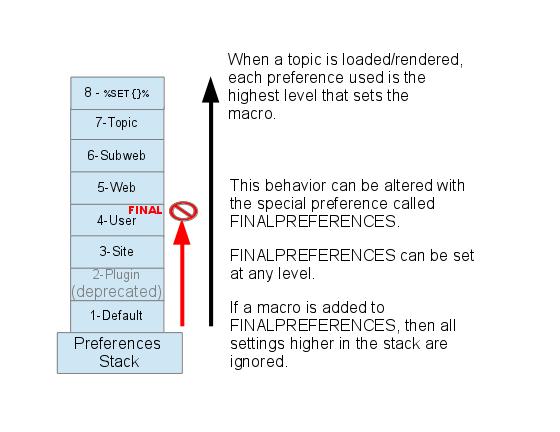


 Example for font-awesome icons:
 as icons


 icon.
icon.  txt
txt
 gif
gif
 Create New Topic link. It provides a form requesting the necessary information to create a new, nonexistent topic.


 List all Webs
 Users
Users
 Groups
 Index
Index
 Search
 Changes
 Notifications
 RSS Feed
 Preferences
 Home
Home